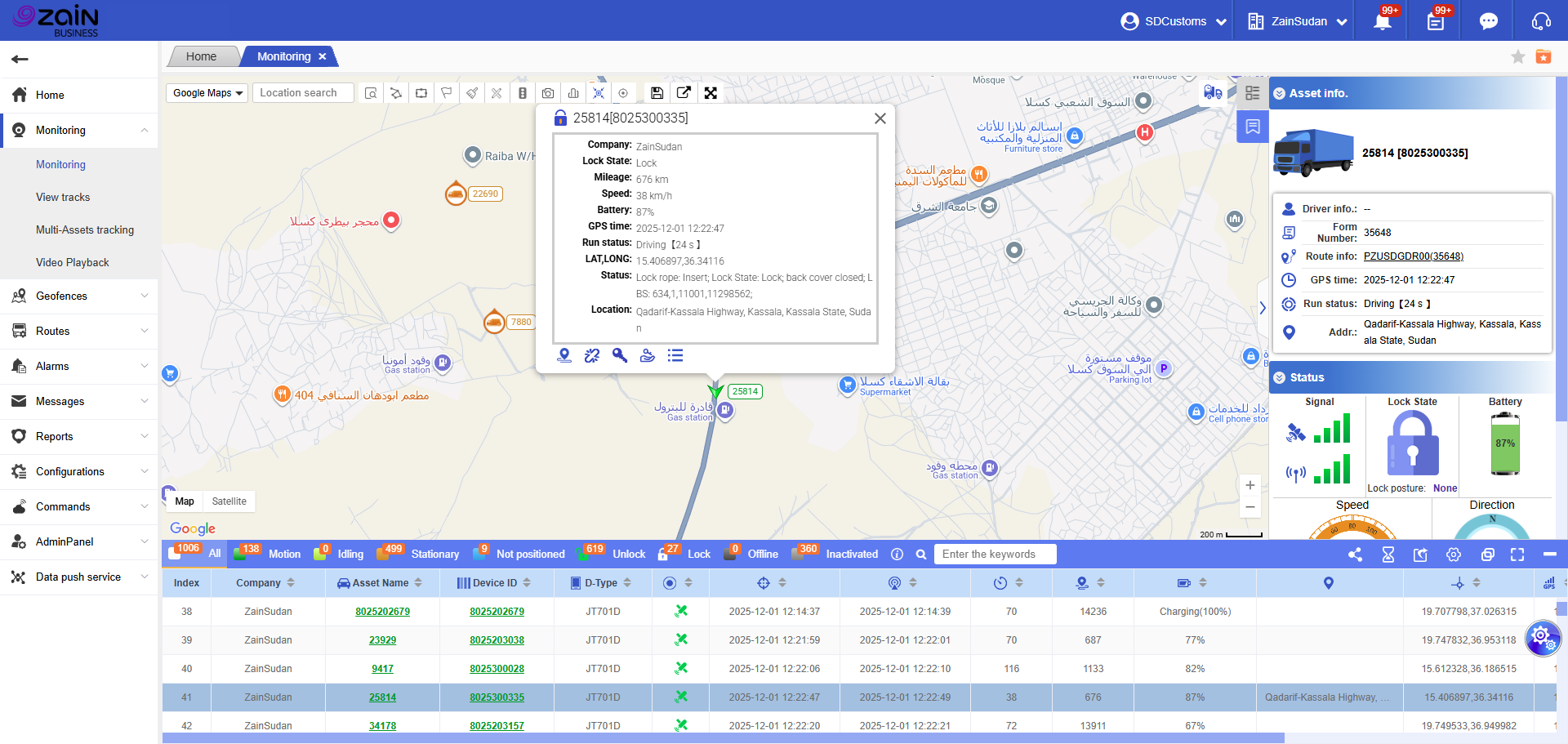
The Monitoring system interface displays the vehicle tree list on the right side, map positioning area in the center, and positioning information details table at the bottom. Through this system, you can view and manage vehicle positioning information in real-time and perform related functional operations.
Top Navigation Bar User Guide
Box Selection Search:
You can draw a selection box around vehicle icons on the map. A pop-up window will display detailed device information and support exporting the information to Excel, PDF, or Word format with the Sudan Customs logo.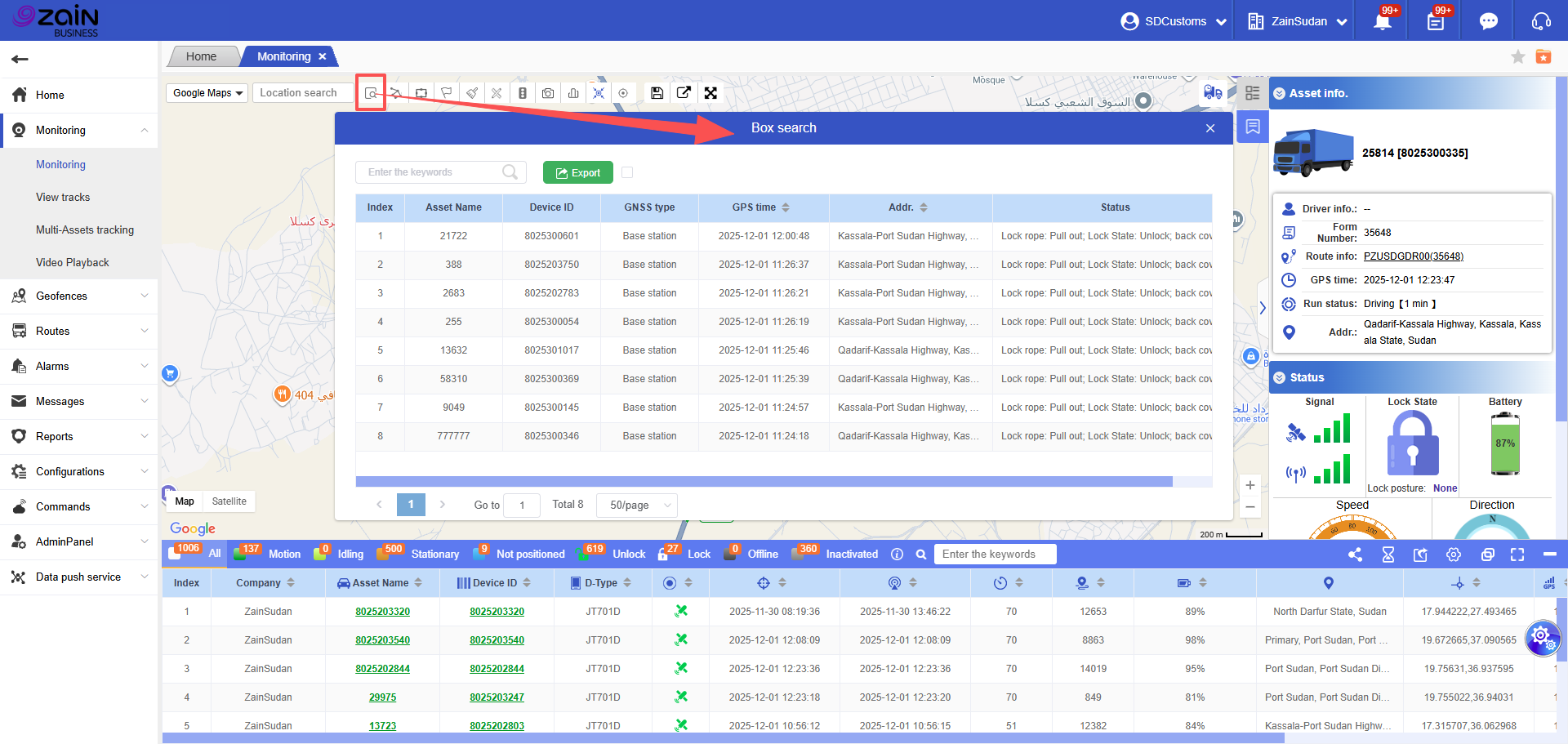
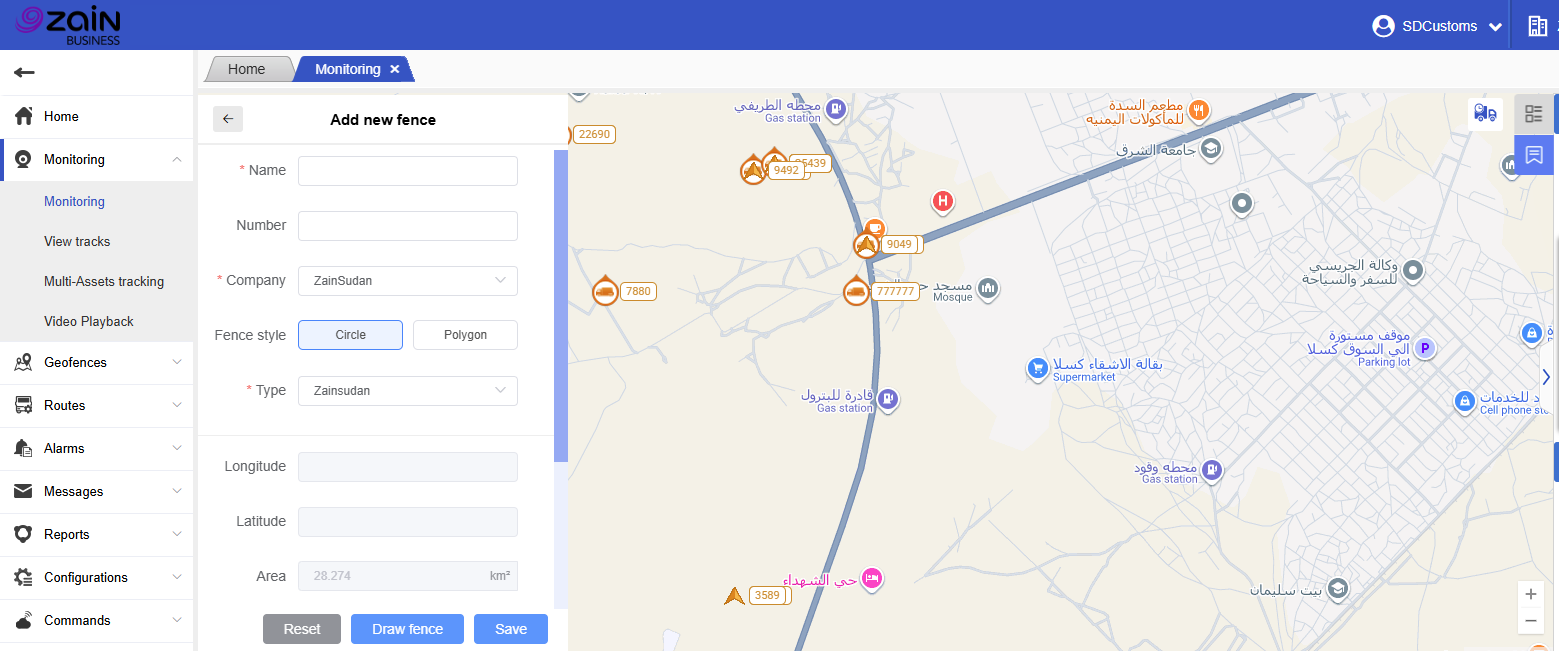
Create a Fence:
Click to enter the “create a fence” interface. Follow the on-screen prompts to configure geofence settings. After successful geofence creation, reset and redraw functions are supported.
Show Fence:
Click to select geofence. In the geofence organization tree, select the geofence information you want to query. After checking the geofence, it will be displayed in the map view.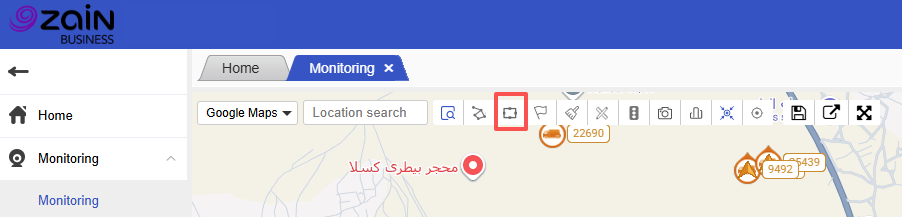
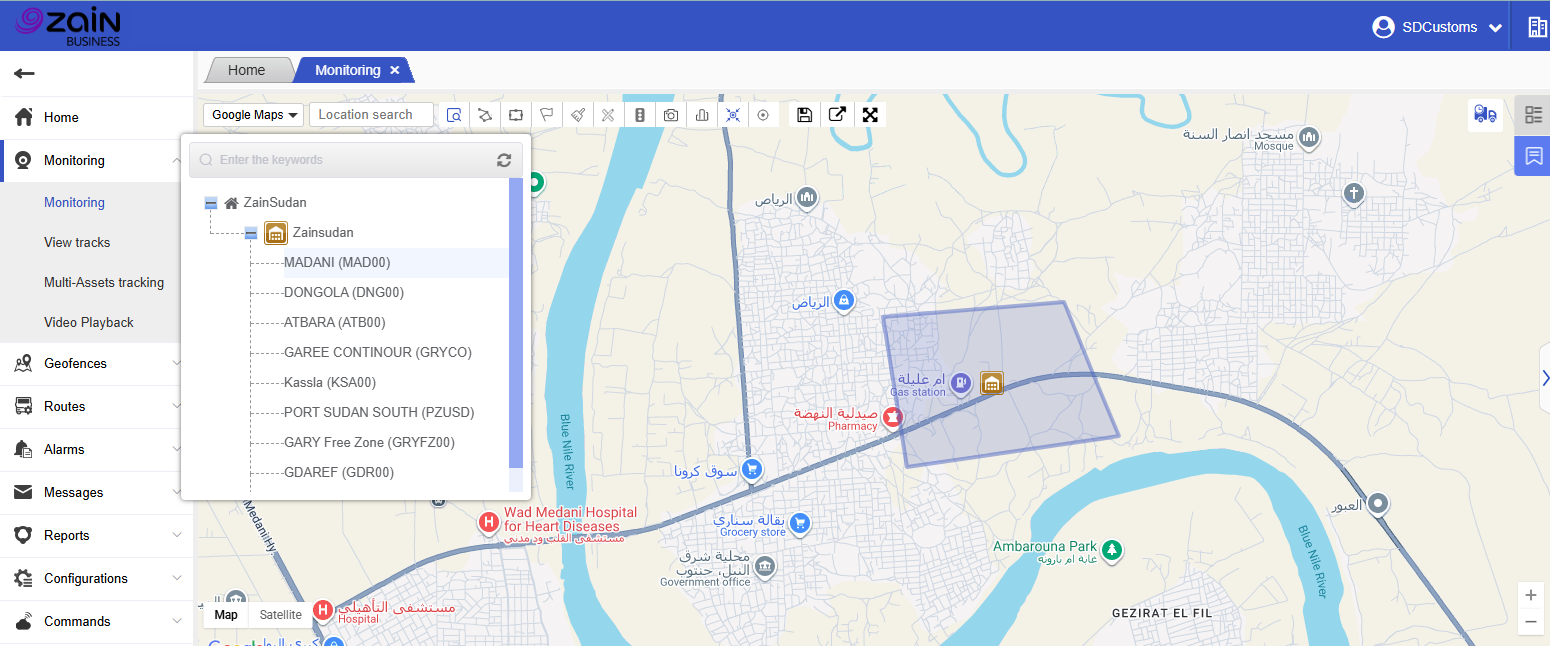
Show Hotspot:
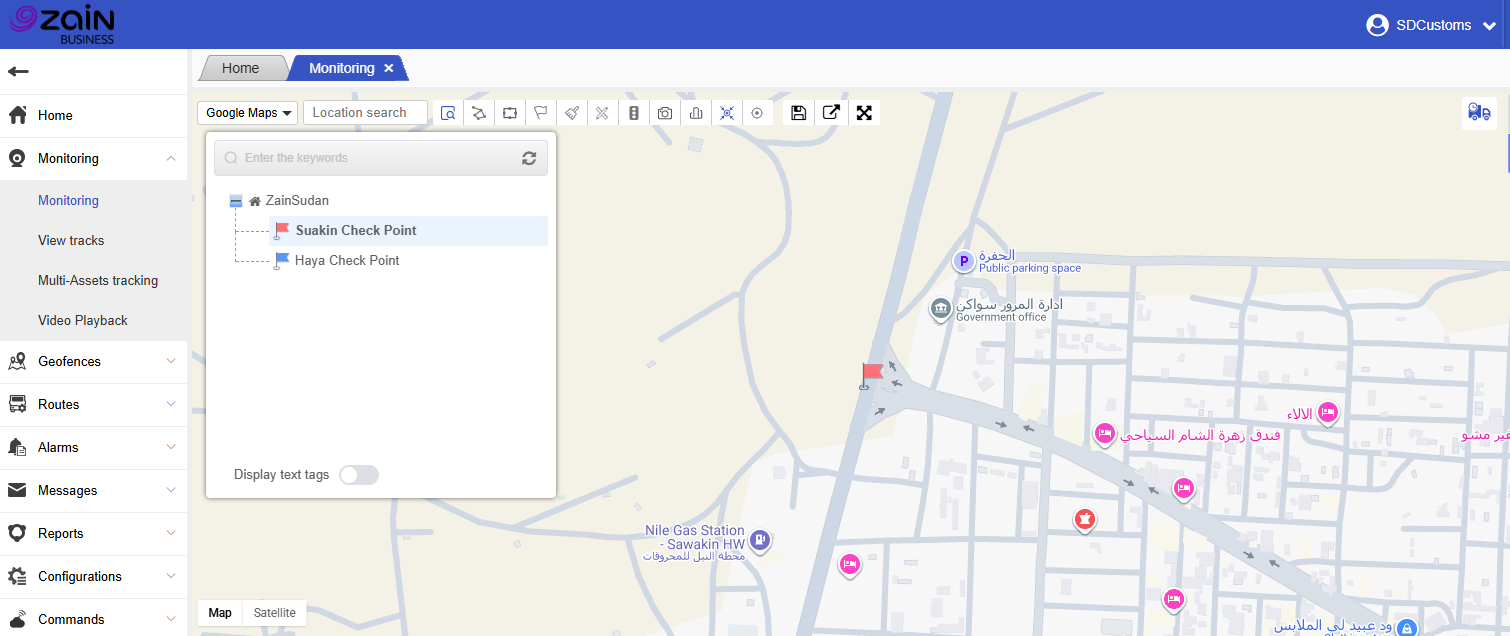
After clicking the “show hotspot” button in the toolbar above the map, select the hotspot name in the organization tree. The map will mark existing hotspot locations (as shown in the hotspots displayed in the figure).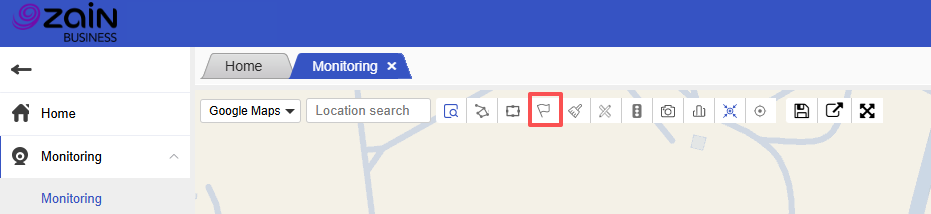
Clear All Fence/Hotspot Information:
Quickly clear all hotspot/geofence query displays on the page.
Ranging:
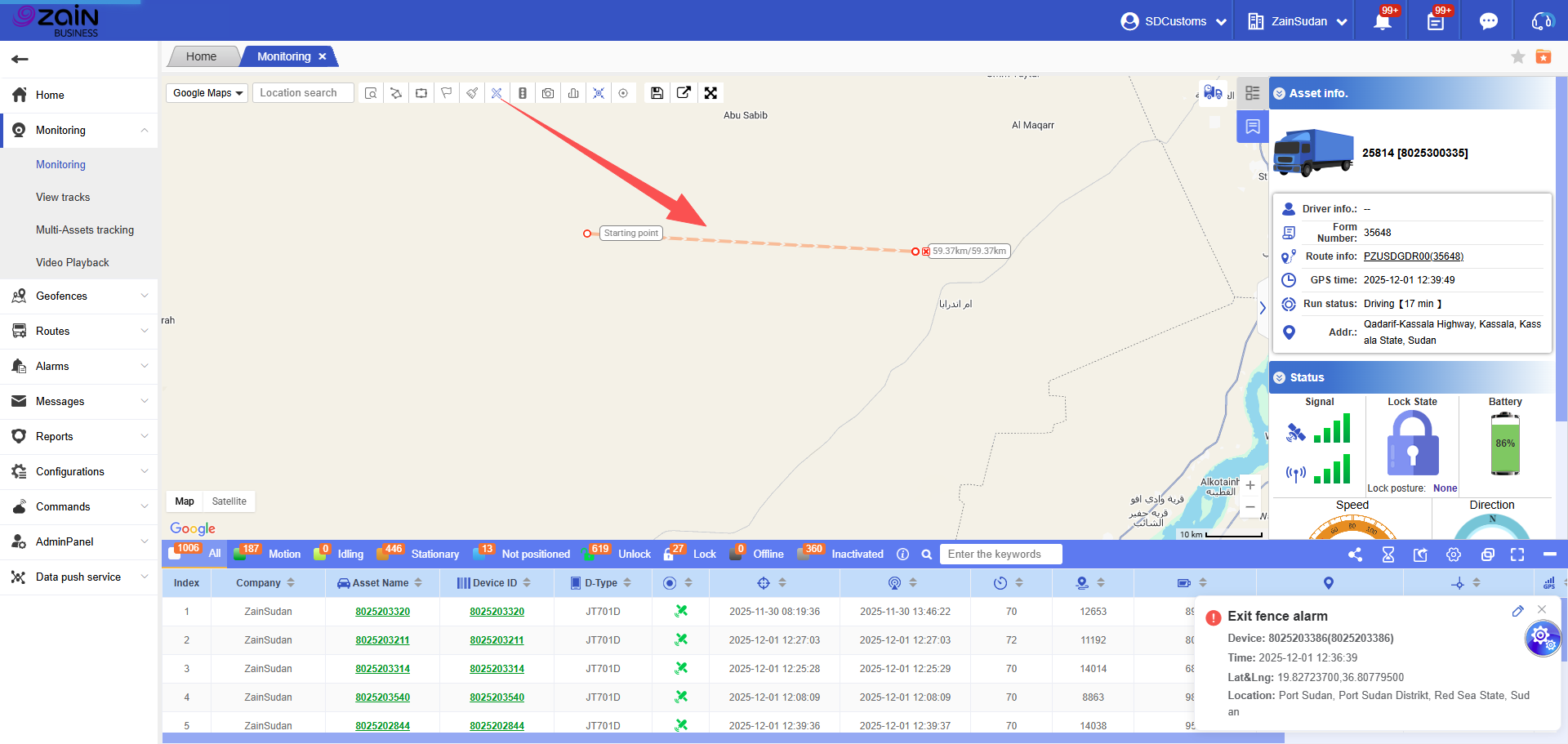
After enabling the ranging function, click on the starting position where you want to measure distance on the map to mark the “starting point.” Then click sequentially on intermediate locations or the endpoint. The map will display each segment’s distance and the total distance in real-time.
Road Condition:
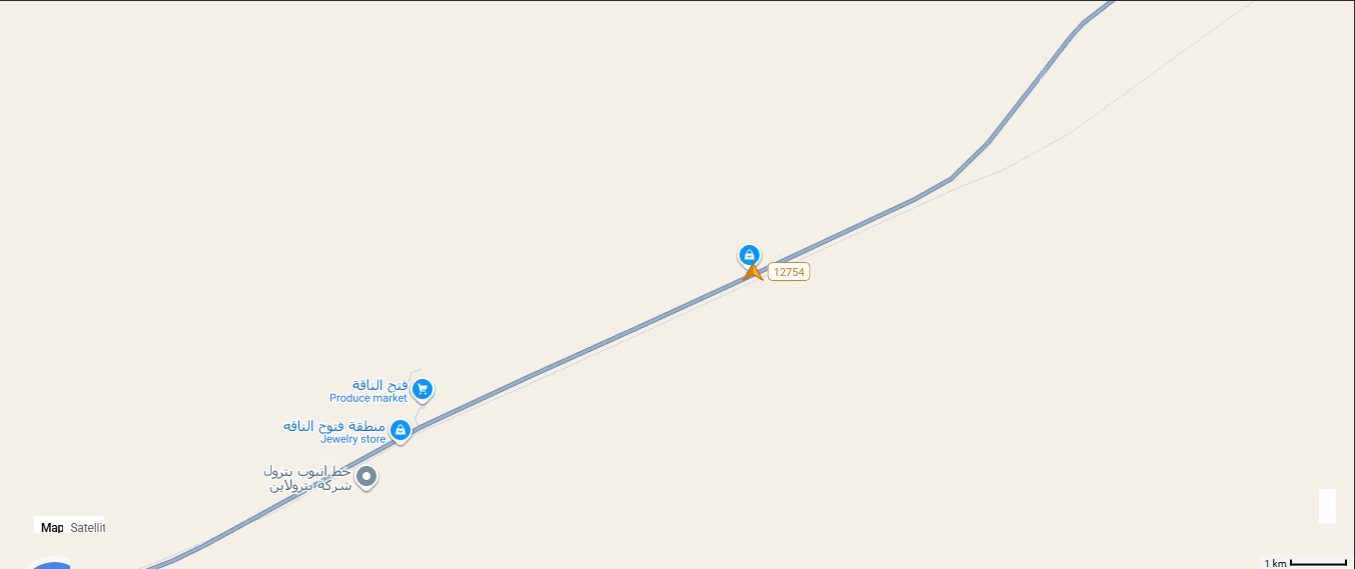
Click the icon button labeled “Road condition” in the toolbar above the map. The map will display real-time traffic information using different colors: green represents smooth traffic flow, yellow represents slow-moving vehicles, and red represents traffic congestion.
Snapshot:
Capture and save a screenshot of the current map view with one click.
Company Area:
Quickly locate whether affiliated devices are within the company area.
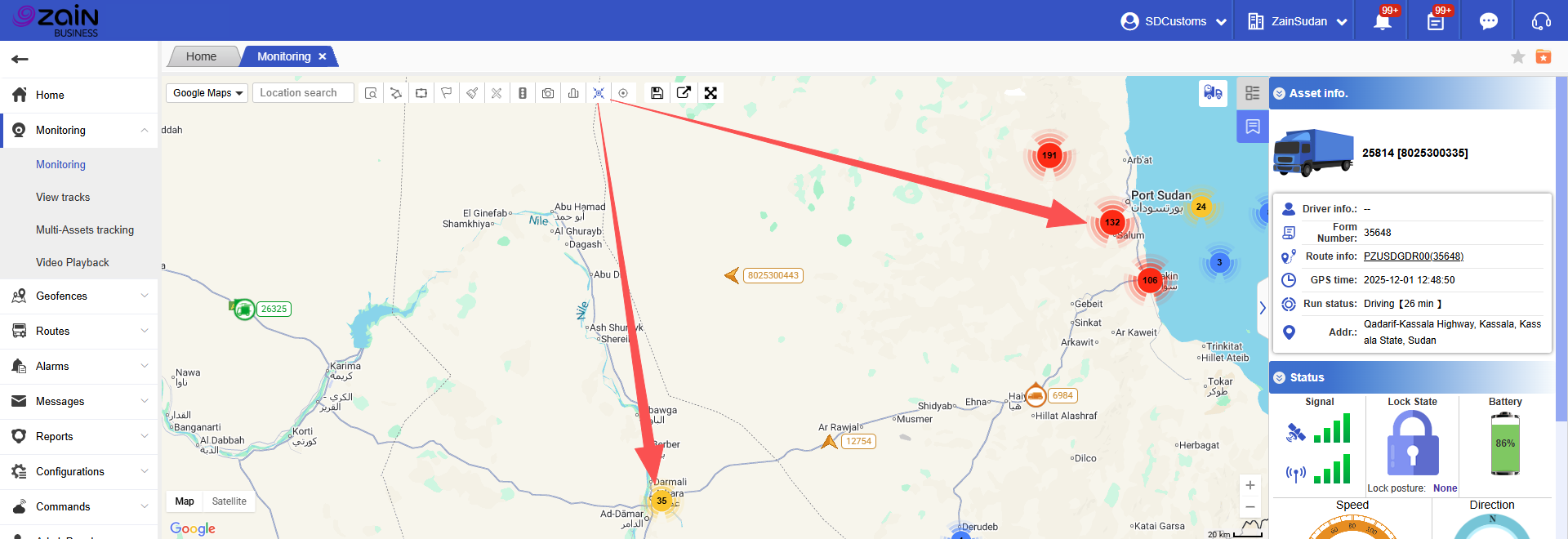
Clusterer Markers:
Quickly aggregate positioning information.
Coordinate Picking:
Right-click any location in the map view to quickly obtain latitude and longitude information.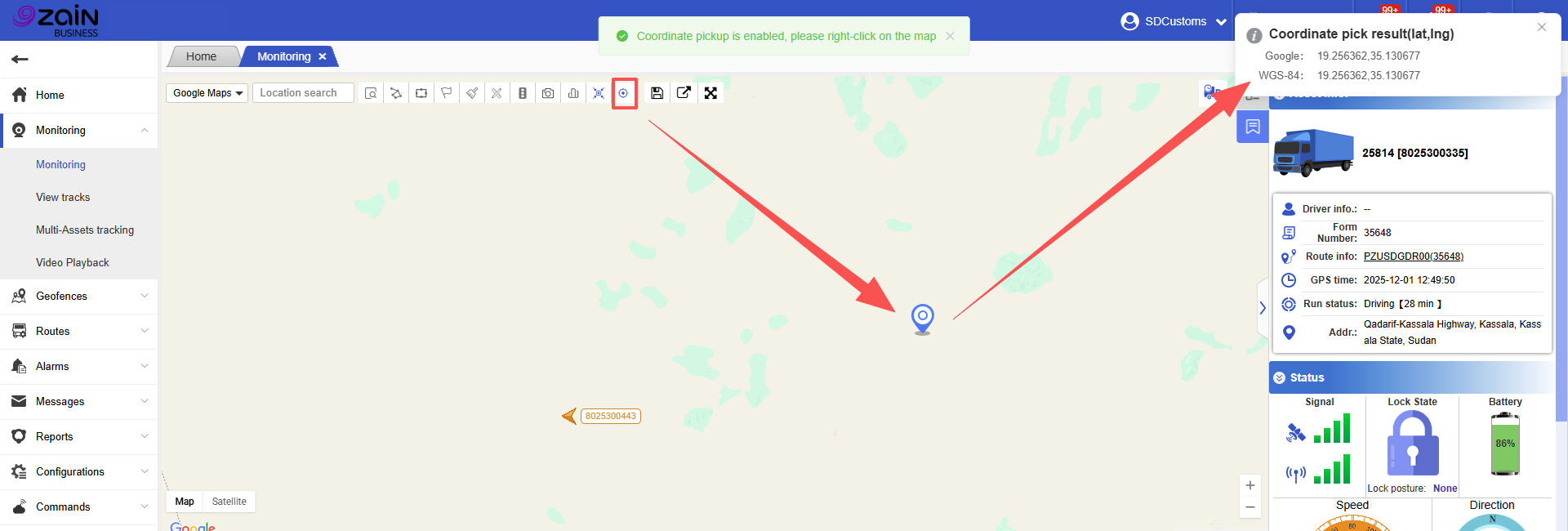
Other Functions:
The map view supports map type switching.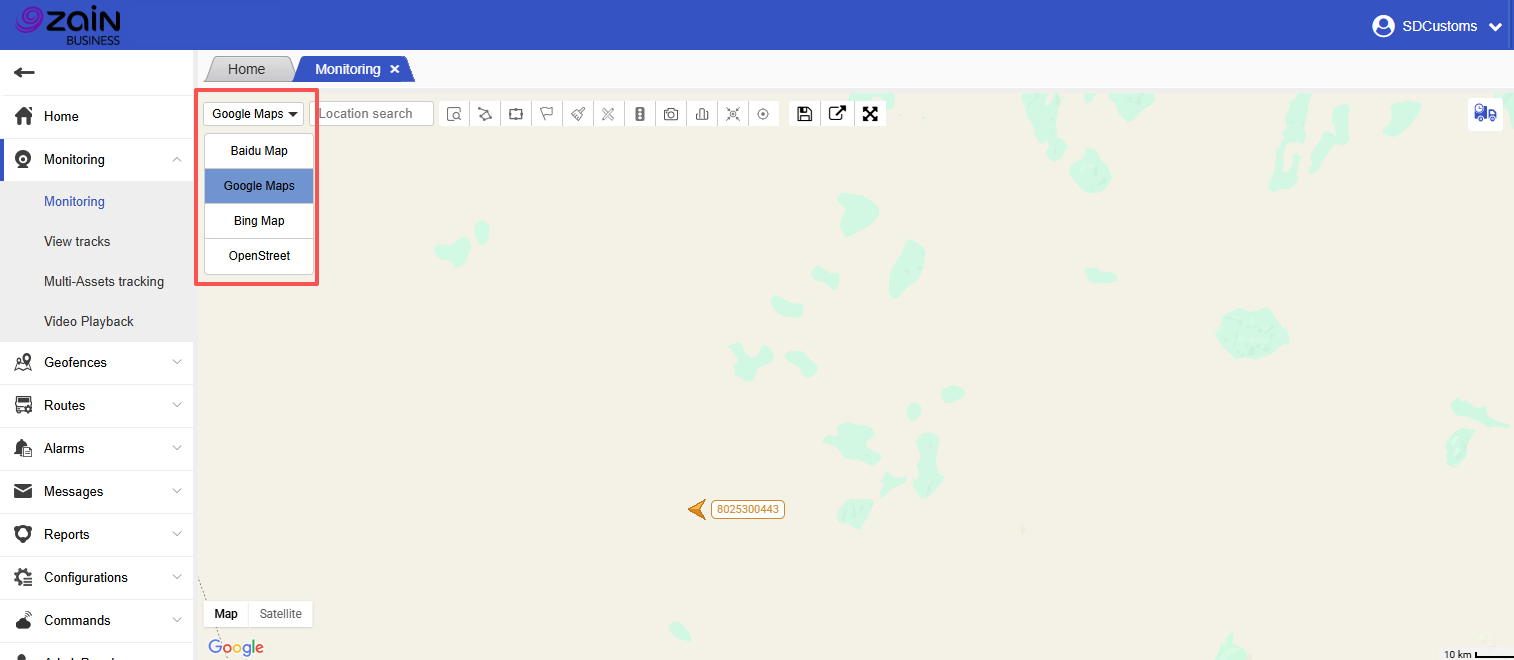
Delivery Waybill Query:
Supports quick device information query by Form Number.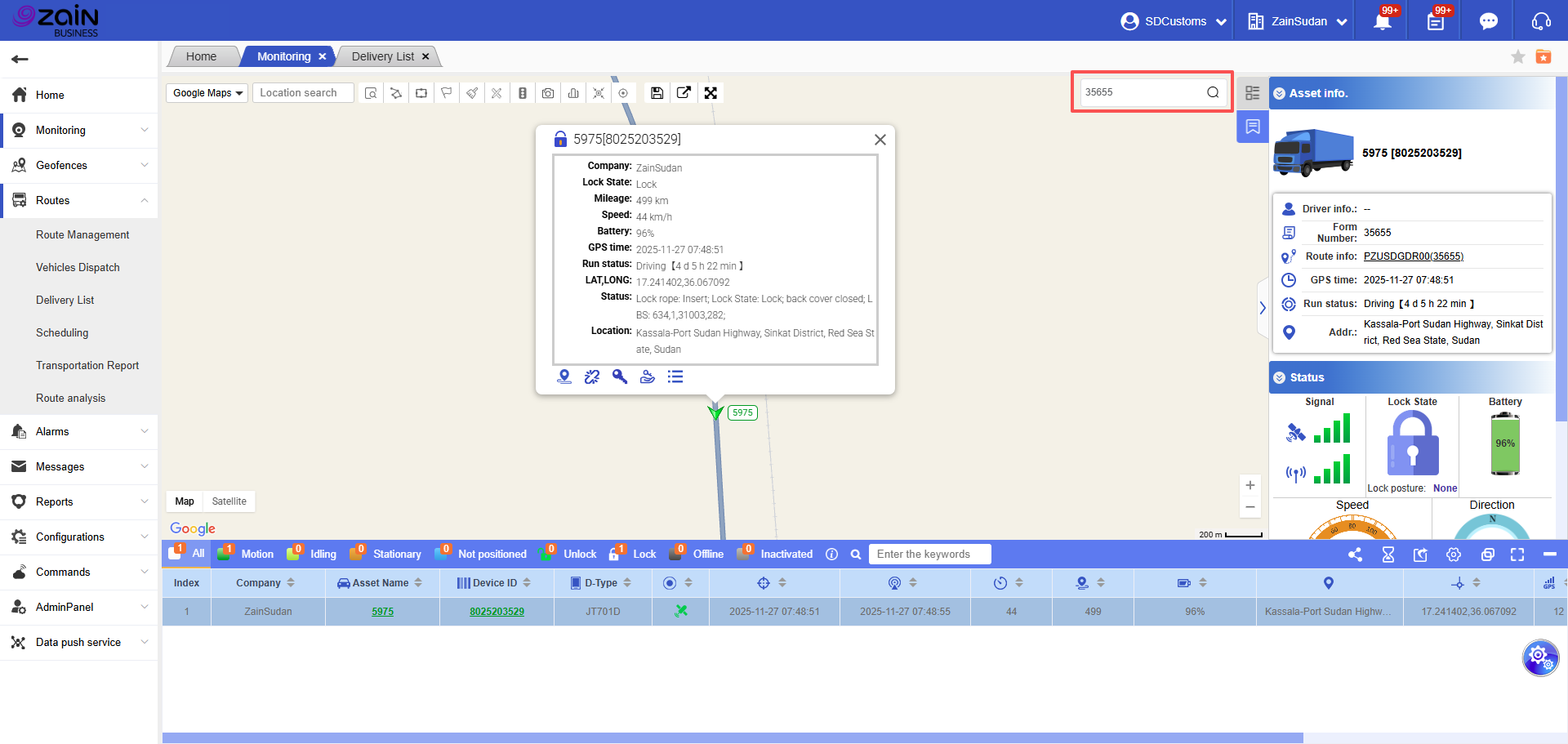
Right-Side Organization Tree User Guide
The vehicle tree on the right side displays all companies, groups (fleets), and individual vehicle information manageable under the current account. Selecting a company, group, or vehicle will display its positioning information on the map in real-time. The bottom of the pop-up window includes operational functions in the following order: (Track Playback, Device Replacement, Remote Unlock, Unlock Authorization, Remote Commands).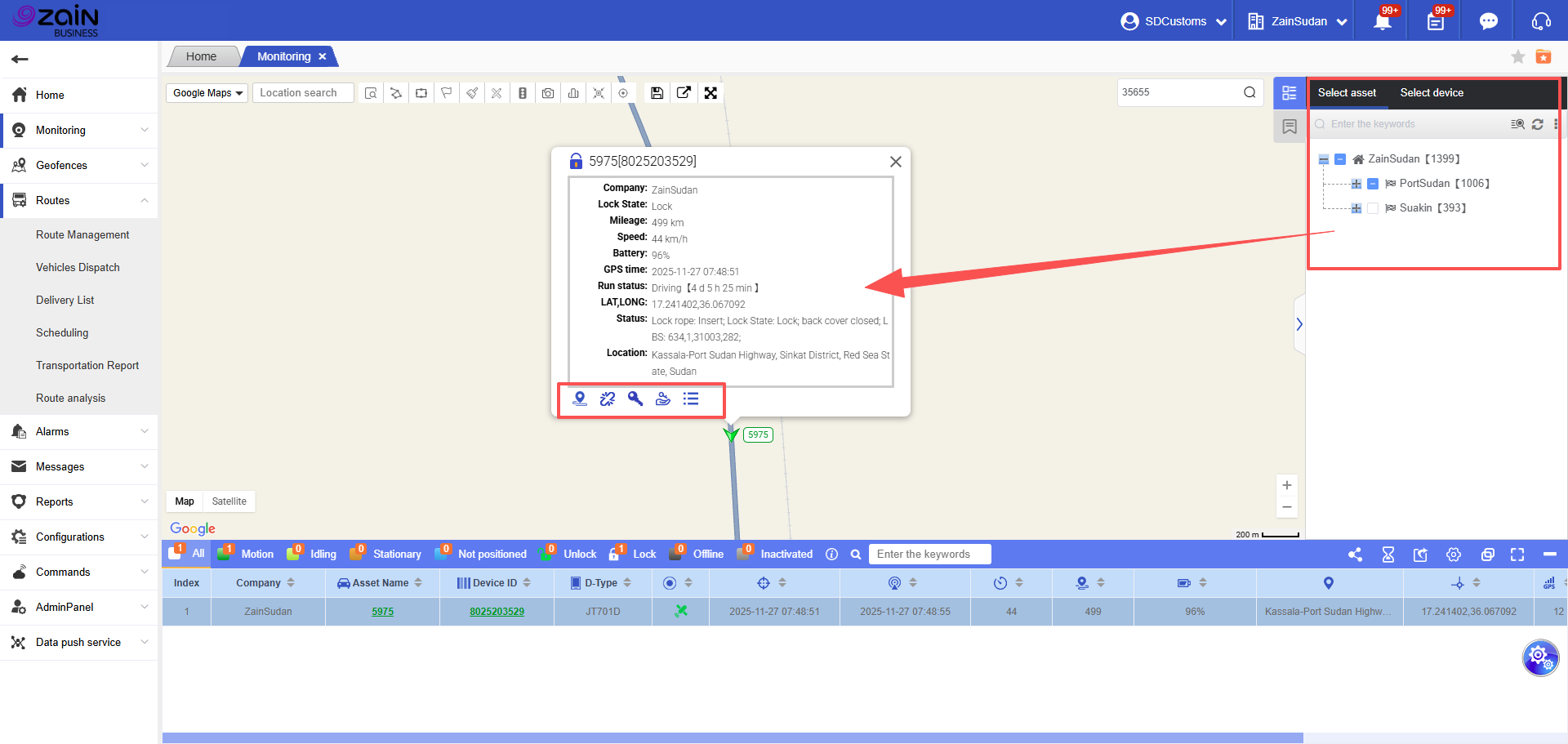
Bottom Data Bar Display:
After selecting single or multiple containers (devices) on the right side, they will be simultaneously displayed in the bottom data bar, showing detailed information including company, container, device, device type, positioning status, and other data.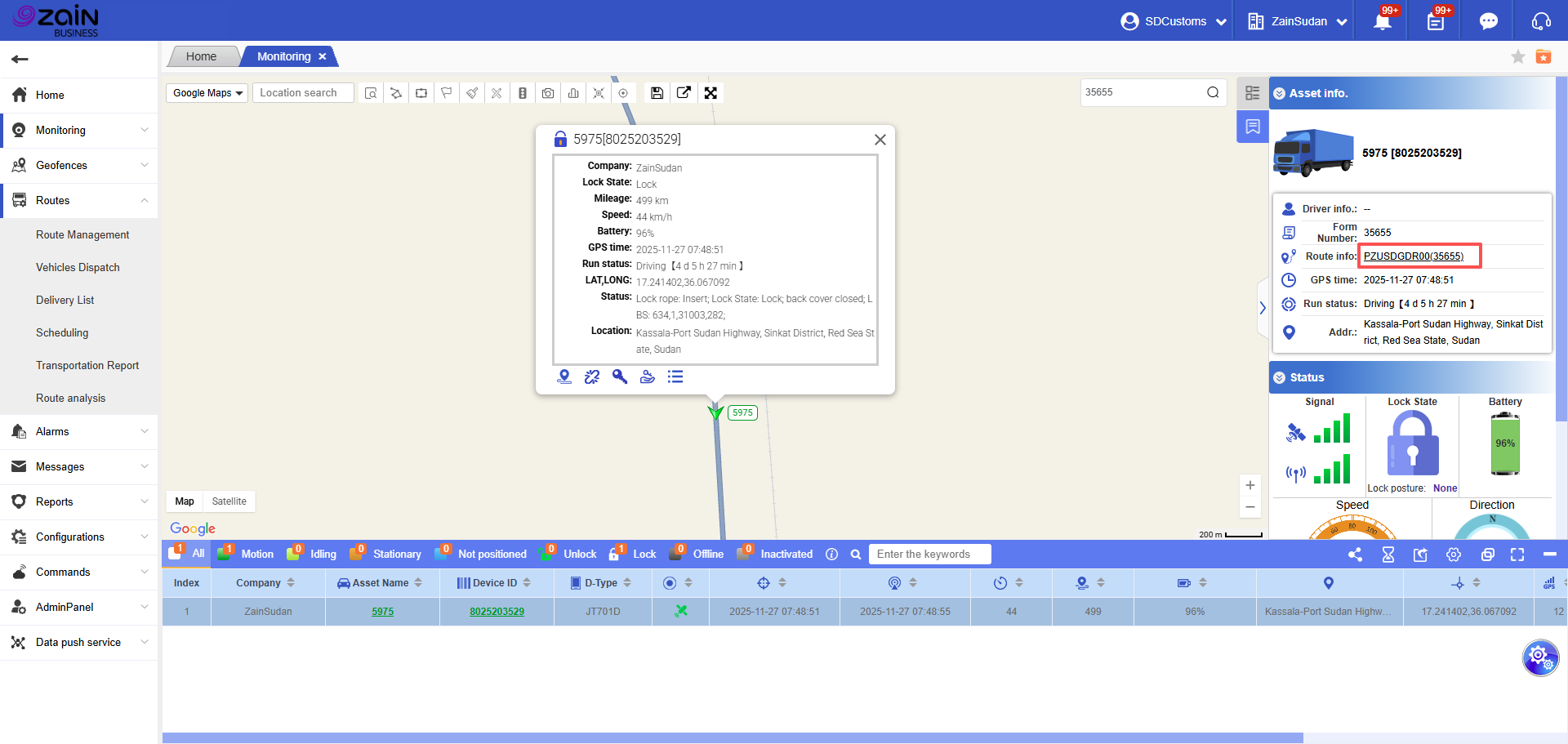
In the Zain customized version, users can define the current transport order in Routes – Vehicles Dispatch. After the vehicle departs, they can quickly view the vehicle’s transport information in the Route Info pop-up on the same page.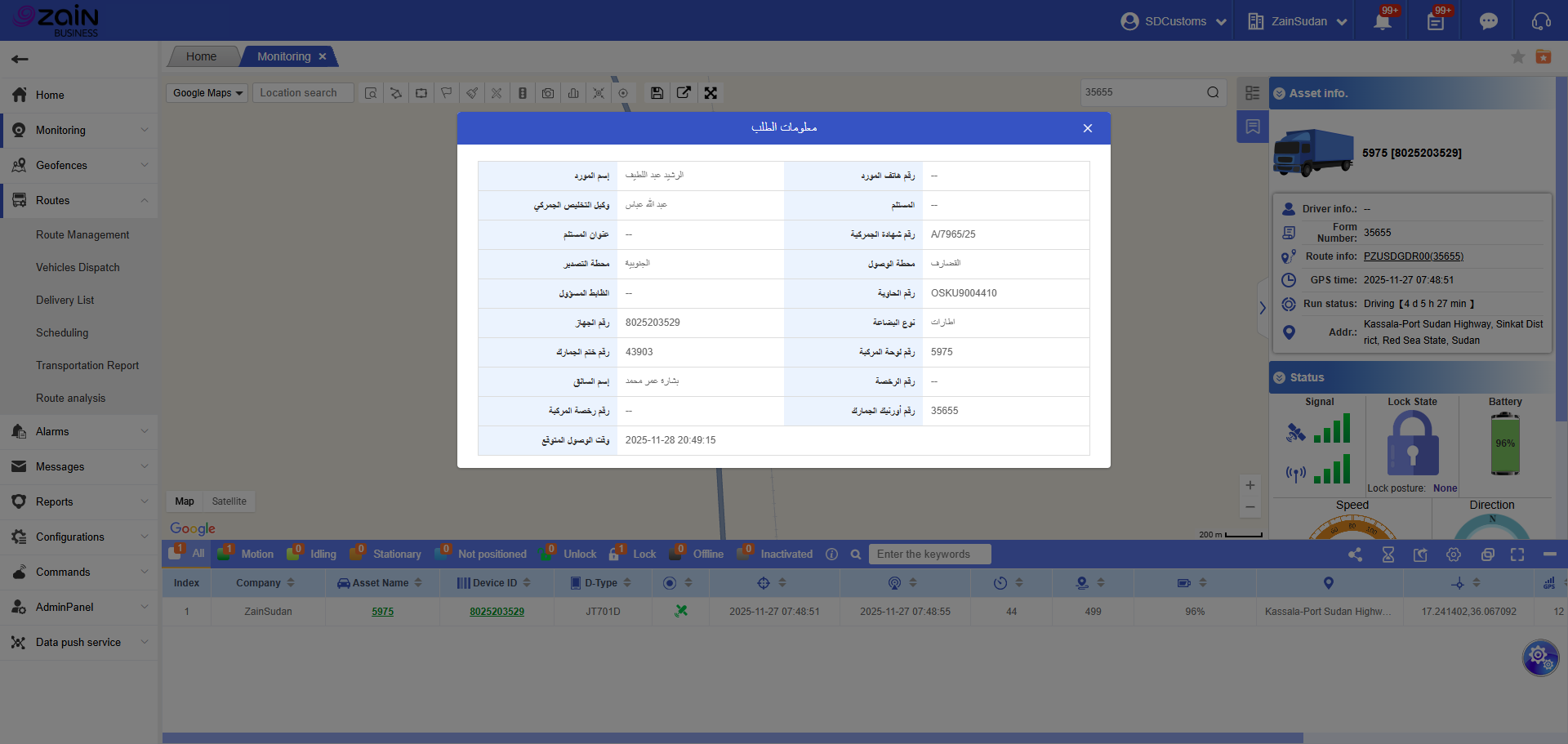
Asset Sharing:
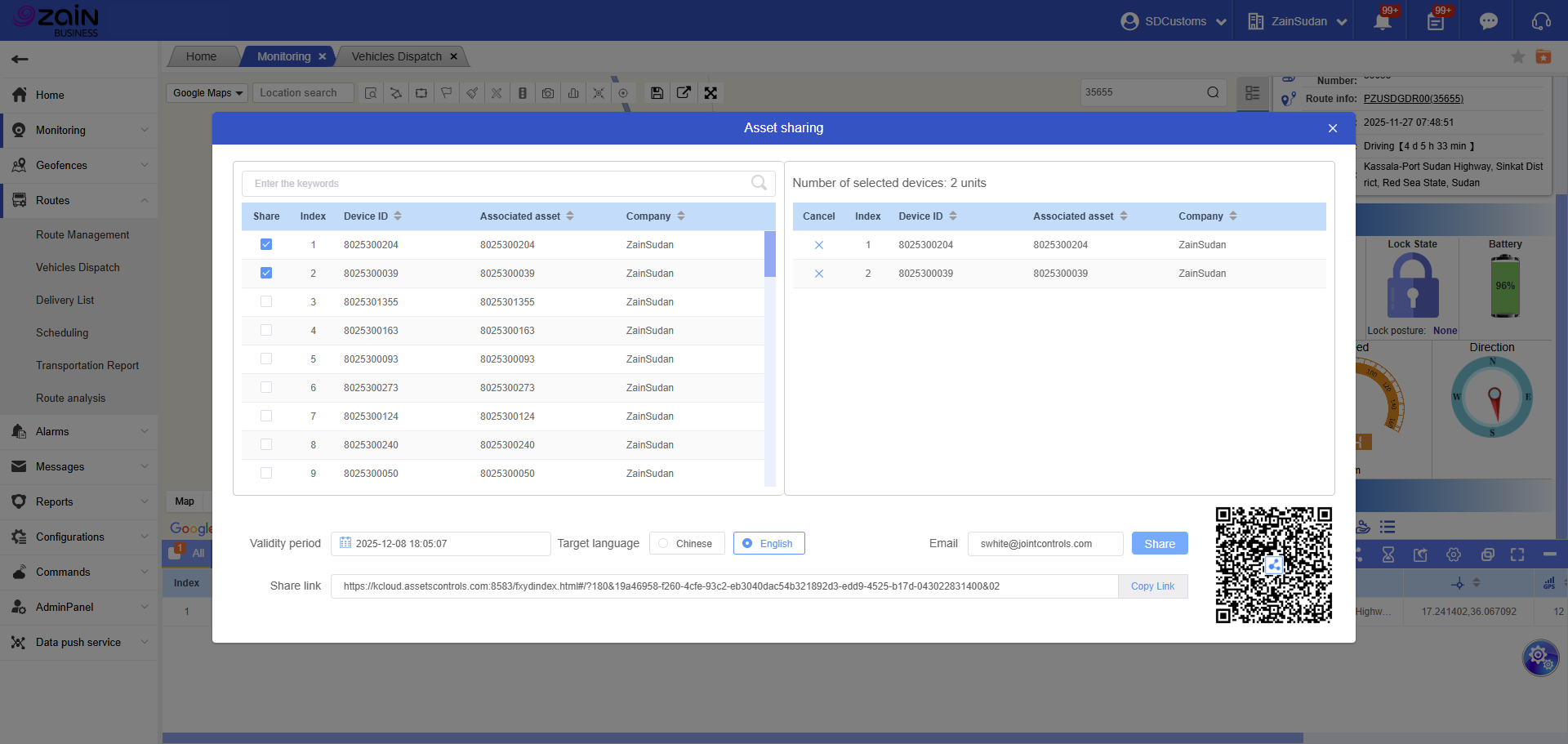
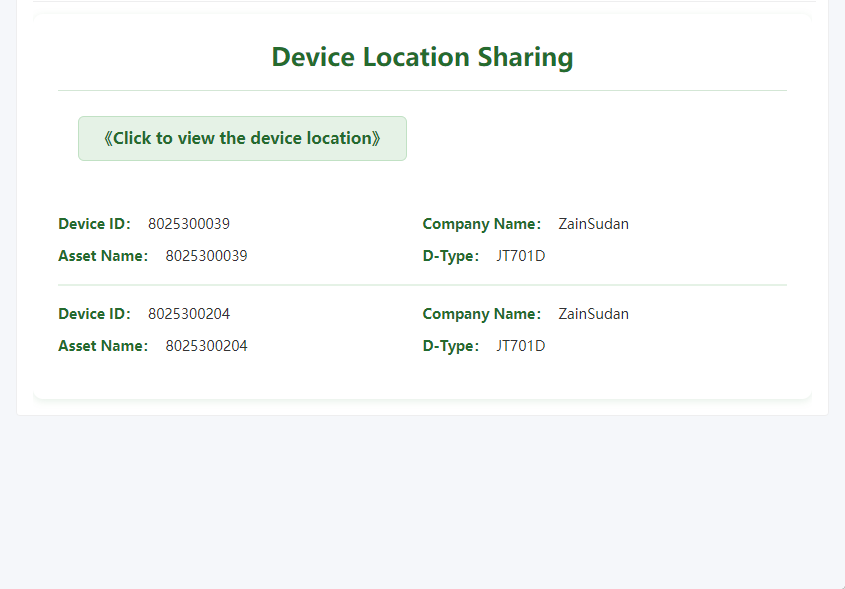
Click asset sharing in the bottom data bar to select single or multiple devices. Supports sharing device data information with relevant personnel via email, or link.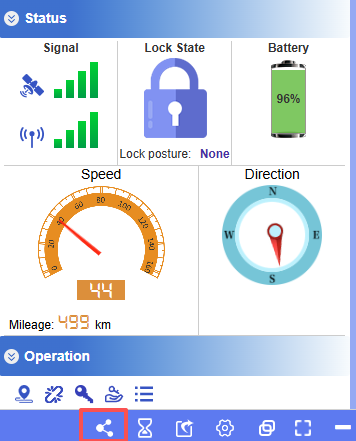
Refresh Frequency:
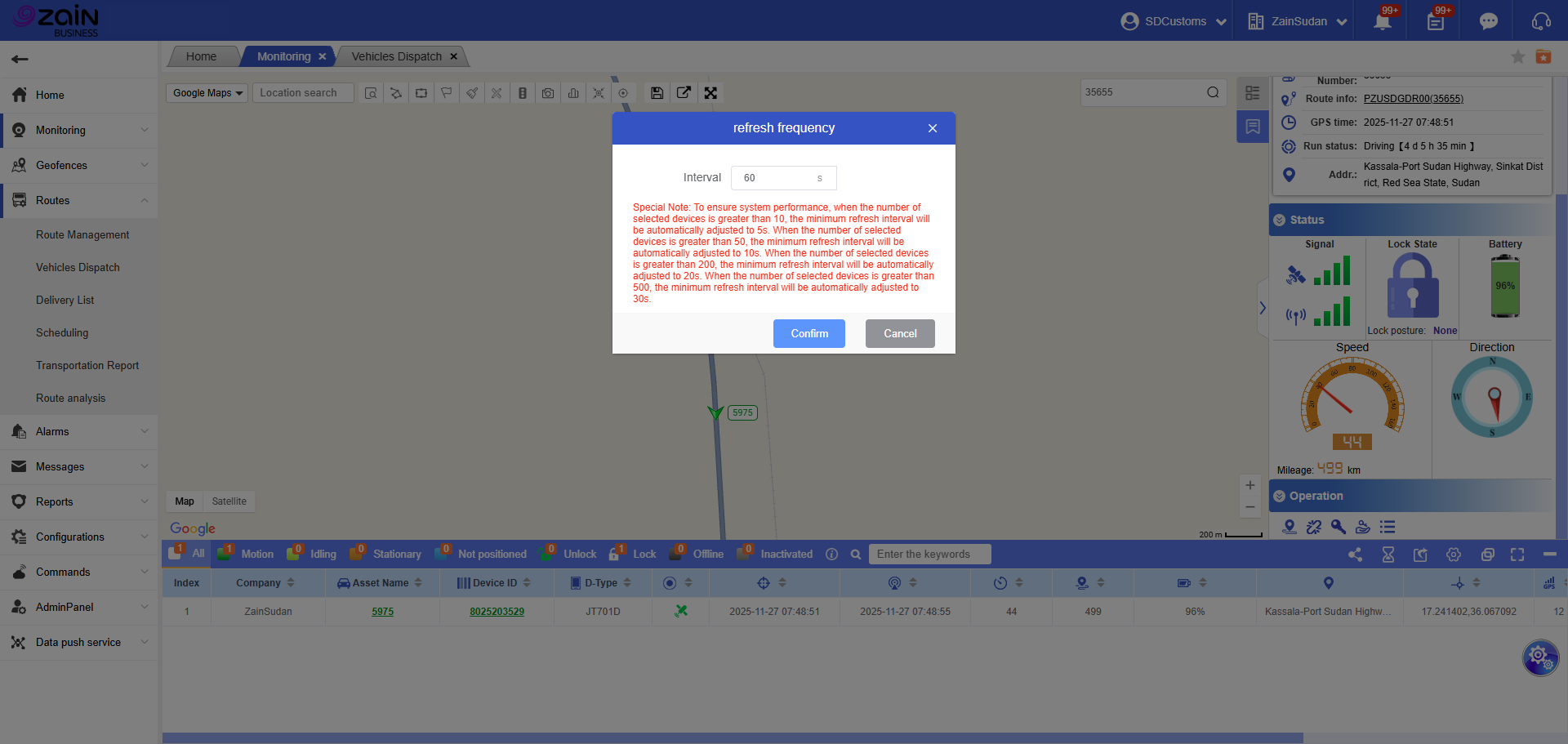
Supports modification of page refresh frequency.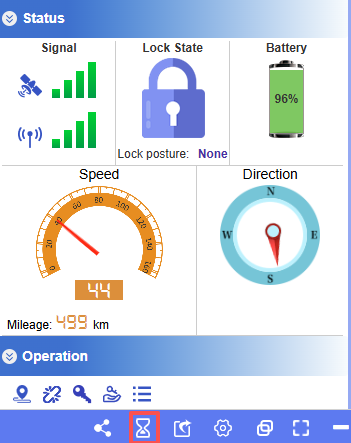
Export:
Bottom data bar supports data export.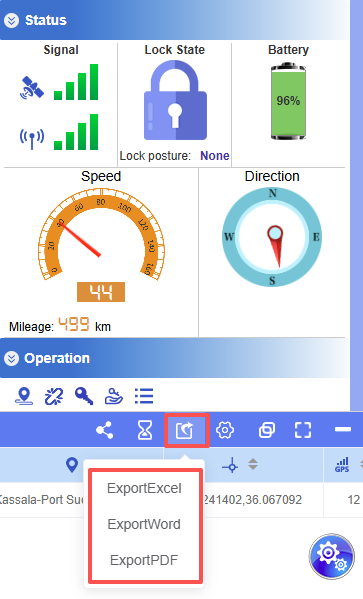
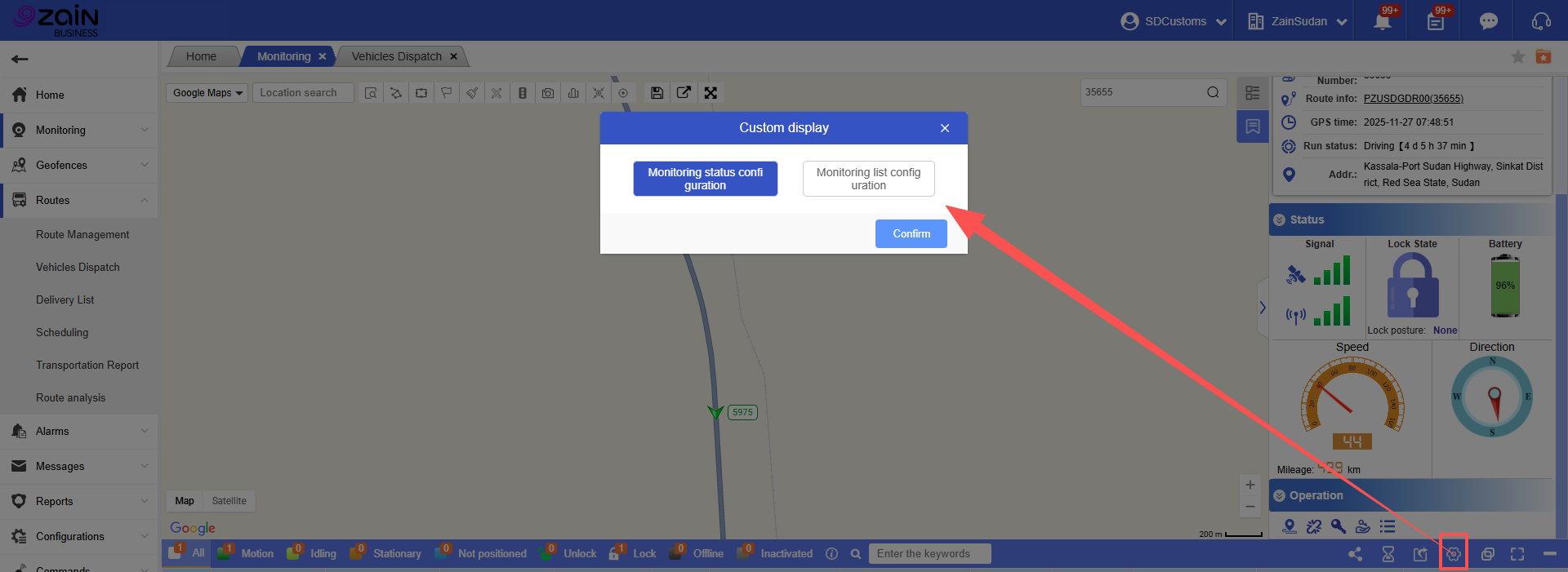
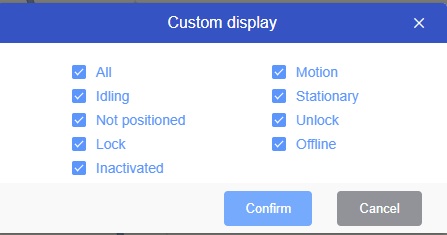
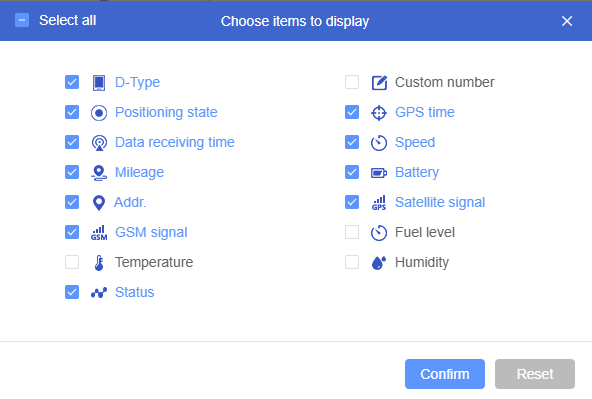
Custom Display:
Monitoring page field display supports custom configuration.