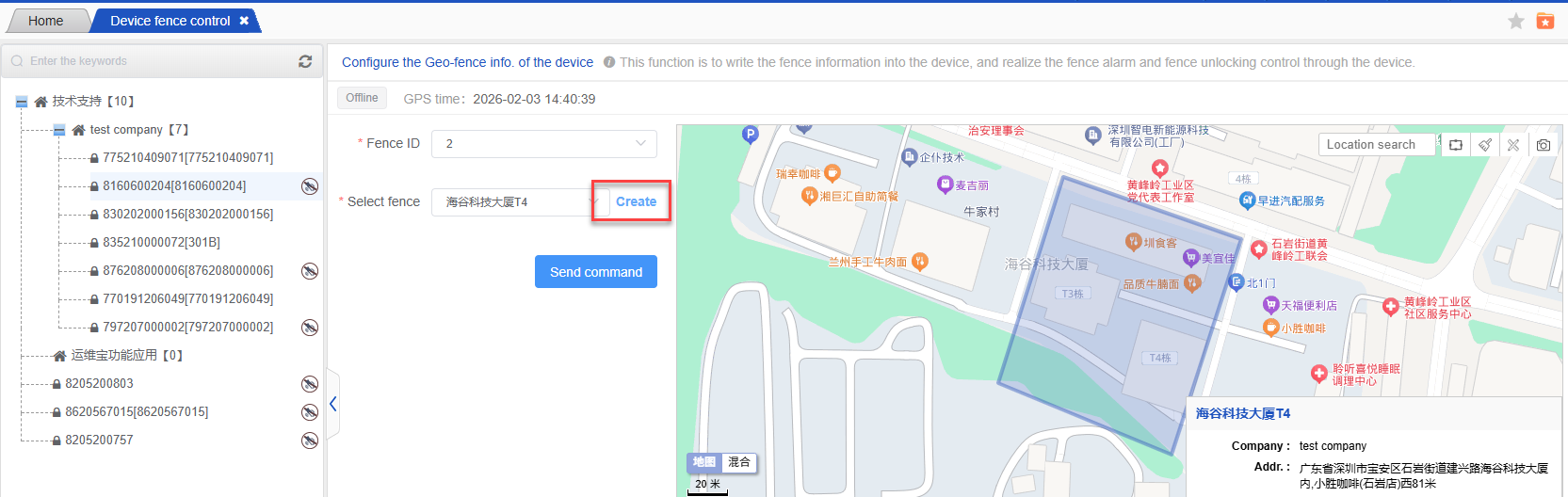
The device geofence configuration is used to configure the unlocking area of the device(The fences here only support the creation and querying of polygonal fences.), including three configurations:
Configuration of the geofence:
Select the device and the fence information to be bound, click the ‘Send command’ button, and interact with the device. Therefore, the device needs to be operated when the device is online. After the instruction is successfully sent, the fence information is written into the device;
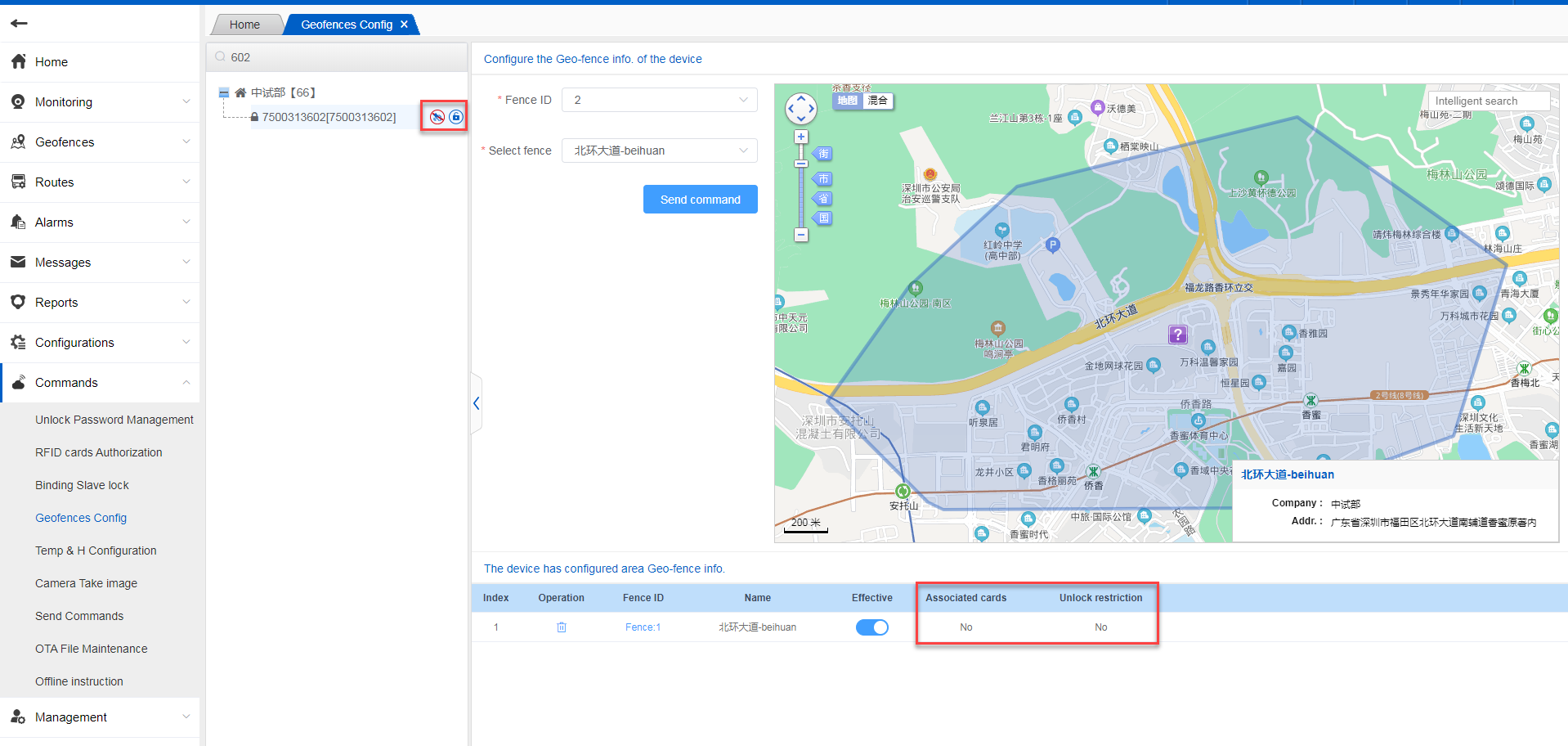
The successfully operated fence will be displayed below. There are two parameters that need to be paid attention to, whether to associate an RFID card and whether to open the fence unlocking restriction;
The operation method of these two parameters is explained below;
Associate RFID card:
There are two icons on the right side of the device, the default is not to associate the RFID card and not to open the function of prohibiting unlocking outside the fence;
Not associated with RFID card:After the fence is configured successfully, you can swipe your card to unlock the lock without being restricted in the designated fence;
Associate RFID card:After the fence is configured successfully, you cannot swipe your card to unlock the lock if you are not inside the designated fence, which is restricted by the fence;
No unlocking outside the fence(dynamic password unlocking control):
All unlocking methods other than RFID card-swiping unlocking are not affected by this parameter. Whether it is enabled or not, it has no impact.
In the platform, only when the “Outside of Fence Prohibition of Unlocking” option is enabled in the GIS service - Fence Management, will it be restricted that unlocking is only allowed within the designated fence.
Both the opening and closing of the above two parameters need to interact with the device, so it is recommended to operate when the device is online.
This switch is used to control the dynamic password-unlocking in the fence. At present, the platform uses a static password to unlock. Therefore, it is not used for the time being. If you need to control the unlocking function of the platform WEB and JointCloud2.0 APP, please go to the Geofences–>GeoFence Management to configure the unlocking function in the fence. This function is controlled by the platform, not the device itself.
Create a fence:
The function of selecting the fence area has been added, and you can click to create a new fence.