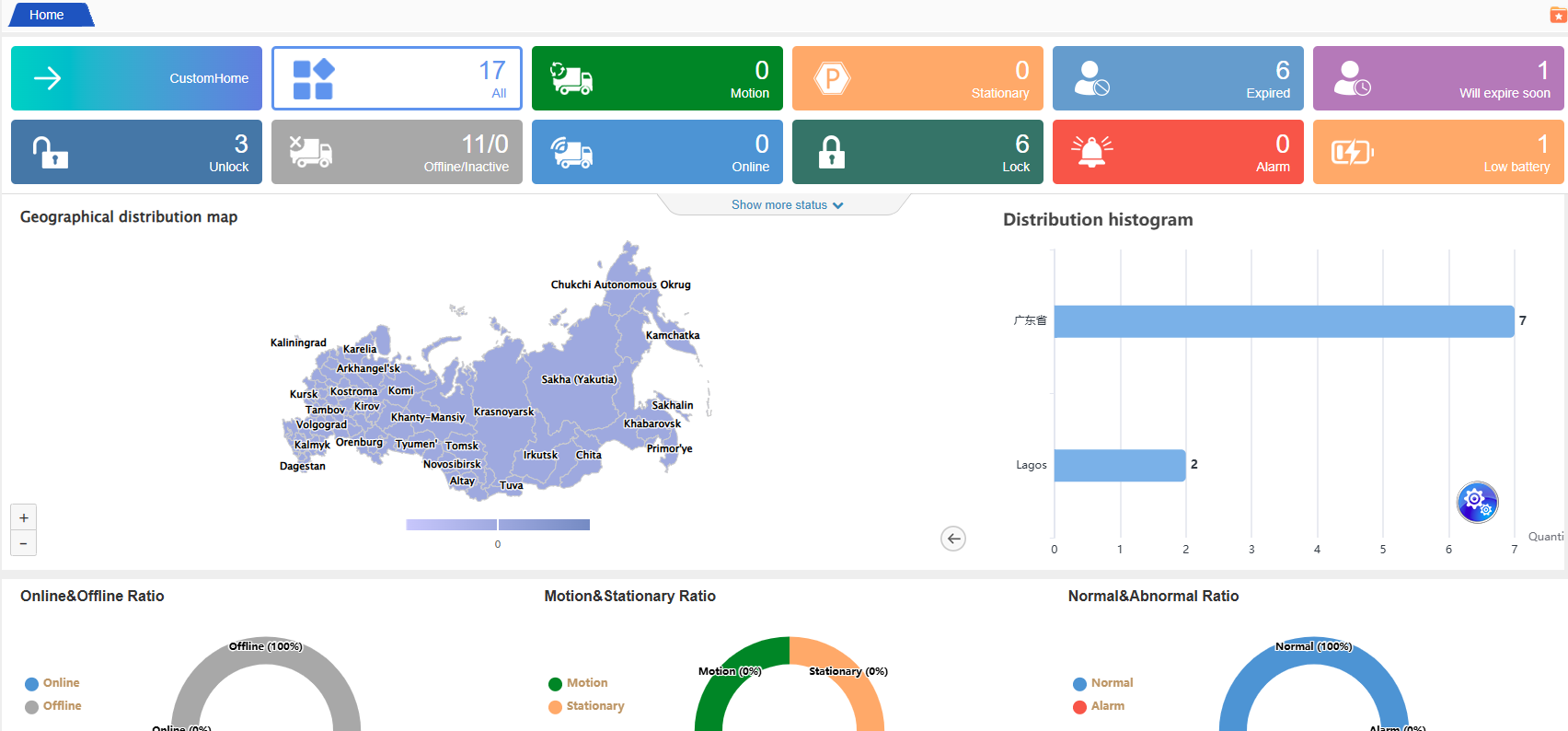
Home page overall effect display:
The home page of the system adopts a classic three-column layout (top, left, right), balancing operational efficiency and information display. The left side features a collapsible menu bar, the top is the navigation control area, and the right side is the core information display area. After your first login, you can quickly familiarize yourself with the system operations through the following functions:
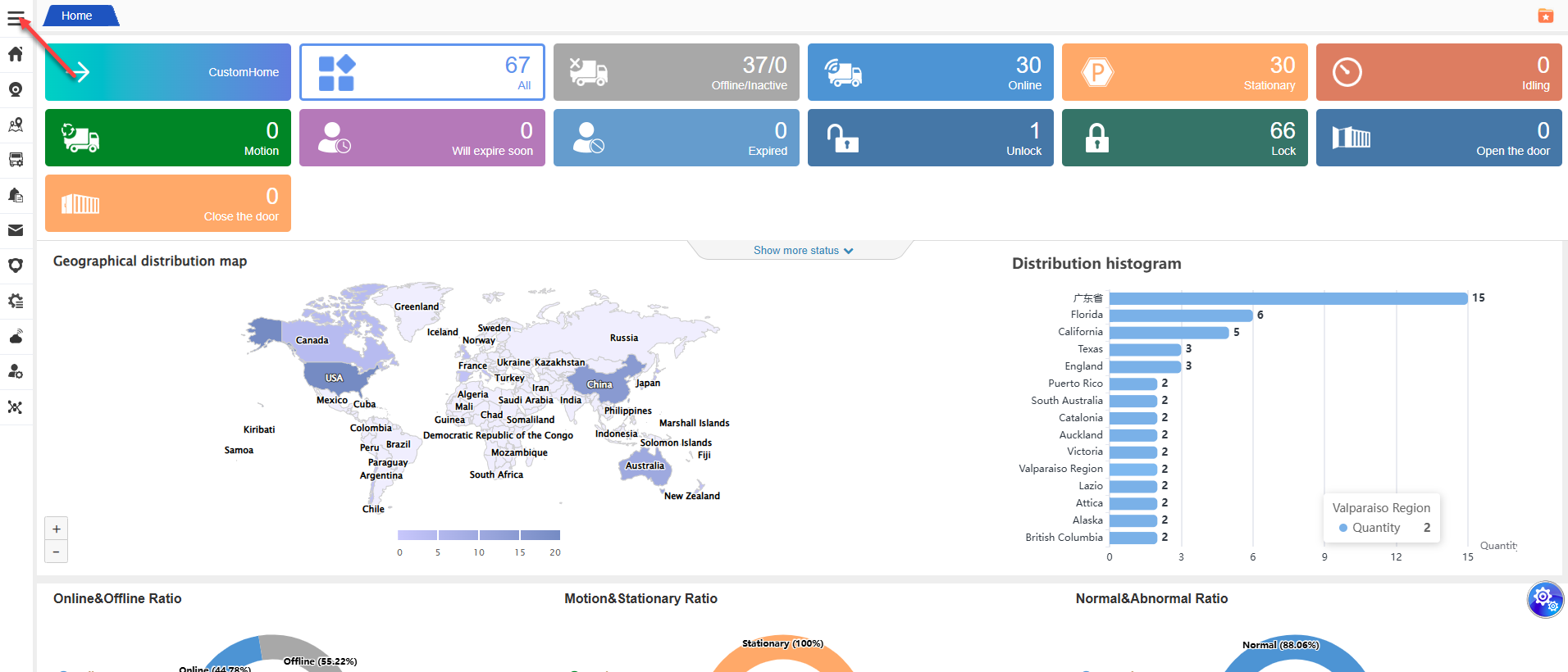
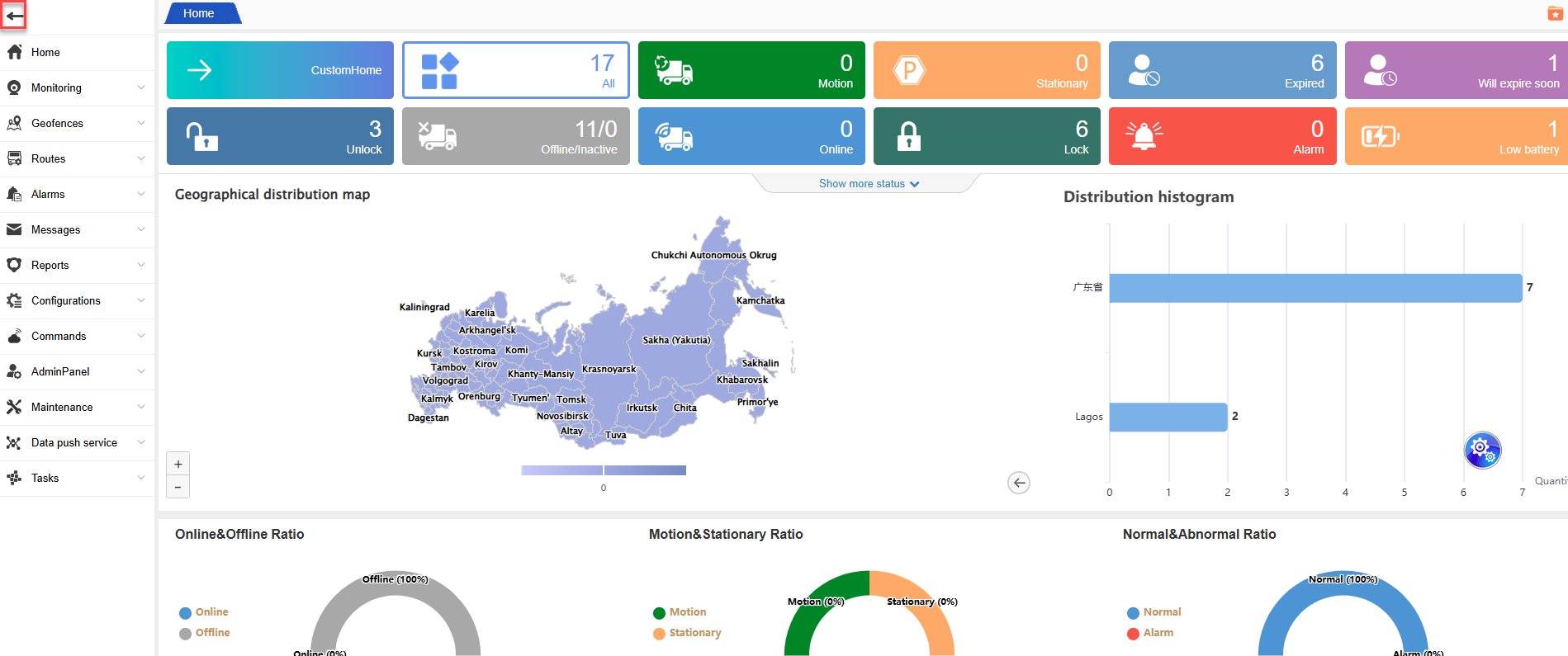
The menu bar on the left can be contracted and expanded, click the icon to the left to contract, and after contracting, click the icon in the box to expand;
Top navigation bar:
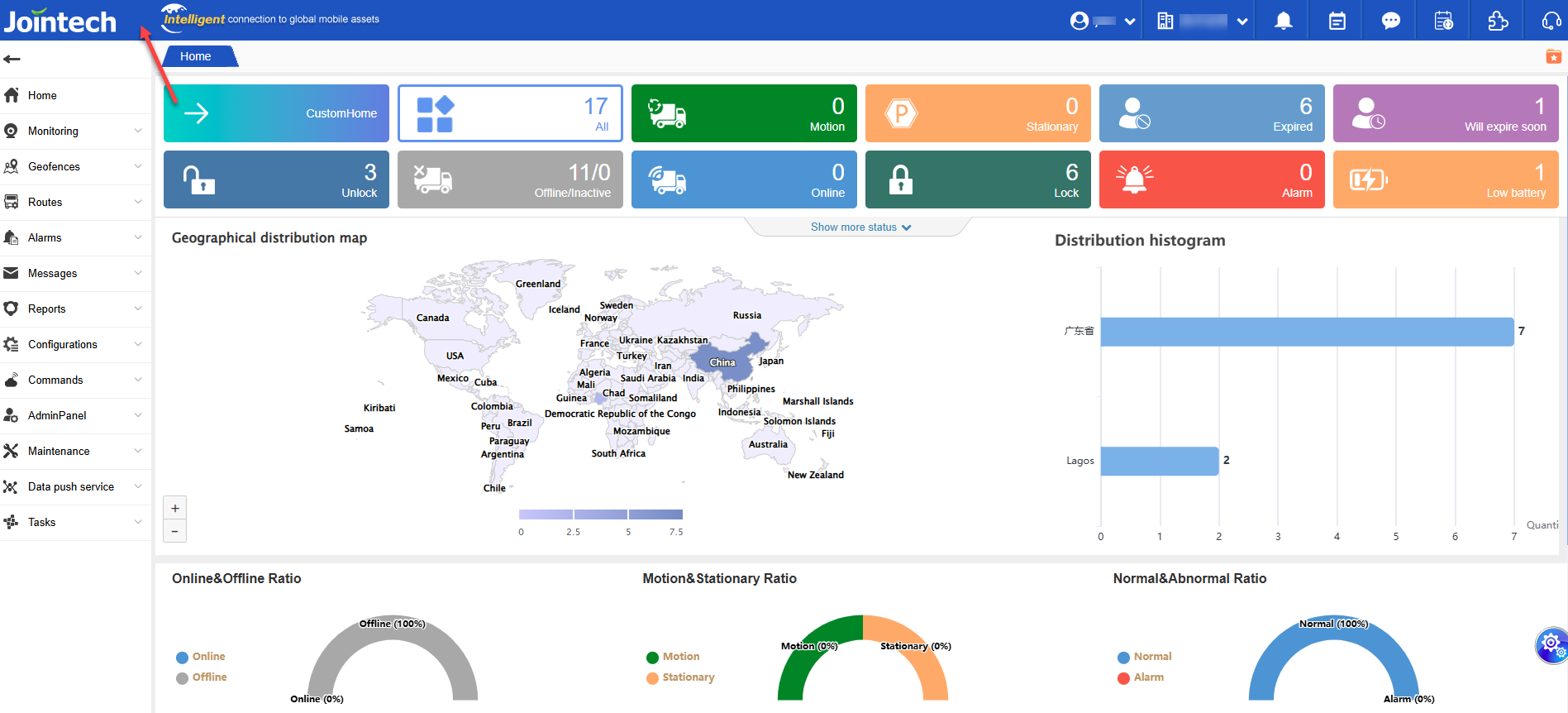
1.Left area: Displays the system logo and slogan, enhancing brand recognition and allowing for customization of the enterprise logo and slogan.
2.Right side area:
Account Management: Click on “Current Login Account Name” to perform operations such as language switching, password modification, the binding and unbinding operations of the TOTP authentication and system logout.
Company Information: Displays the name of the company you manage in real time, facilitating quick confirmation of the operating entity.

3.Information Center:
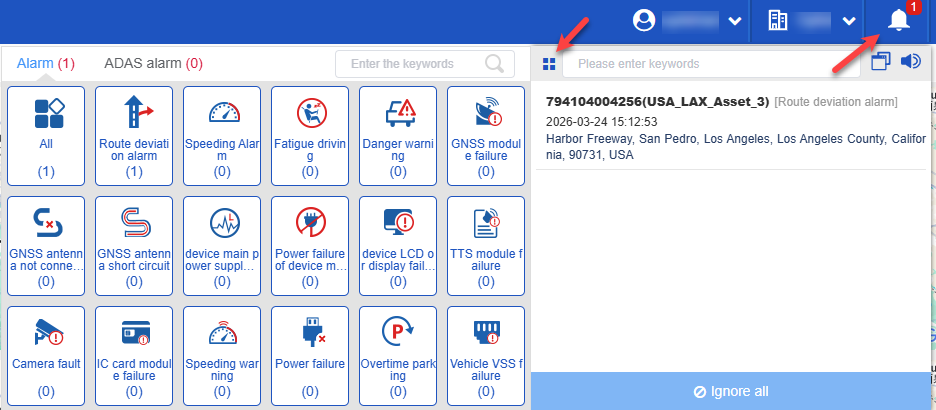
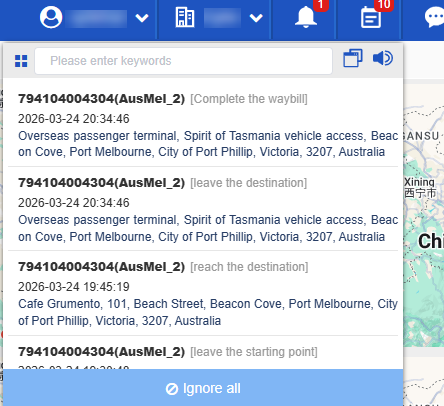
Latest Alert: Shows the latest alert count of over 100. Click to view details. The system automatically distinguishes between regular alerts and proactive safety alerts, helping you quickly locate high-priority events.
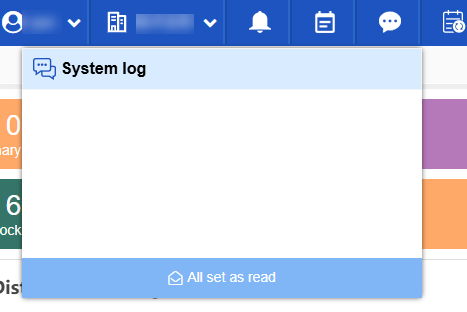
System message: Summarize system notifications (such as account expiration reminders, version updates, etc.), and display up to 100 unread messages.
Event Notification: Records device status changes (such as locking/unlocking, device offline, etc.), and also supports displaying 100 unread messages.
Left menu bar:
4.Expansion and Contraction: Click the leftmost upward-pointing arrow icon on the menu bar to collapse the menu bar into a streamlined mode, keeping only the navigation icons. To expand it, click the vertical three-dot icon displayed after the collapse, and you can restore the full menu, allowing you to switch flexibly between different operation scenarios.
5.Personalized customization: The system logo and slogan are displayed at the top of the left side.
System Tools:
6.System Update Log: This log meticulously records the content of each version update, enabling you to keep track of the functional enhancements.
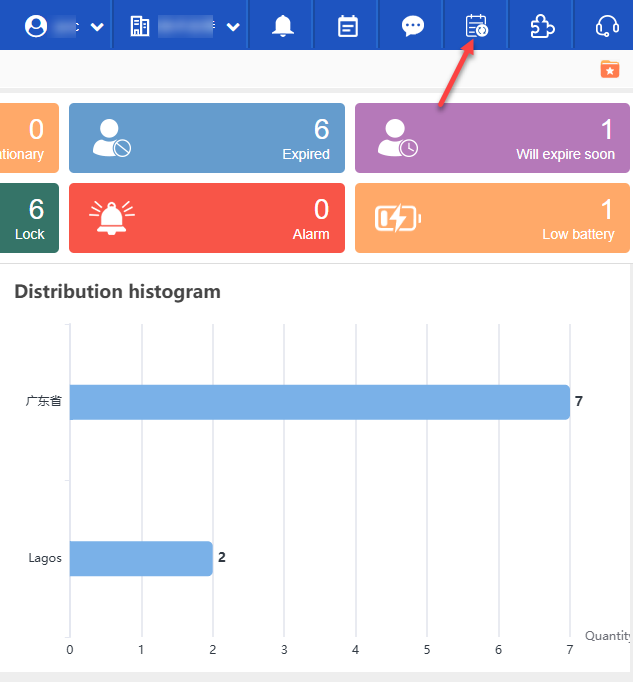
7.External API interface: Supports customers’ application for data integration, enabling the integration of system capabilities into their own platforms. If you need to activate this feature, please contact the technical support team.
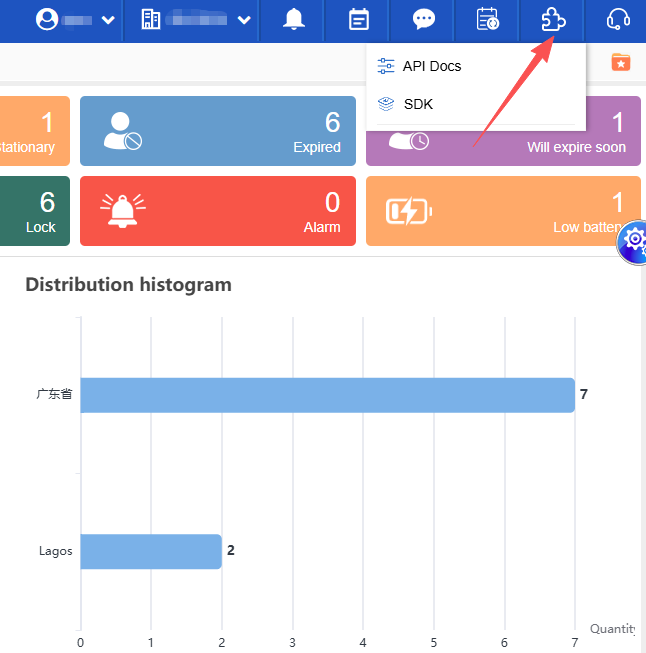
Homepage Featured Functions:
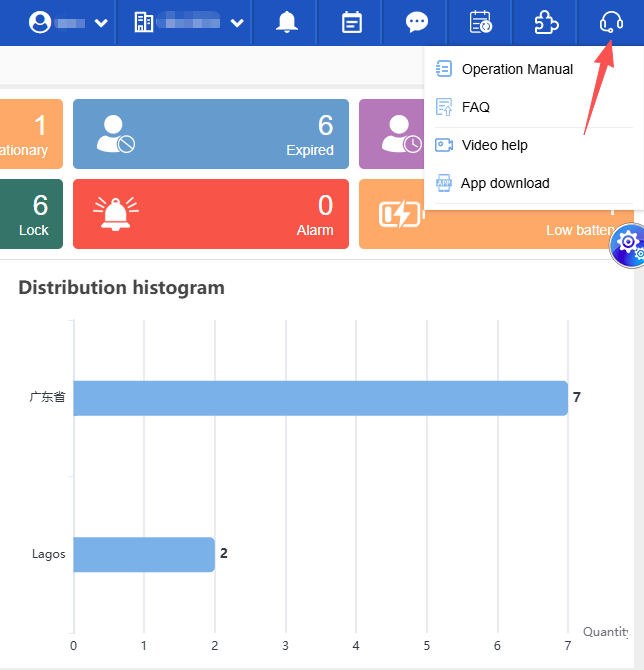
8.Help Center: Integrates operation manuals, frequently asked questions, video tutorials, and mobile app download instructions, providing a one-stop solution for all your usage-related issues.
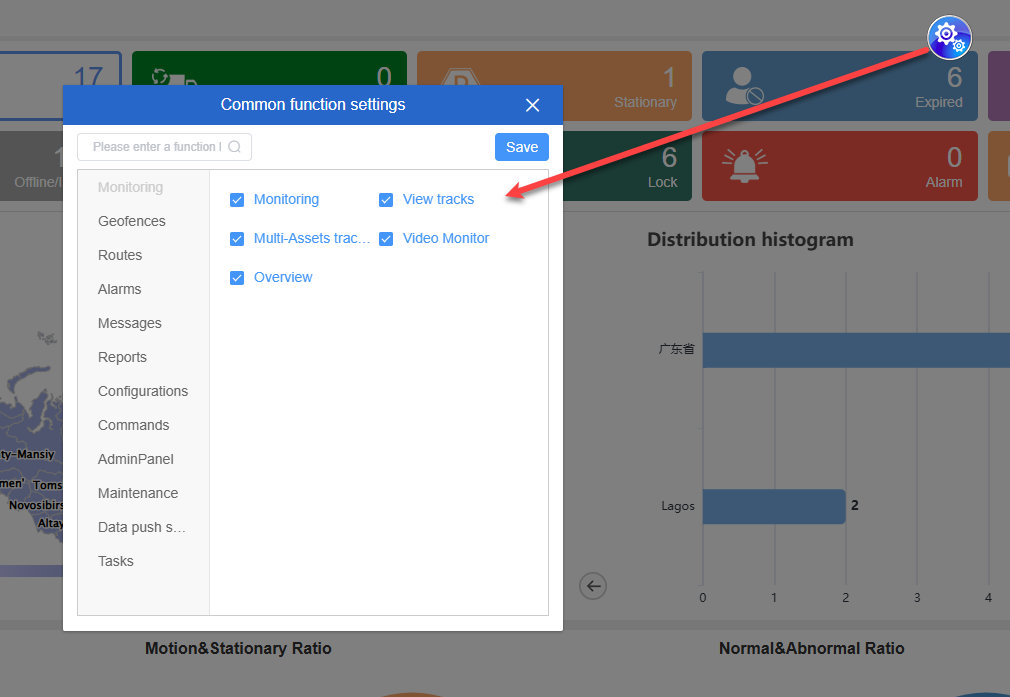
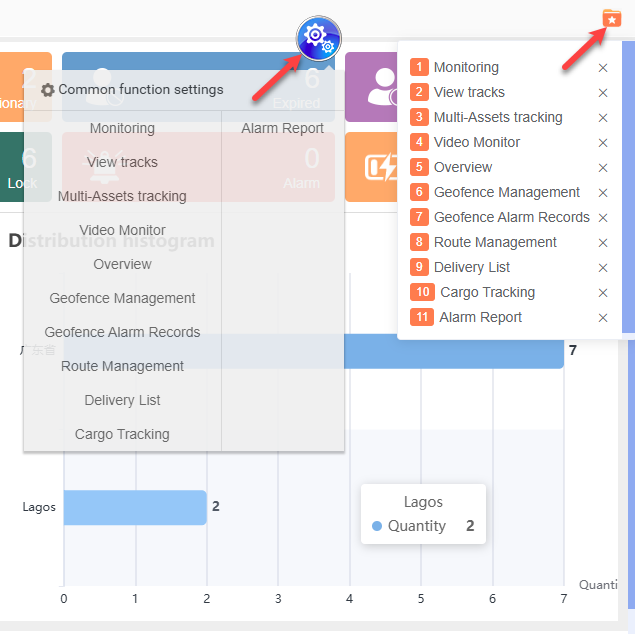
9.Quick access to common functions: Click on the “Common function settings” icon on the page. Using the right-click menu, you can customize and add frequently used functions to enhance operational efficiency.
10.Mobile app download: At the bottom of the homepage, there is a guide for downloading the mobile app. It is available for both iOS and Android platforms, making it convenient for you to manage your business anytime and anywhere.
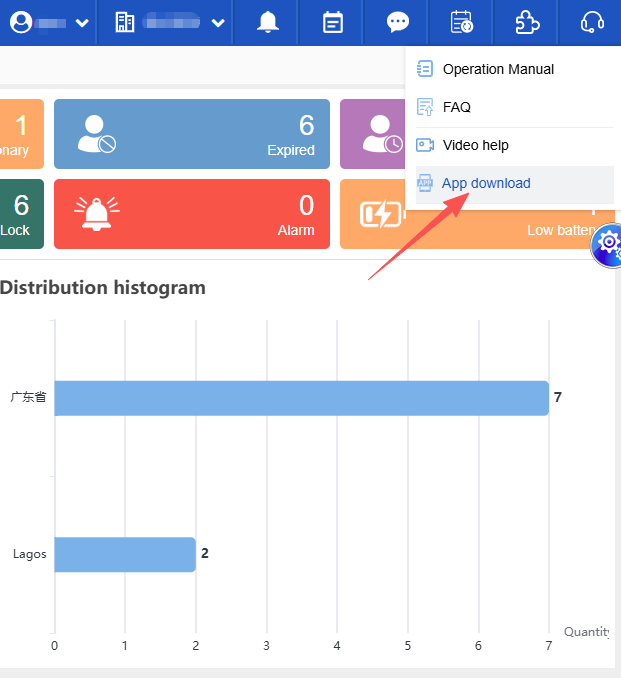
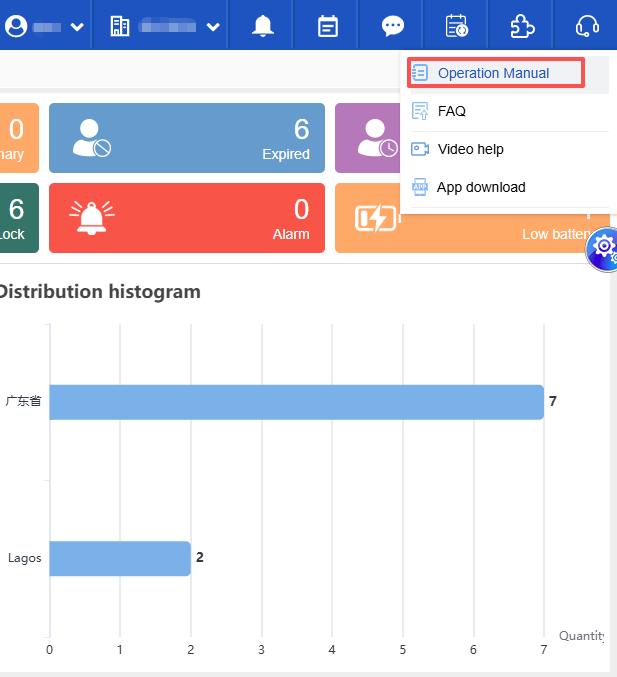
11.Multilingual Operating Manual: When logging in, switch to the English language. The “Operation Manual” entry on the home page will automatically display the English version, meeting the needs of cross-national team collaboration.
Account and Device Management:
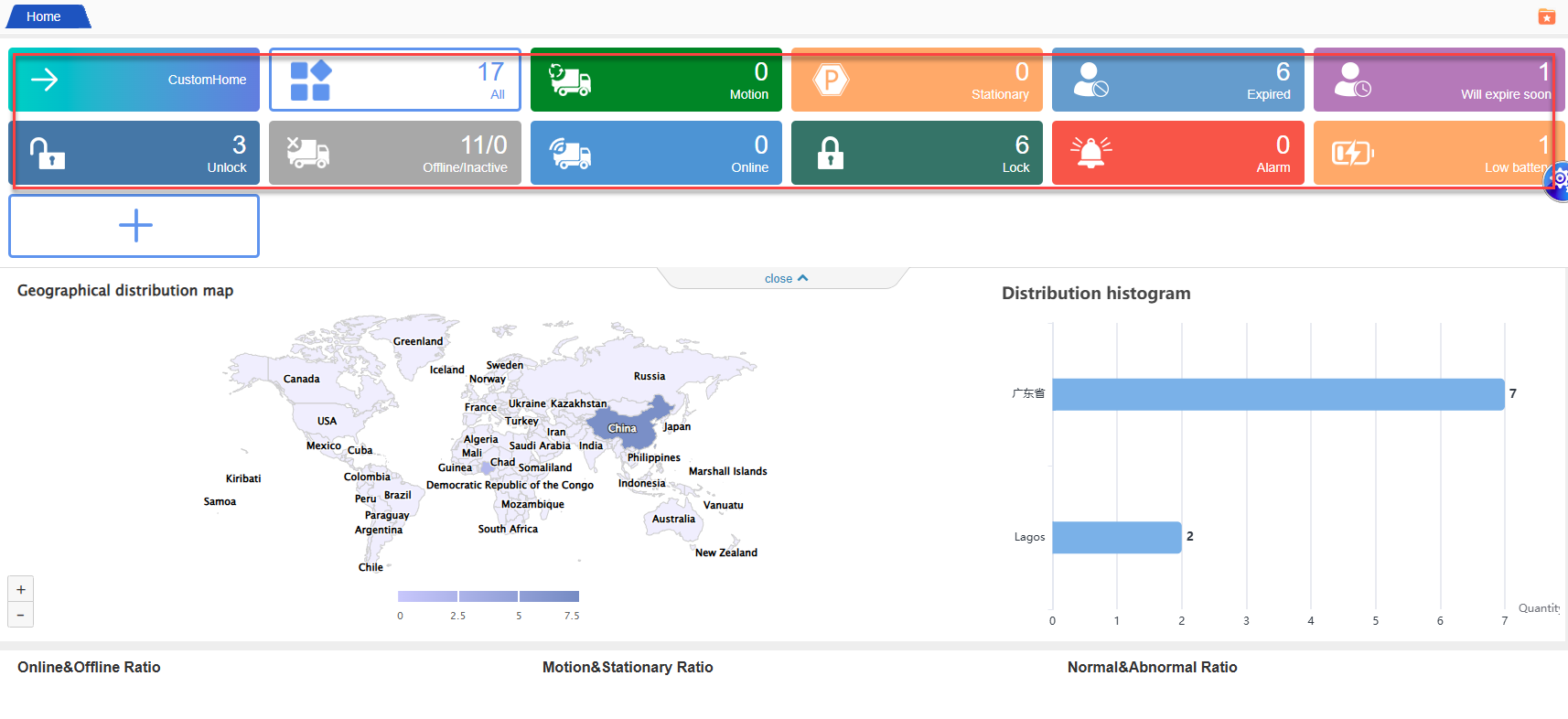
Account Expiry Reminder: The expiry status of the account is prominently displayed on the homepage. When the account is approaching its expiry date, an alert will be triggered to prevent service interruption.
Equipment Status Management:
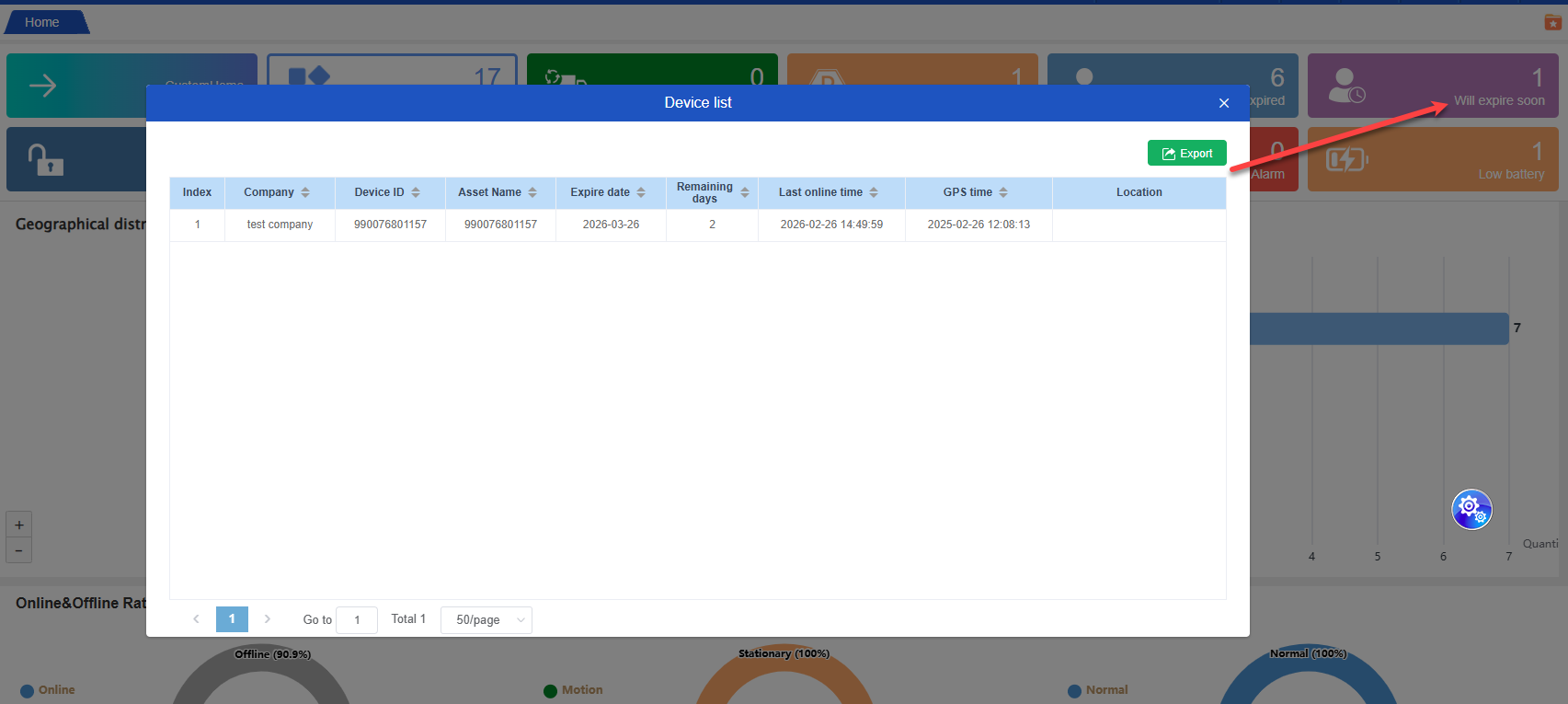
Expiring equipment: Click the corresponding prompt, and a pop-up window will display key information such as the expiration time and remaining days, enabling you to plan equipment maintenance in advance.
Expired Equipment: Clicking on it will display a pop-up window showing the complete list of expired equipment under the company and its subsidiaries, facilitating centralized handling.
Page bookmarking function:
Add the “Save Current Page and Show Favorites” tool to the right side of the navigation bar, and link it with the previous floating ball data.
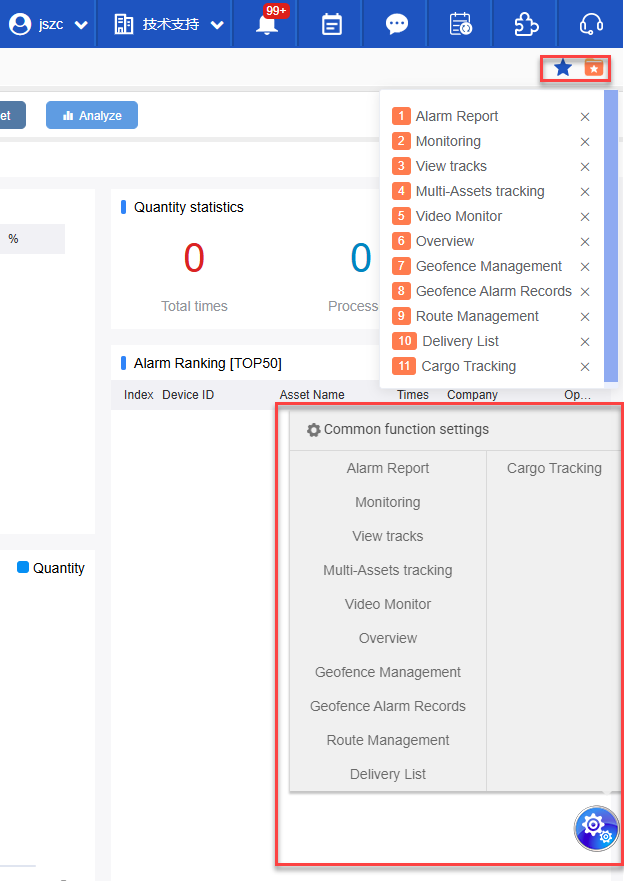
✨✨ The homepage now features a new personalized and customizable layout function:
✨✨✨ Custom Homepage
1. Function Overview
The homepage has been completely upgraded. The core highlight of this upgrade is the support for custom component arrangement, while maintaining the fixed display mode of the previous version. You can switch back to the familiar view with one click, balancing personalized needs and the continuation of usage habits, providing you with a more flexible and smooth user experience.
2. Core Function Operating Guide
Custom component arrangement operation:
- Enter the homepage: After starting the system, if you are currently on the old version homepage, you need to first press the “Switch to New Version” button at the top, and then it will automatically navigate to the new version homepage.
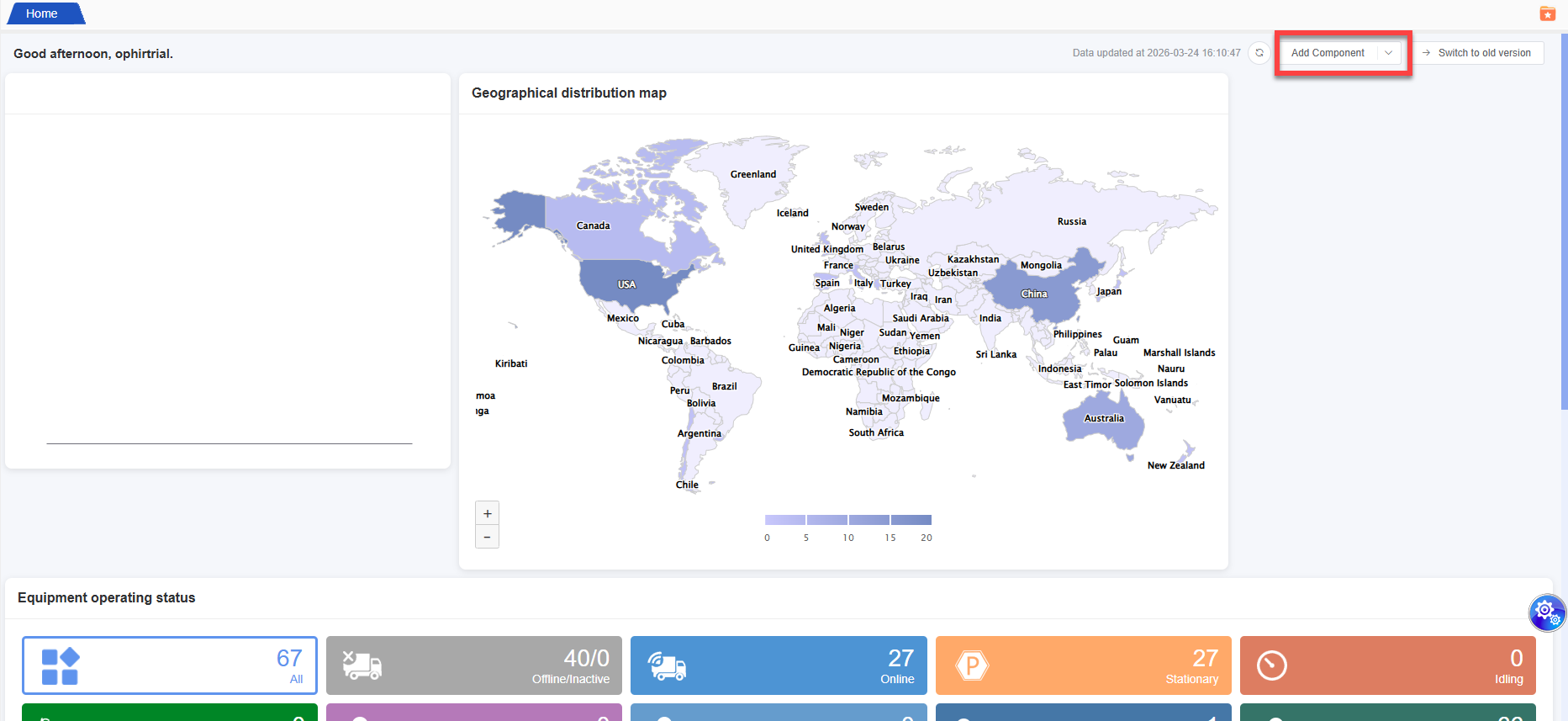
- Find the “Add Component” button on the top right corner of the home page. Click it and you can enter the component arrangement mode.
- Configure data source: In the orchestration mode, select the data source you are interested in and complete the configuration of relevant information.
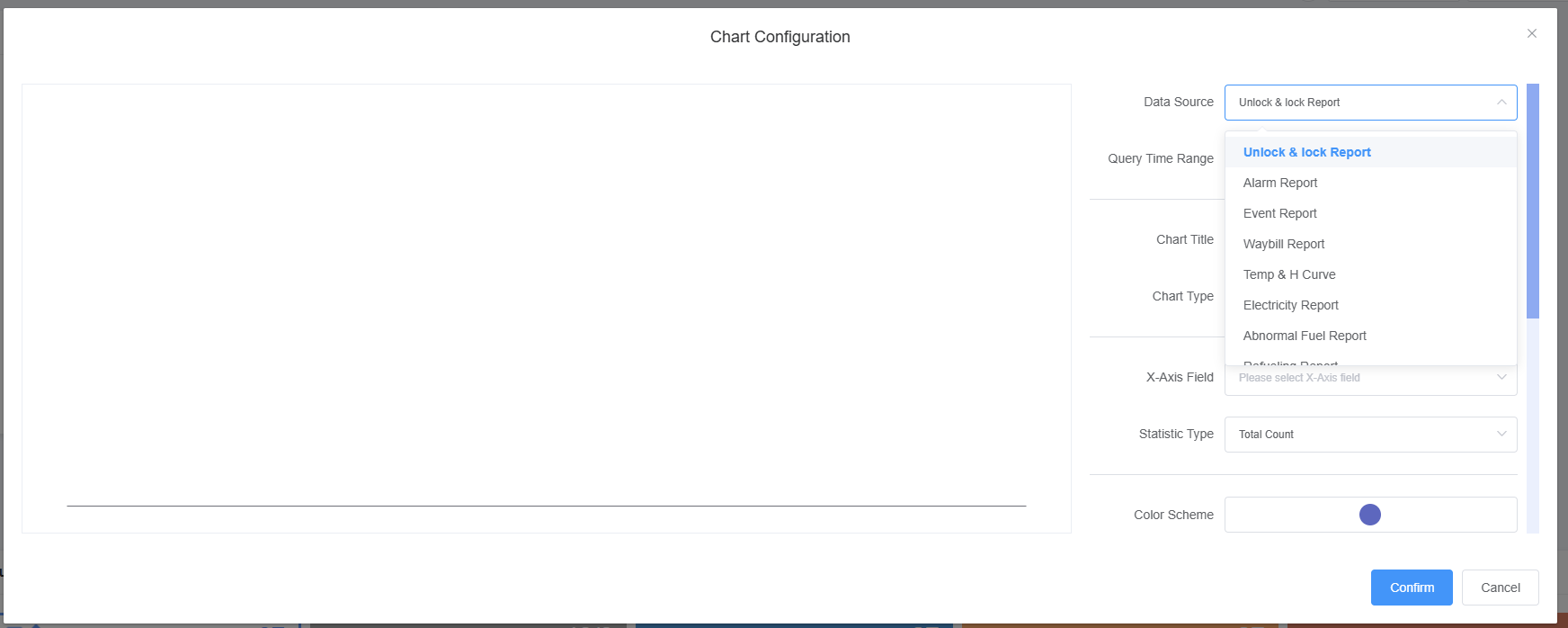
- Save and take effect: After confirming that the information is filled in correctly, click the “OK” button to save the configuration. At this point, the set components will be synchronized and displayed on the homepage.
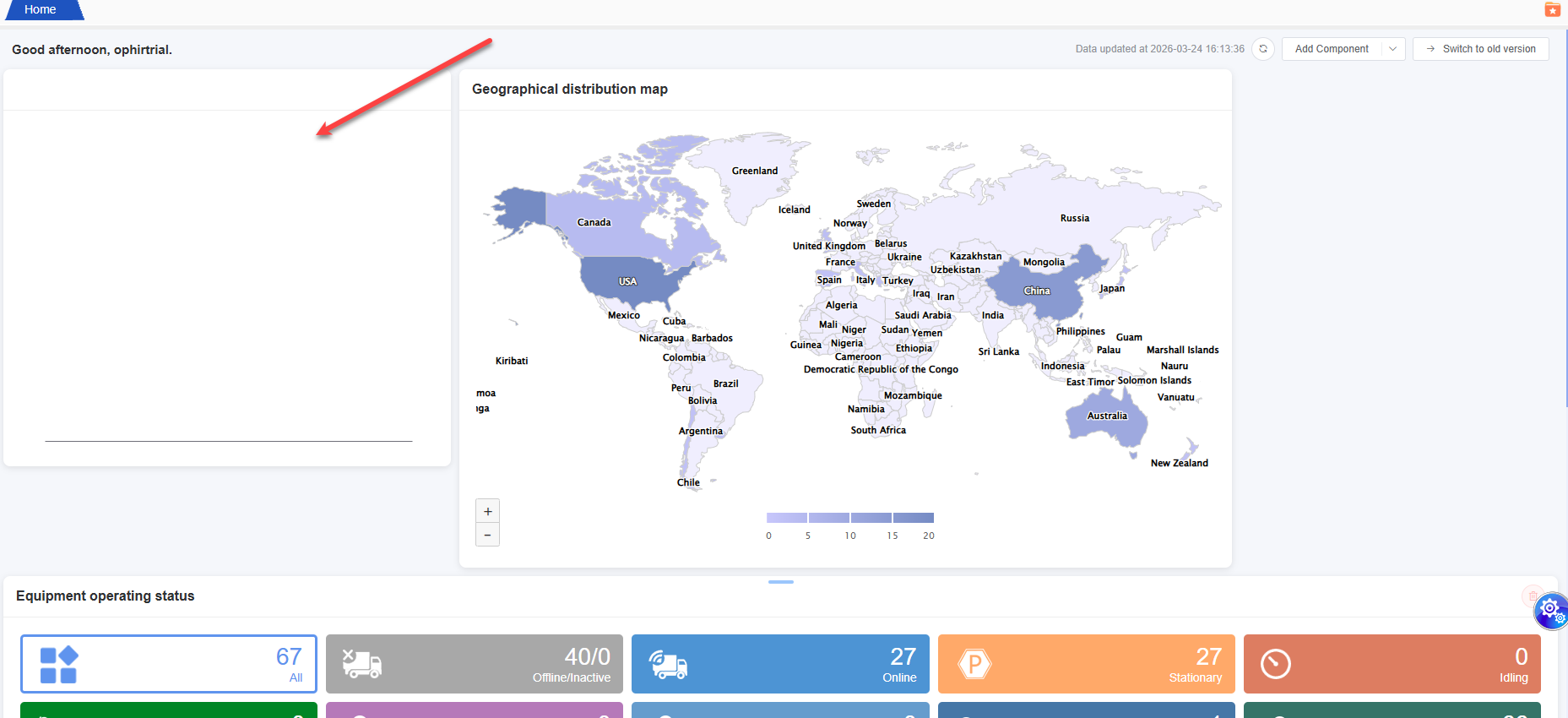
- Component drag-and-drop sorting: Select the component you want to adjust with the mouse, hold down the left button and drag it to the desired position, then release the mouse to complete the sorting.
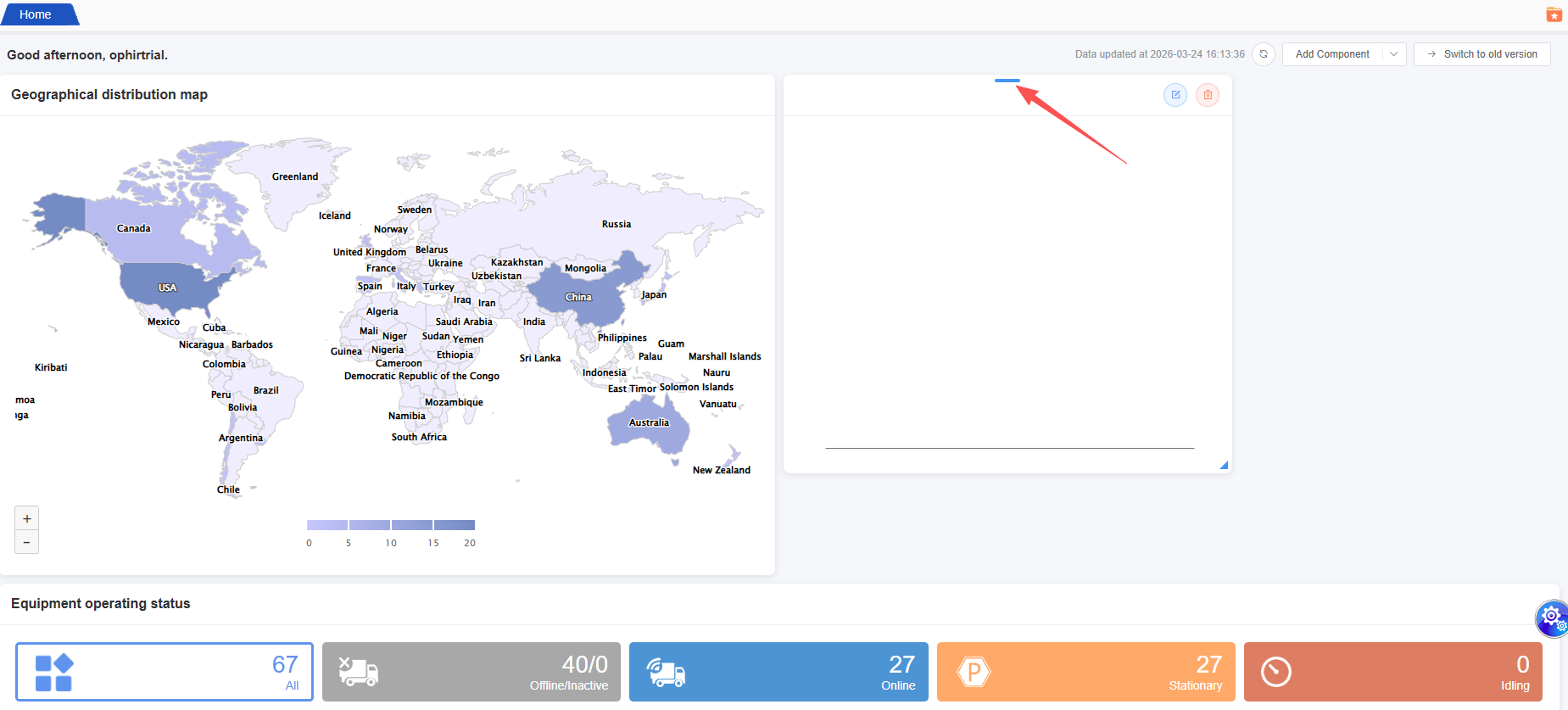
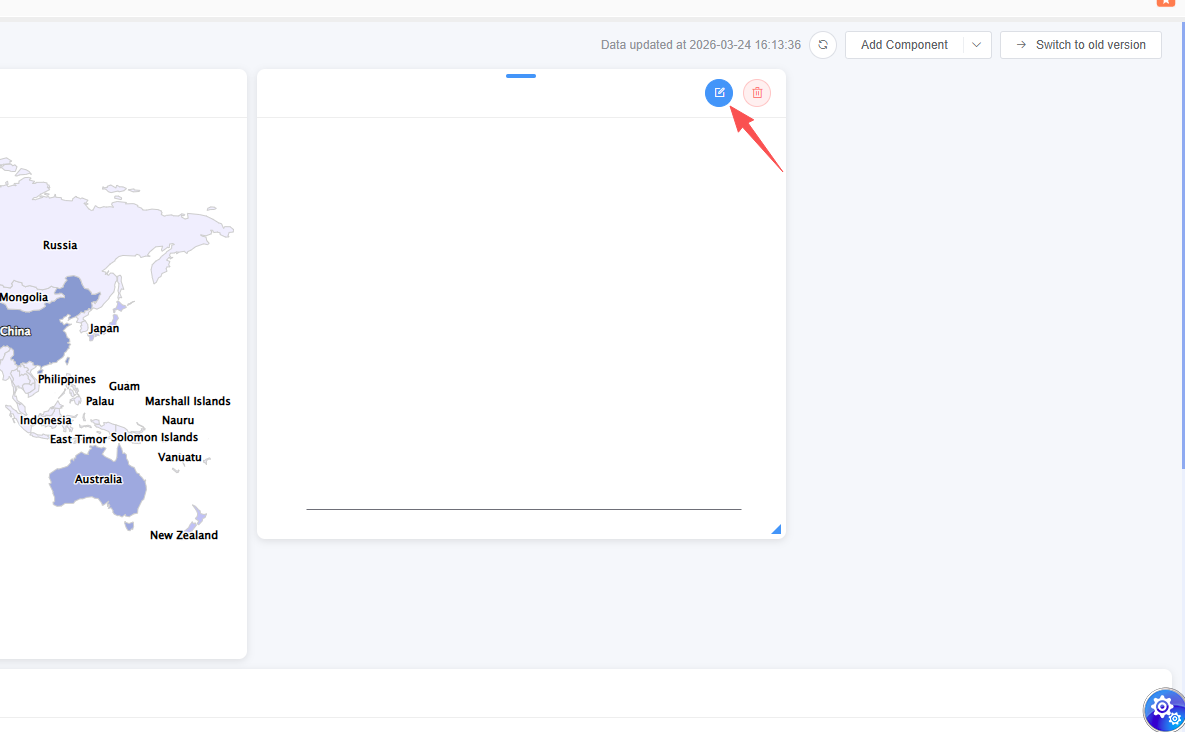
- Component Personalization Settings: Click the “Settings” icon on the top right corner of the component. You can adjust parameters such as the display content and theme style according to your needs. After setting, click “Confirm” to save.
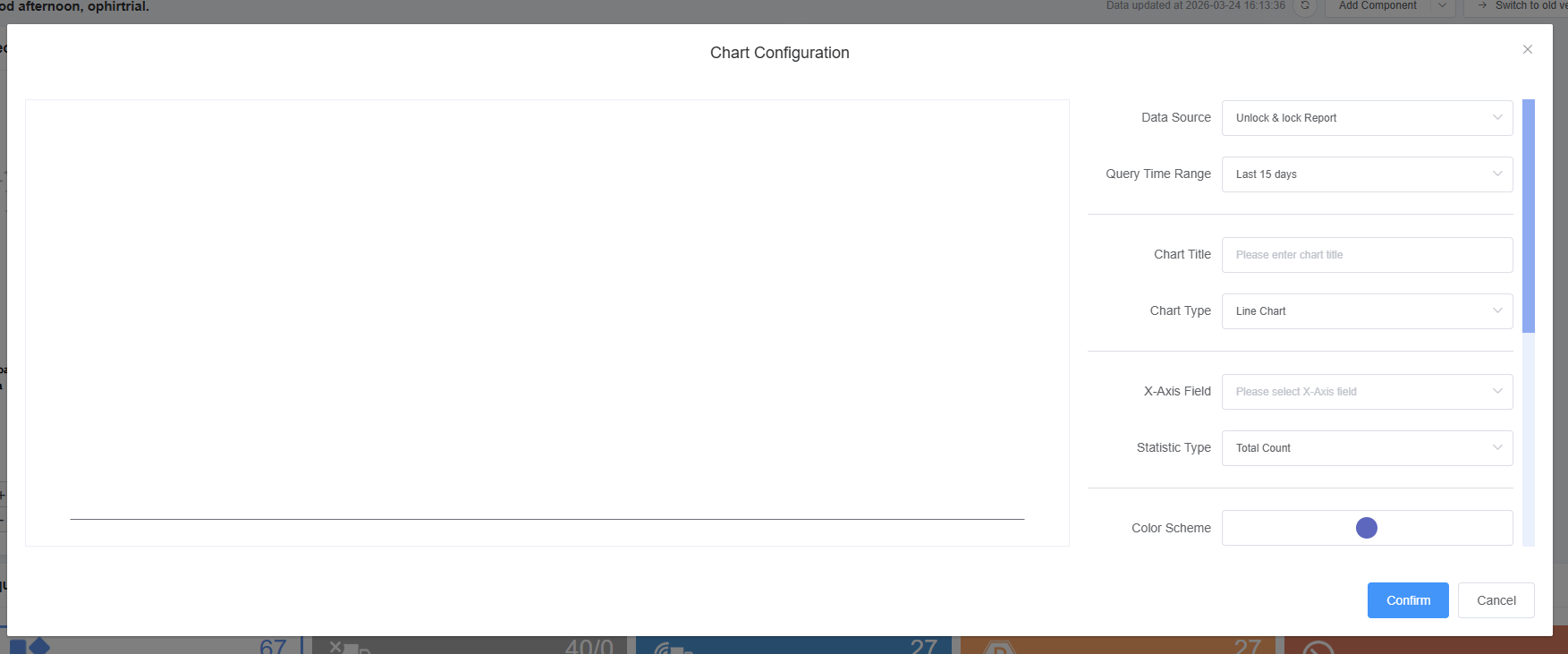
- Save layout scheme: After all adjustments are completed, click the “OK” button at the bottom right of the page. The system will automatically save the current layout scheme, and the home page will default to displaying this layout.
3. One-click switch to the previous version operation
- New version homepage switch: In the upper right corner navigation bar of the new version homepage, find the “Switch to old version” function button. Clicking it will allow you to “switch to the old version” page.
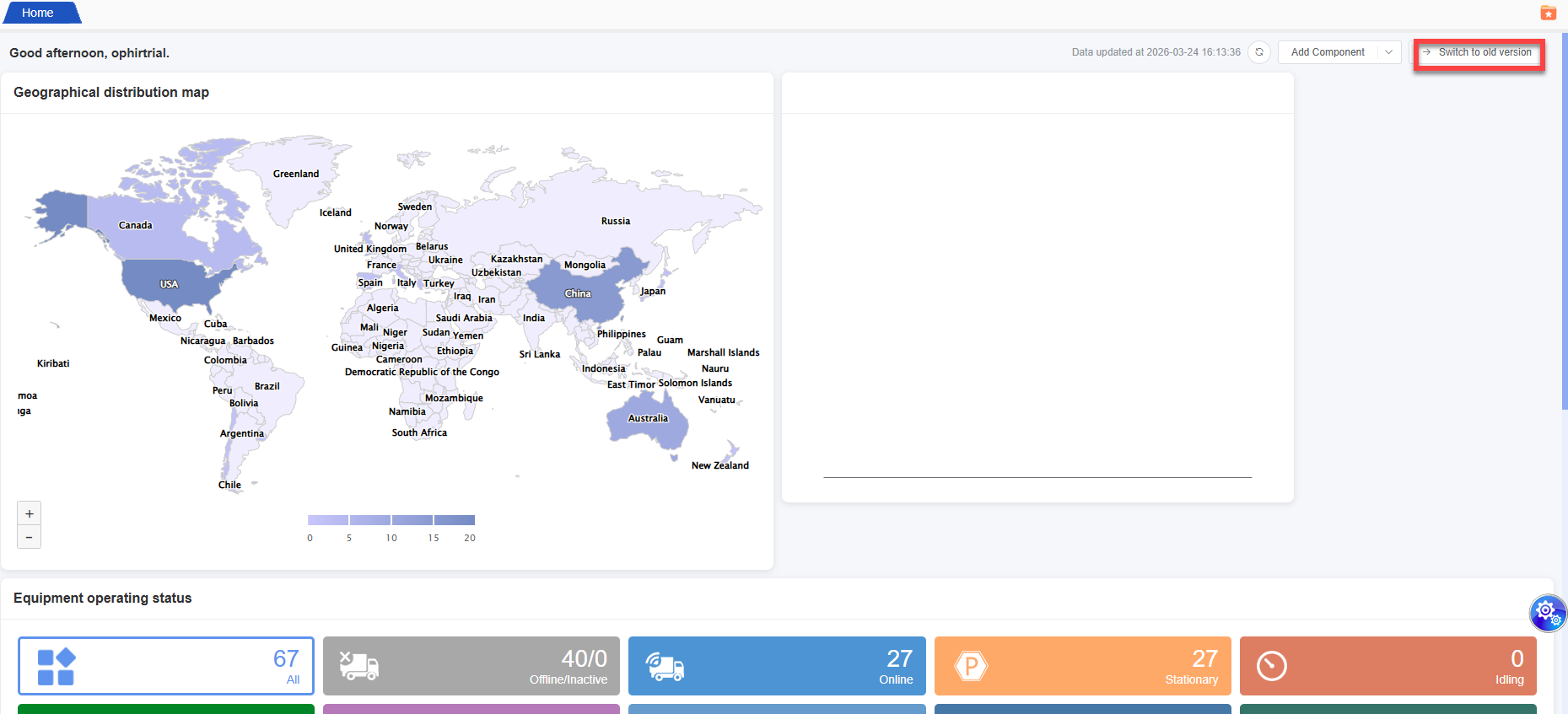
Confirm Switch: Simply click “OK” to quickly switch to the old version fixed display mode. The page will immediately revert to the layout and content display style of the old version.
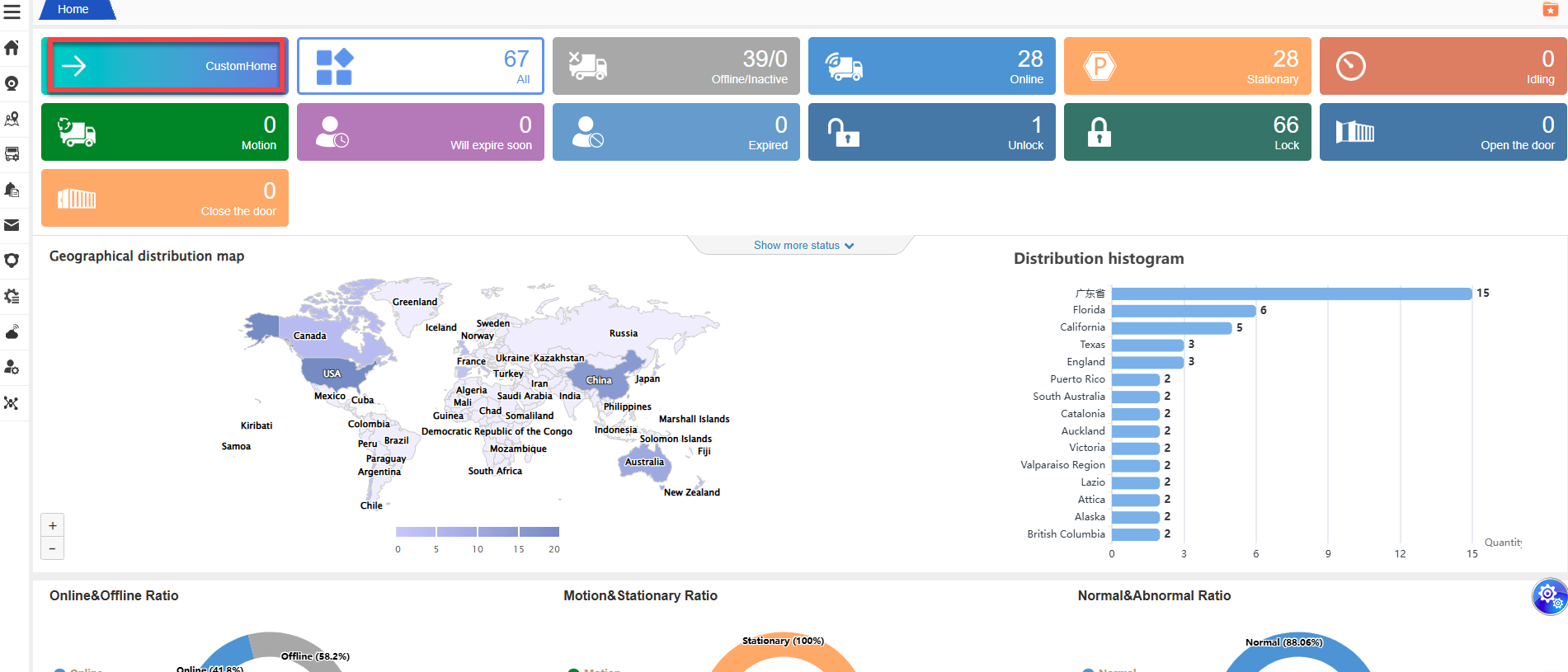
Switch from old version to new version: If you need to switch from the old version back to the new version, you can find the “CustomHome” button at the top of the old version’s homepage. Click it and you can return instantly without having to set it up again.
4. Important Notice
- The custom layout scheme supports automatic saving function, so you don’t need to worry about losing the adjusted settings accidentally. The home page will be displayed based on the page state you had when you last logged into the system.