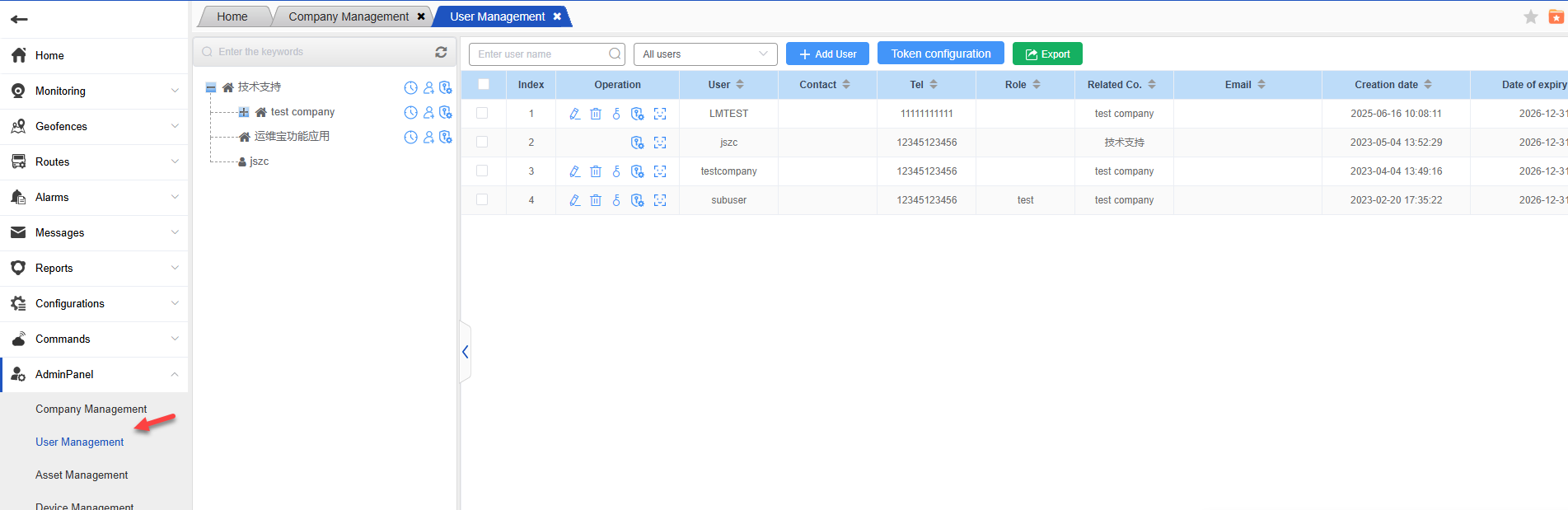
User management is used to maintain account information and authority management. The left side displays the users belonging to each company based on company information;
Add New user:
Which company the new user belongs to, click the new icon behind the company, and the new page will pop up;
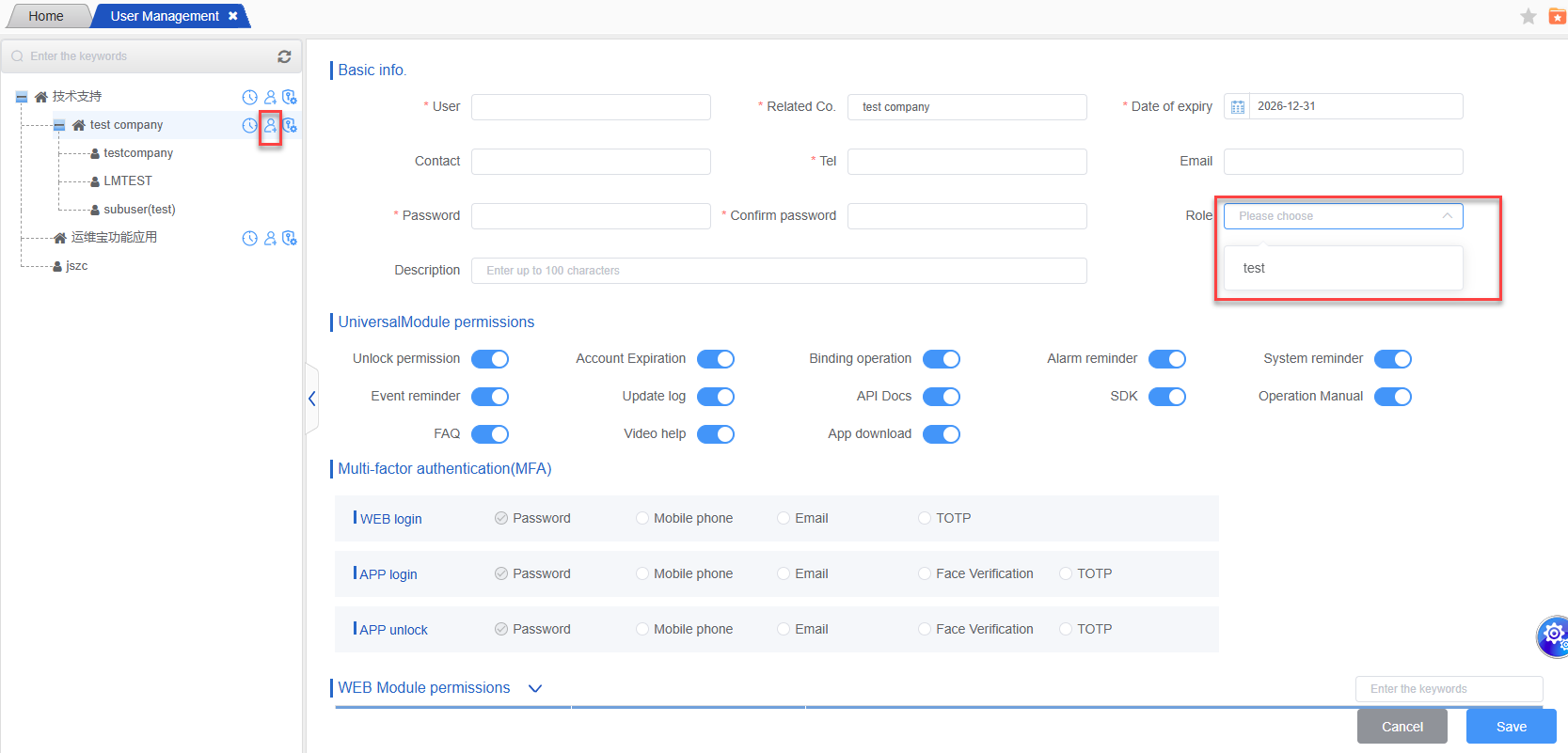
Enter user name, associated company, expiration date and other information, set function permissions and configuration module permissions. After the information is entered and confirmed, click Save to create a new account successfully and generate a new account, which will become the account of the current company.
Here you can set the user information separately, or it can be achieved by selecting the role. What permissions the role gives the user can have what permissions, if the user selects the role and configures the permissions below, the user has the permissions It is the sum of the two.
Related Co.:
The company associated with the account here can manage and view all the information of the associated company and its subsidiaries after logging in. Please choose carefully.
Function permissions:
Configure the functional authority corresponding to the user, and the user will have the corresponding functional authority after logging in to the Web based software.
Module permissions:
Divided into WEB permission configuration and APP permission configuration, the corresponding authority needs to be assigned according to the user’s role. After the user logs in to the Web based software or APP , only functional modules with authority are displayed. The module permissions are detailed down to each functional point, and the functional permissions are allocated according to the roles.
Edit user:
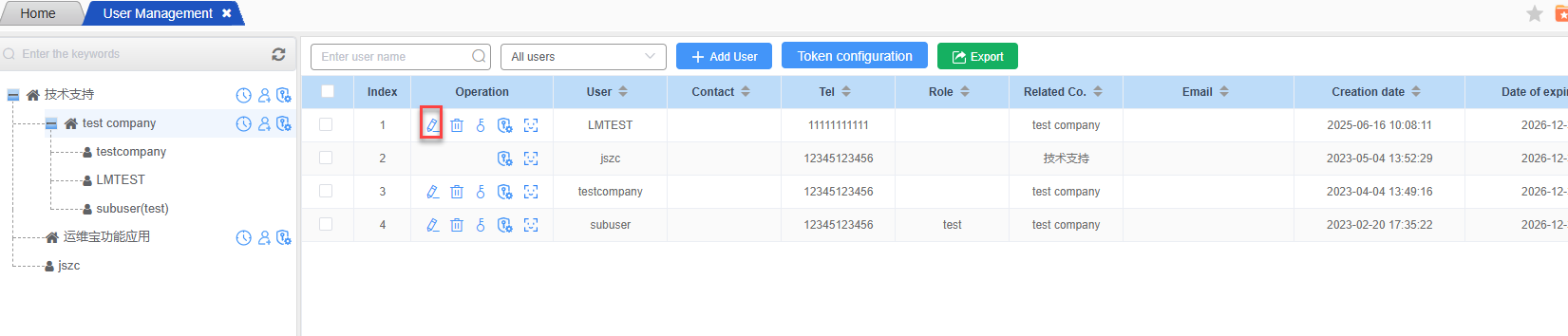
Click the edit icon behind the user to enter the user edit page. After the modified information is saved successfully, the modification is successful, and the modified information of the user will be displayed.
Modify the expiration date:
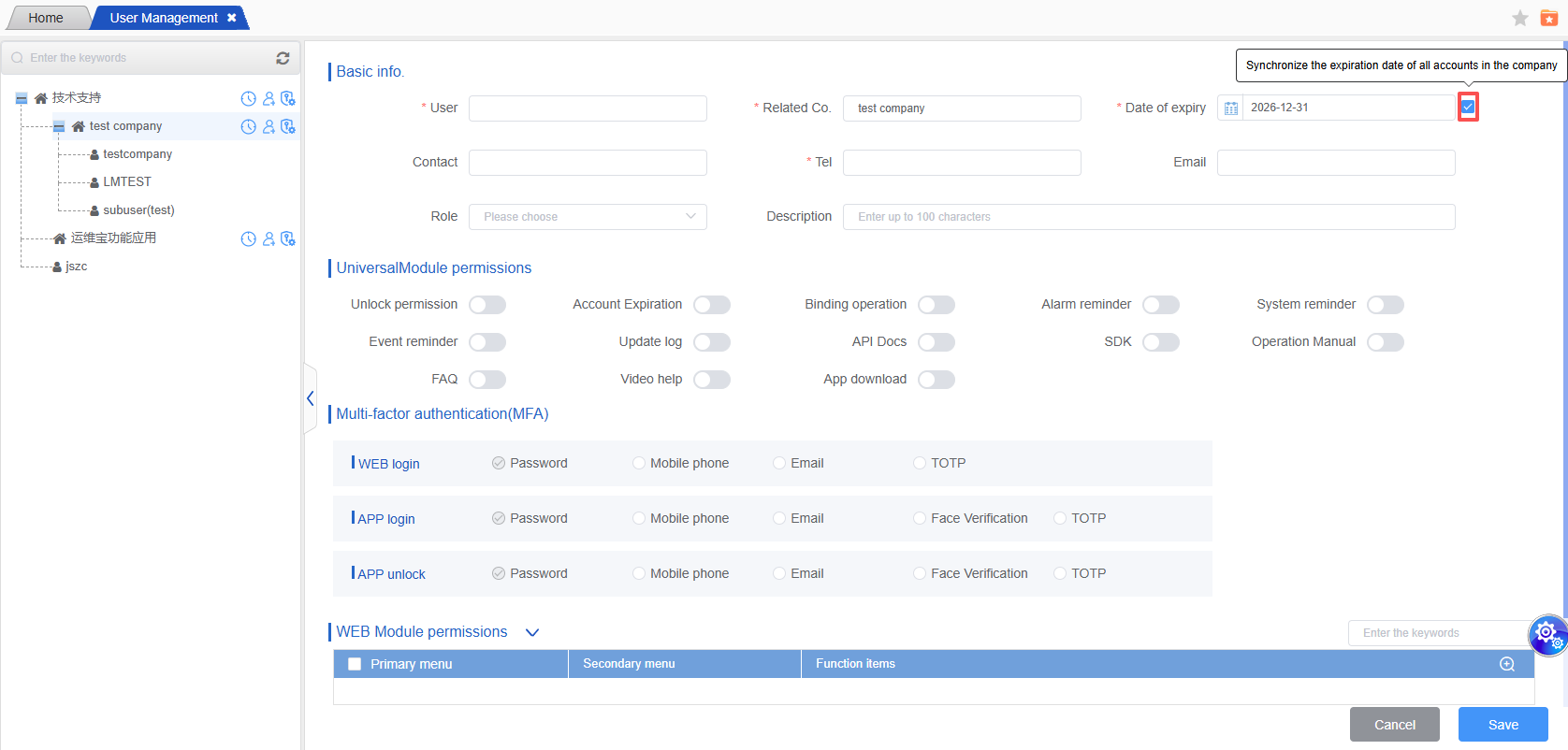
If you need to modify the expiration date, and you want to modify the expiration date of all accounts under the company simultaneously, you can tick the check box after the expiration date. After the save is successful, the expiration date of all accounts under the company’s name will be changed. Synchronization Update.
Delete user:
If you want to delete a user, you can click the delete icon next to it. After the user is deleted, you will no longer be able to log in to the system.
If there are sub-users under the user, they will be deleted along with the user information. Therefore, please be careful when deleting users.
Add User:
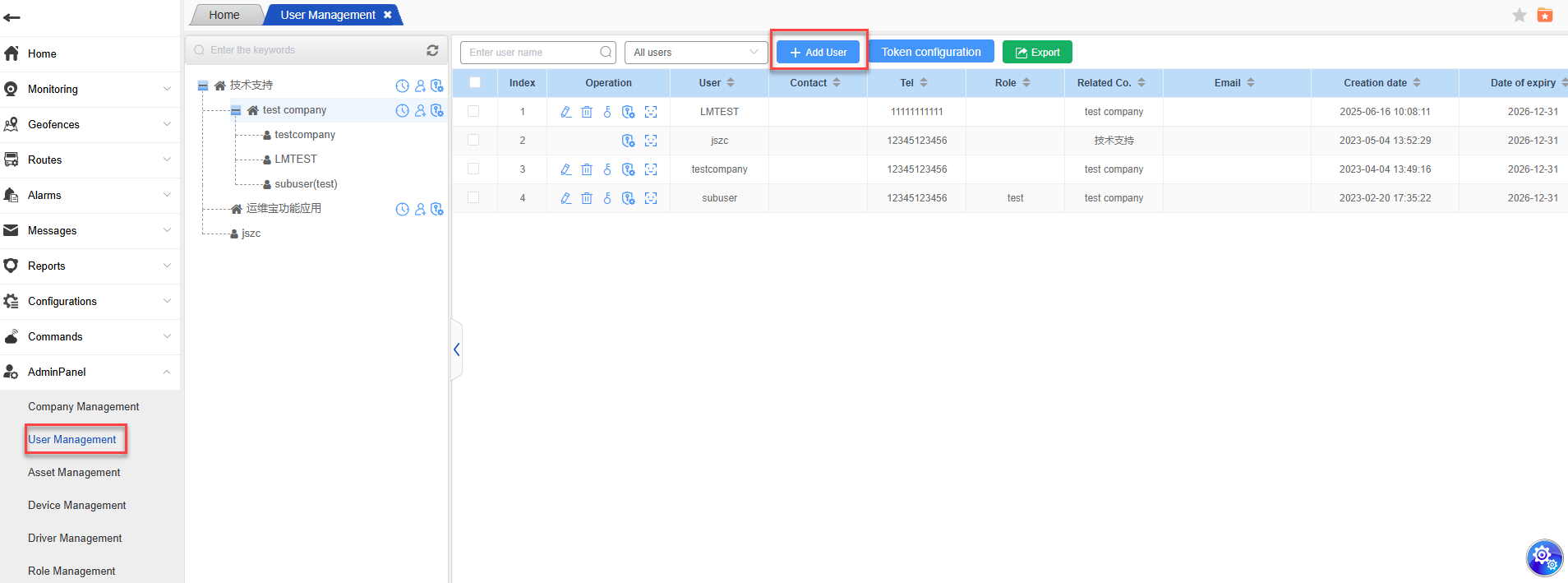
The newly added users here are for creating parent-level users. Click the “Add User” function button - then it will redirect you to the new page where you can fill in the corresponding information and save it.
Token expiration configuration:
Locate the row of the user for whom the token expiration configuration is to be made. Click on the token shape icon (for token expiration configuration) in the “Operation” column. In the pop-up configuration window:
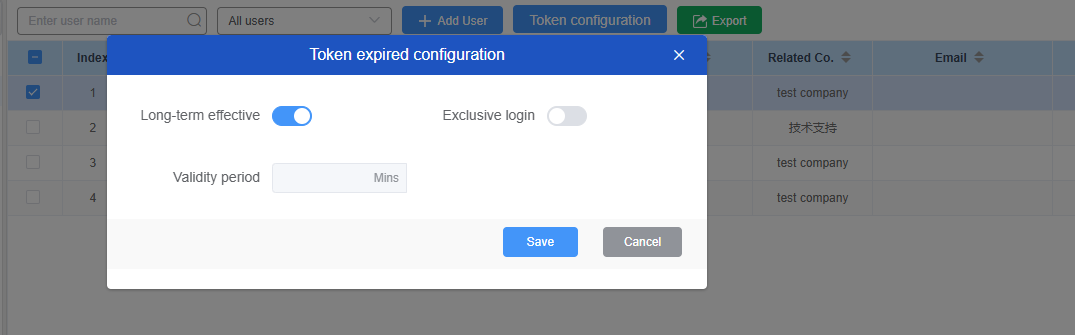
If you want to make the token valid for a long time, check the “Long-term Validity” option.

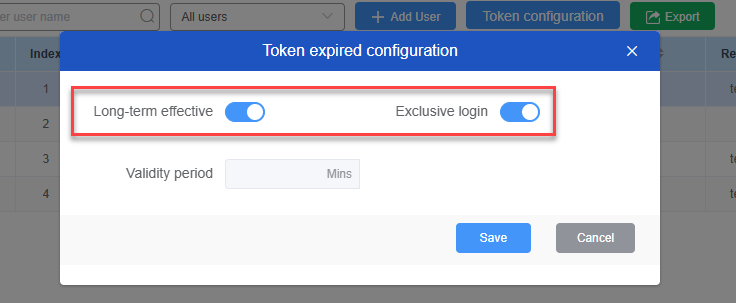
To enable exclusive login, check the “Exclusive Login” option.
The expiration time needs to be set. Please enter the specific time in the “Expiration Time” input box.
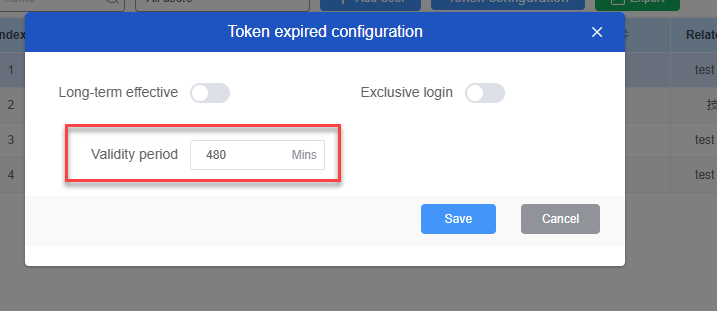
After the configuration is completed, click the “Save Configuration” button to complete the token expiration configuration operation.
Multi-factor Authentication (MFA):
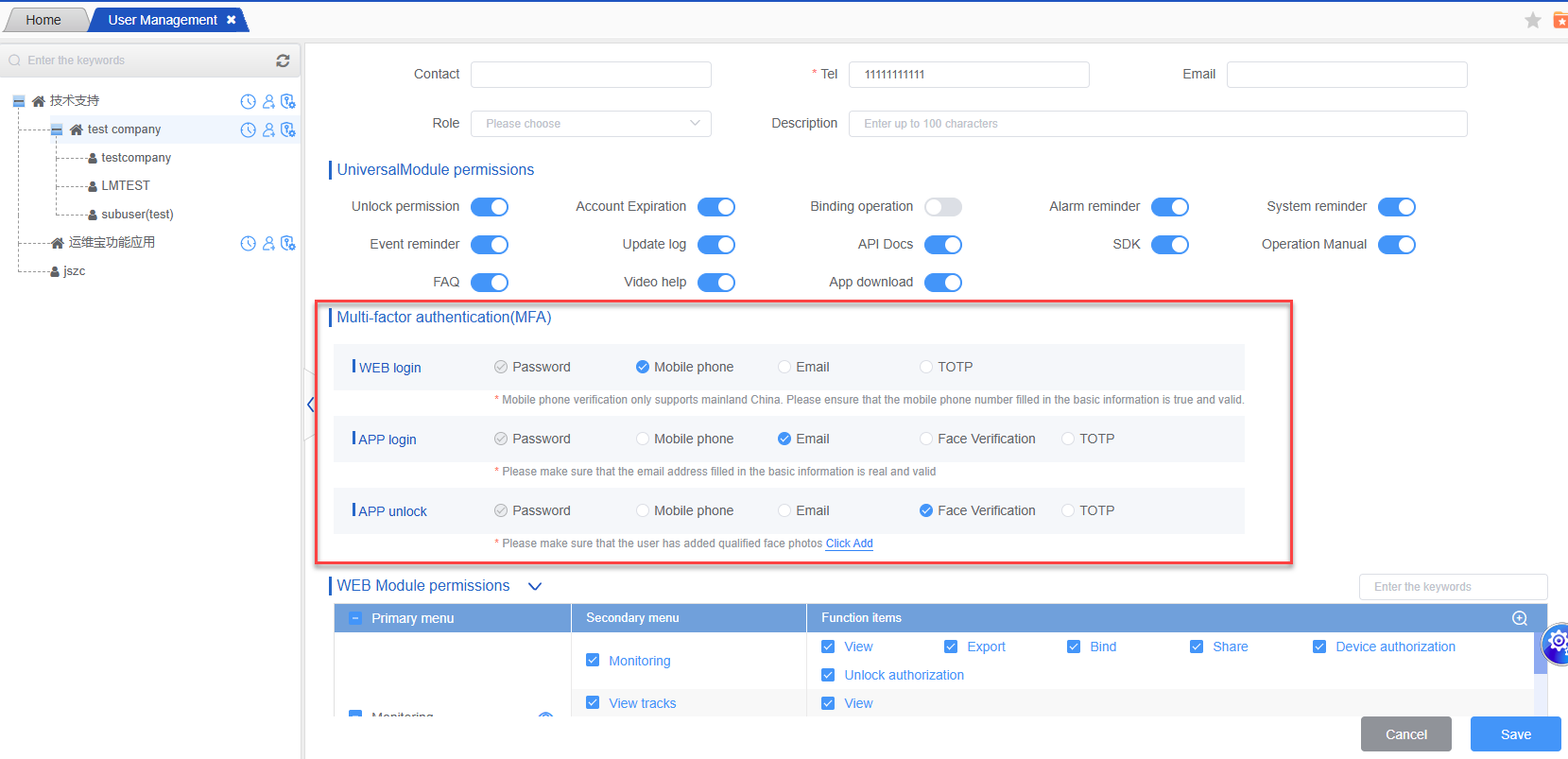
1.Select the verification method
WEB login verification; In the “WEB login verification” area, you can choose the “email verification” method or not (the default is password login). If you choose “email verification”, please ensure that the email address filled in the basic information is truly valid so that you can receive the verification email normally.

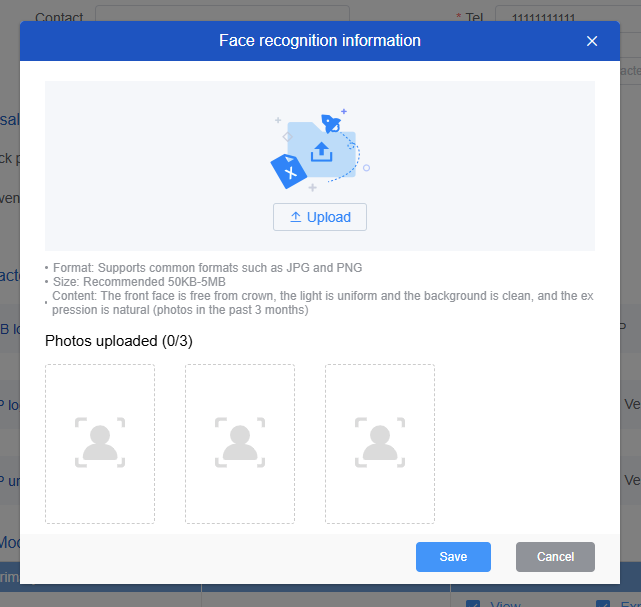
APP login verification; In the “APP Login Verification” area, you can choose “Email Verification” or “Face Recognition” methods, or you can leave all unchecked (the default is password login). If you choose “Face Recognition”, please ensure that the user has added a qualified face photo. If not, click “Click to Add” to proceed with the addition of the face photo.

APP unlocking verification; In the “APP unlocking verification” section, you can choose “email verification” or “face recognition” methods, or you can leave all options unchecked (the default setting is password login).

2.Perform the verification operation
Based on the verification methods you selected in the respective verification areas mentioned above, when performing WEB login, APP login or APP unlocking, simply complete the verification as required by the corresponding verification method. For example, if you choose “email verification”, you will receive a verification email and enter the verification code in the email to complete the verification; if you choose “face recognition”, you will perform face scanning and matching, etc.