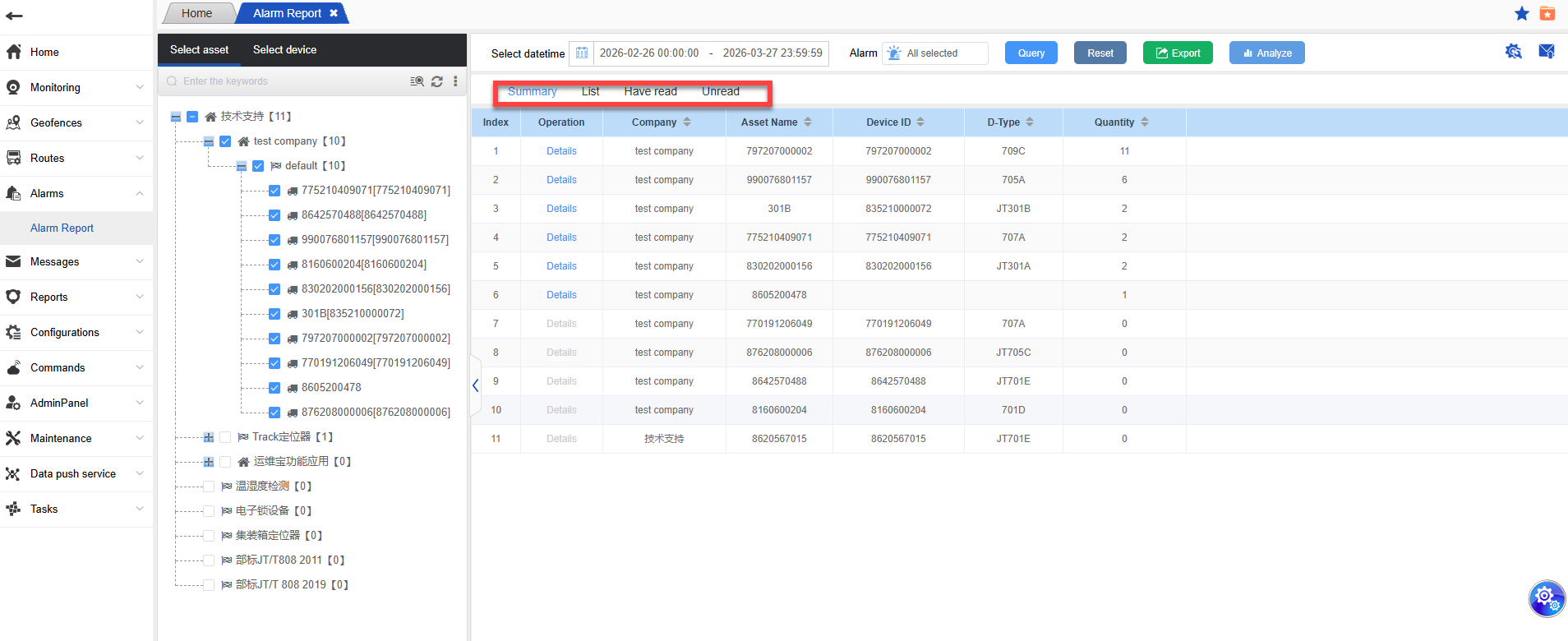
Conventional alarms are used to count the alarm data of assets. There are currently as many as 100+ types of conventional alarms. After entering, click the query and the statistics are the total number of alarms of all assets in the time period;
Selecting a Company:
After entering the “Alarm Report” page, in the left company tree structure, click to expand the nodes and select the company for which you want to view the alerts, such as “test company”, etc. Once a company is selected, the system will load the relevant alert information for that company.
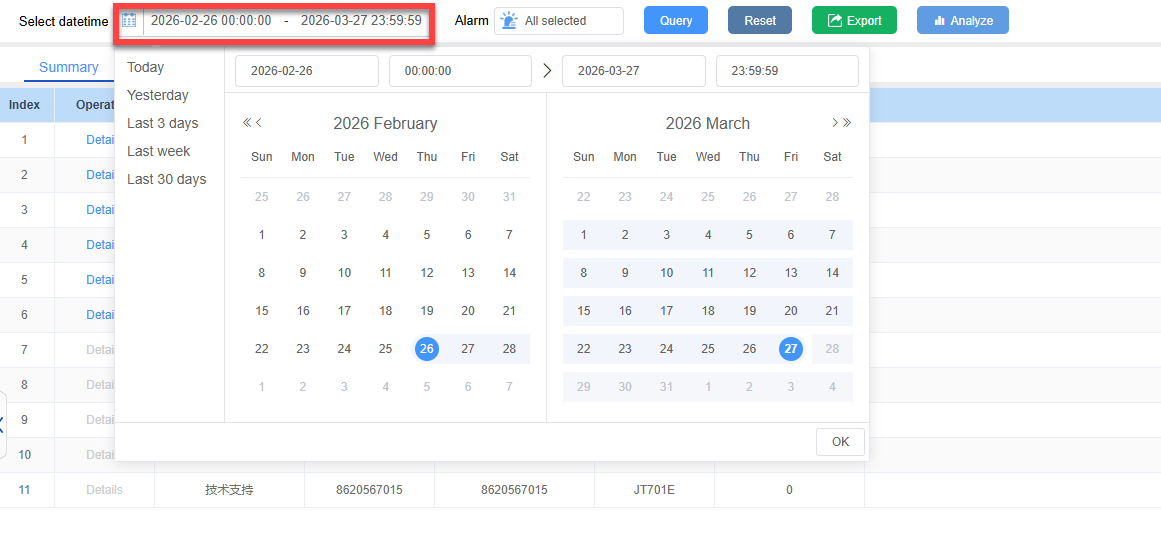
Set the query time range:
On the top of the page, at the “Select Date” section, click on the date selection box, and set the start date and end date respectively. Determine the time range for the event notifications you need to query.
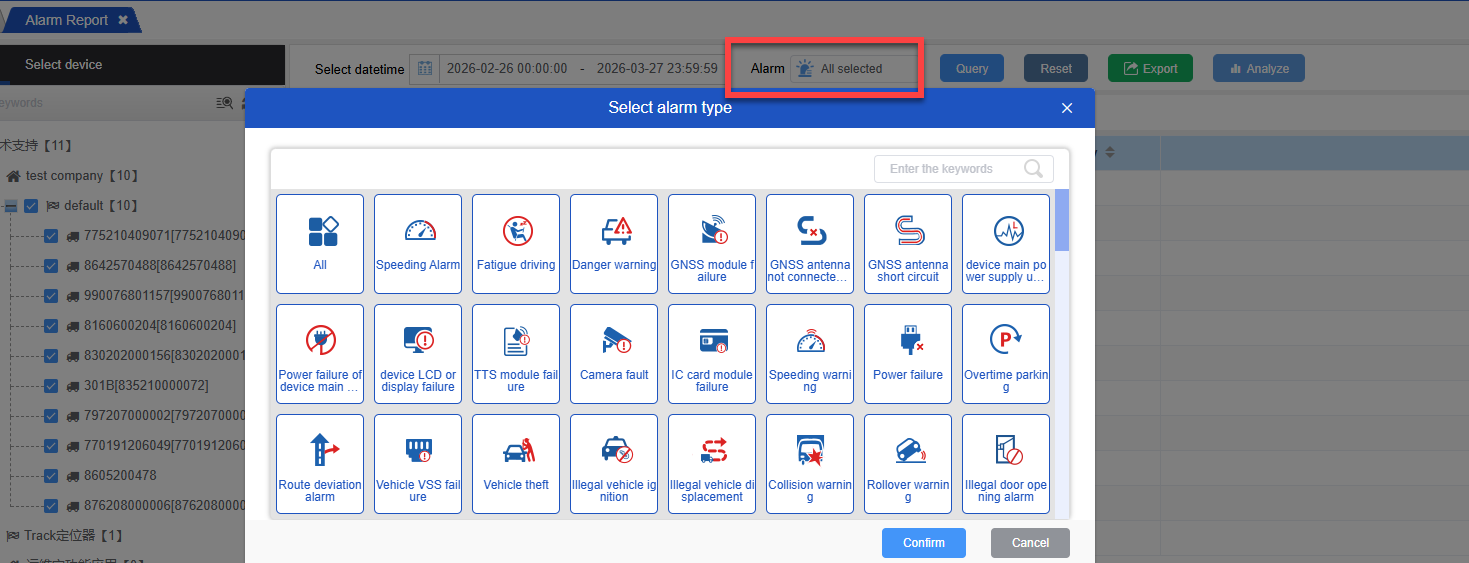
Filter event types:
On the right side of the date selection box, click on the “Alarm Type” dropdown menu to check or uncheck different types as needed, and filter out specific types of alarms.
Execute the query:
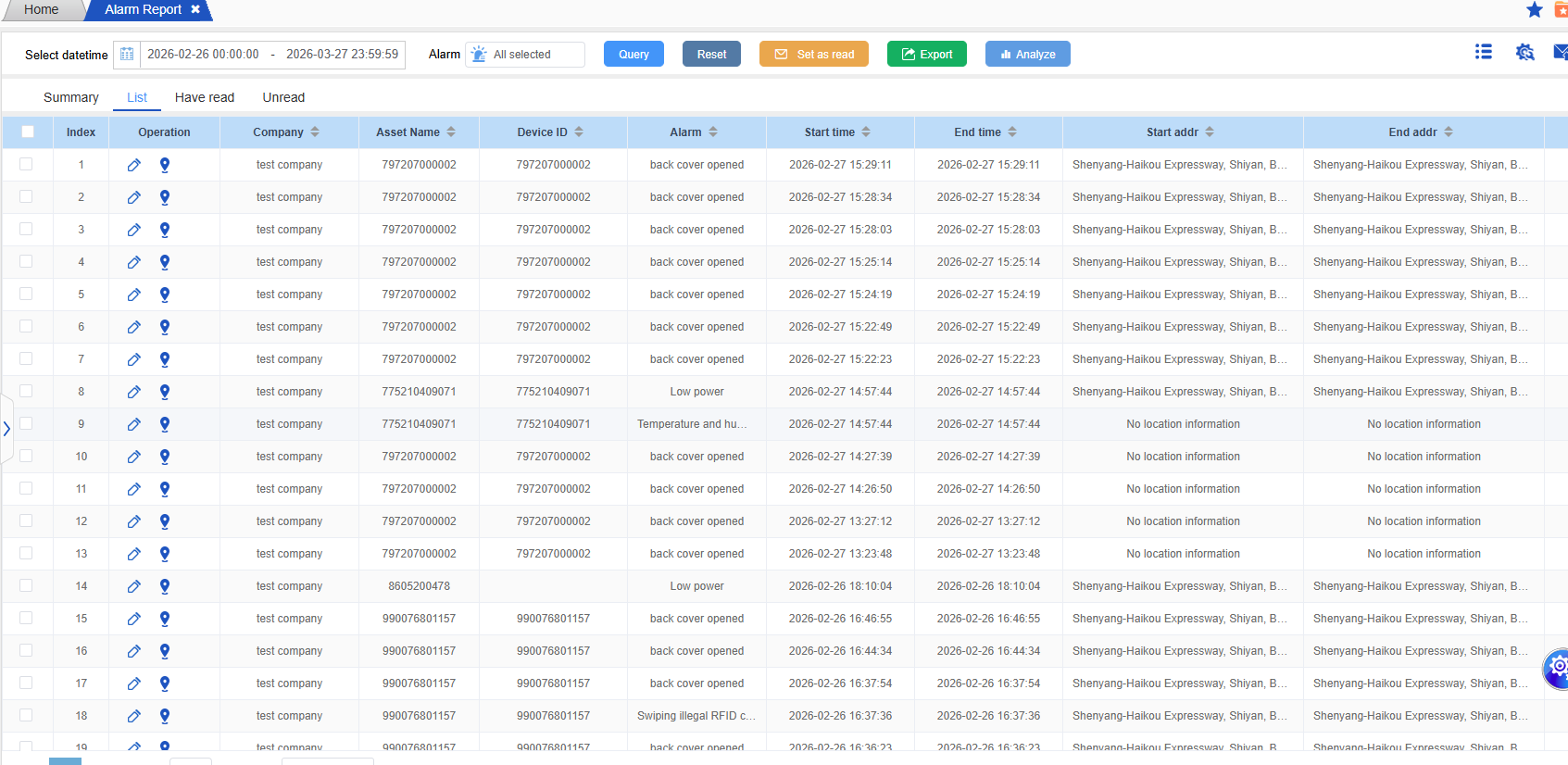
After setting the time range and alarm, click the “Query” button. The system will display the records that meet the requirements based on the selected conditions, including alarm name, alarm description, company name, box number, equipment ID, start time, and end time, etc.
Reset query conditions:
If you want to clear the set query conditions (such as time range, alarm type, etc.), click the “Reset” button, and the page will return to its initial unfiltered state.
List:
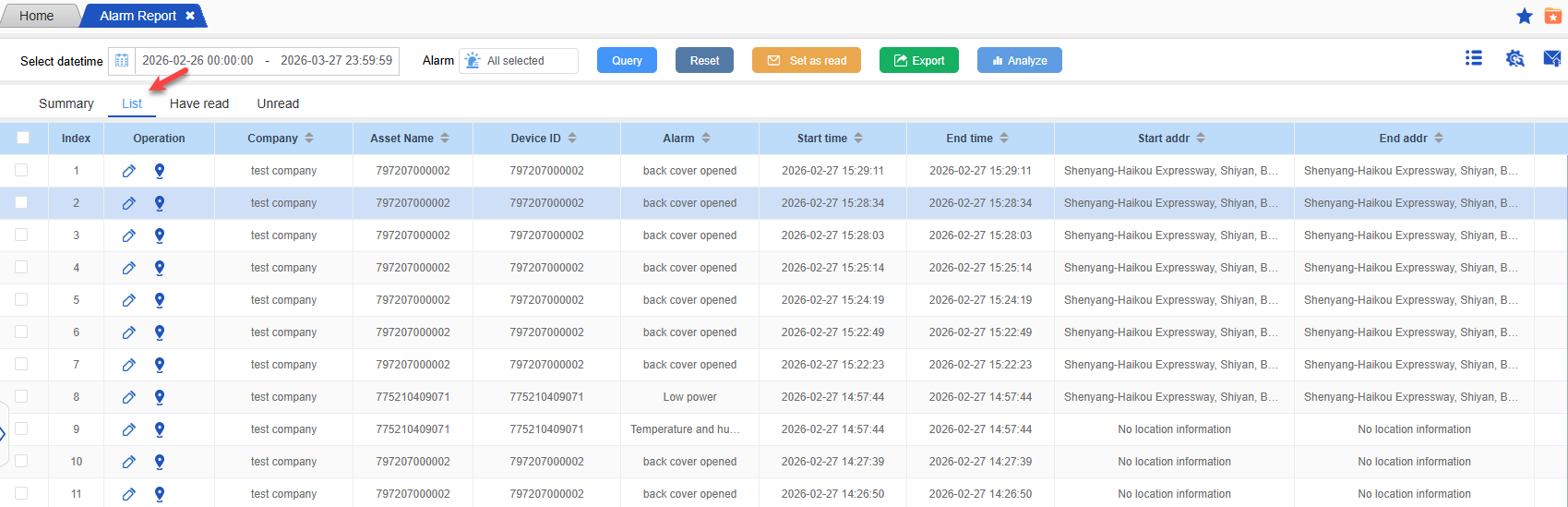
Click List pages to display the detailed alarm data of all assets;
Have Read:
Click on the Have read page to display all the processed alarm details;
Unread:
Click the unread page to display all unprocessed alarm details;
Alarm detail data of a single asset:
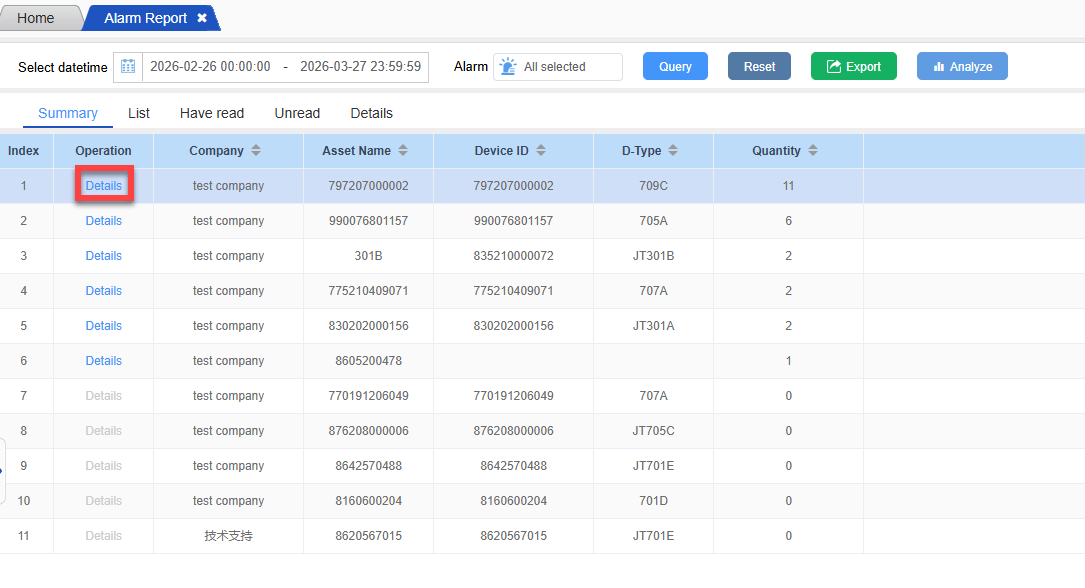
In the summary page, click on the details of a asset operation to jump to the alarm details page;
Set as read:
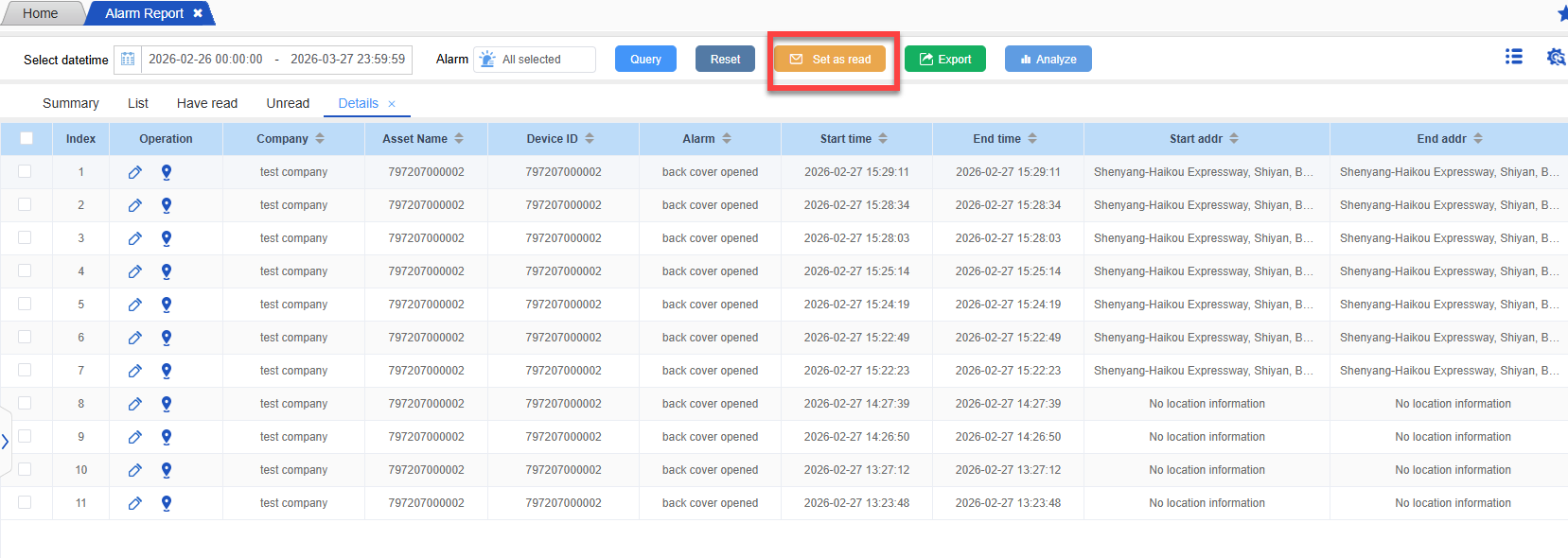
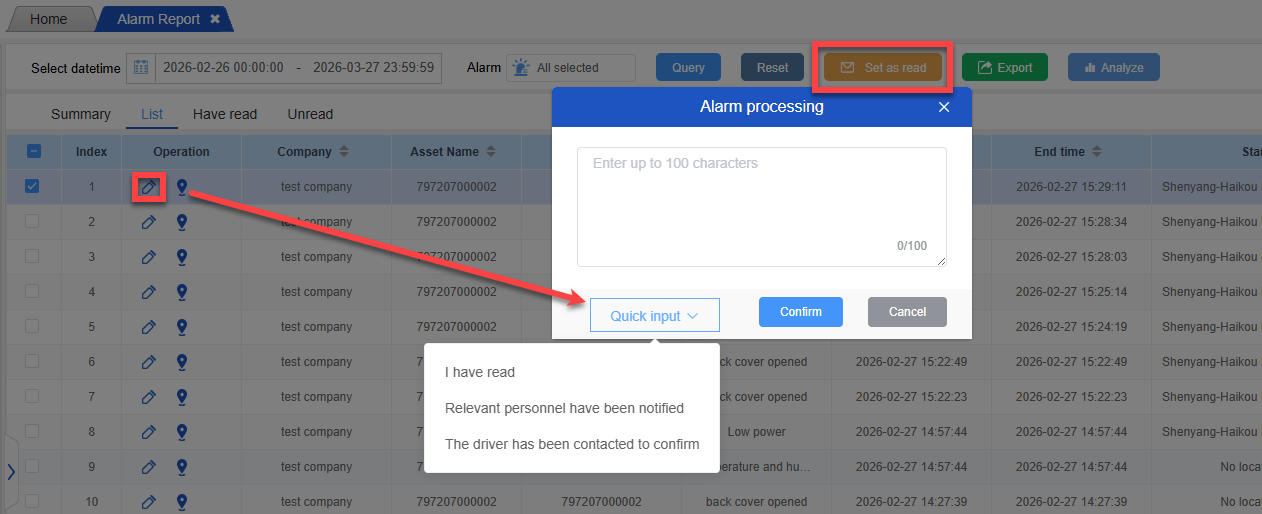
Check some alarm information, click Set as read, then the alarm information becomes processed, which is used for batch processing of alarm data;
Handling the alarm:
Click the processing word in the operation to enter the processing page, fill in the specific processing plan, and the processing is completed after submission;
Mark as Read:
Select the alarm records that need to be marked, then click the “Set as Read” button. This will mark the selected alarms as read status, which is convenient for distinguishing between unprocessed and processed alarms.
Export of list data:
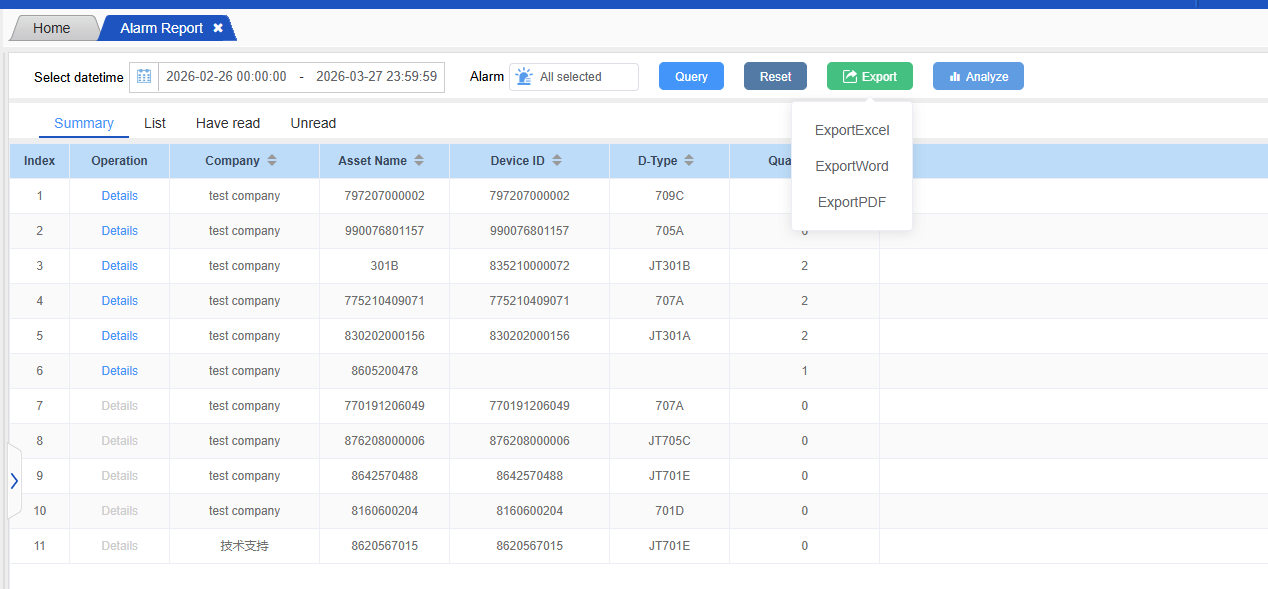
If you need to save the current displayed list of alarm notifications, click the “Export” button. The system will export the data in the specified format (such as Excel) for easy archiving or further analysis.
Data Analysis:
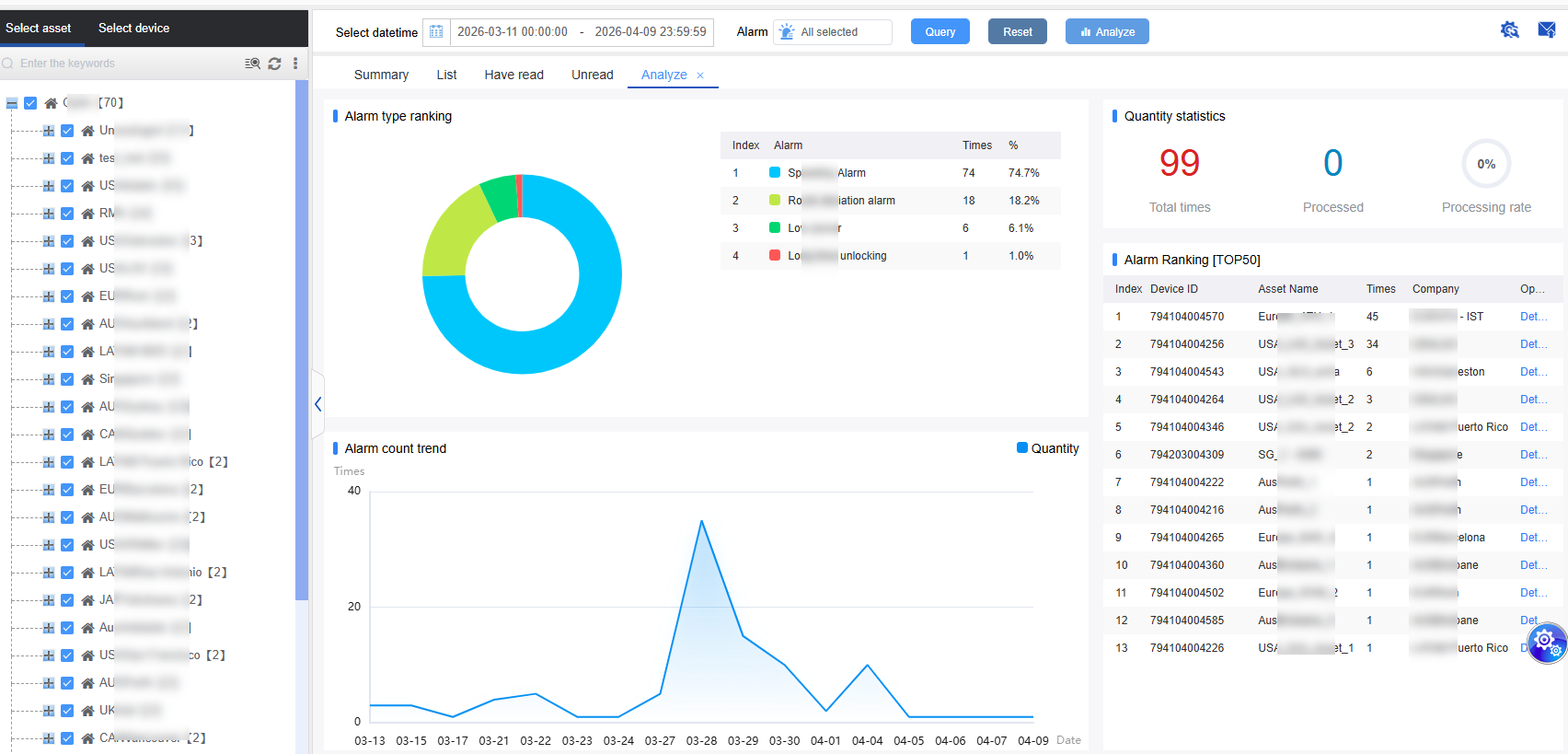
Click the “Analyze” button, and the system will conduct statistical analysis on the current displayed alarm notification data. It will present the event trends, types, and other information in various visual charts, helping you better understand the data patterns.
View location information:
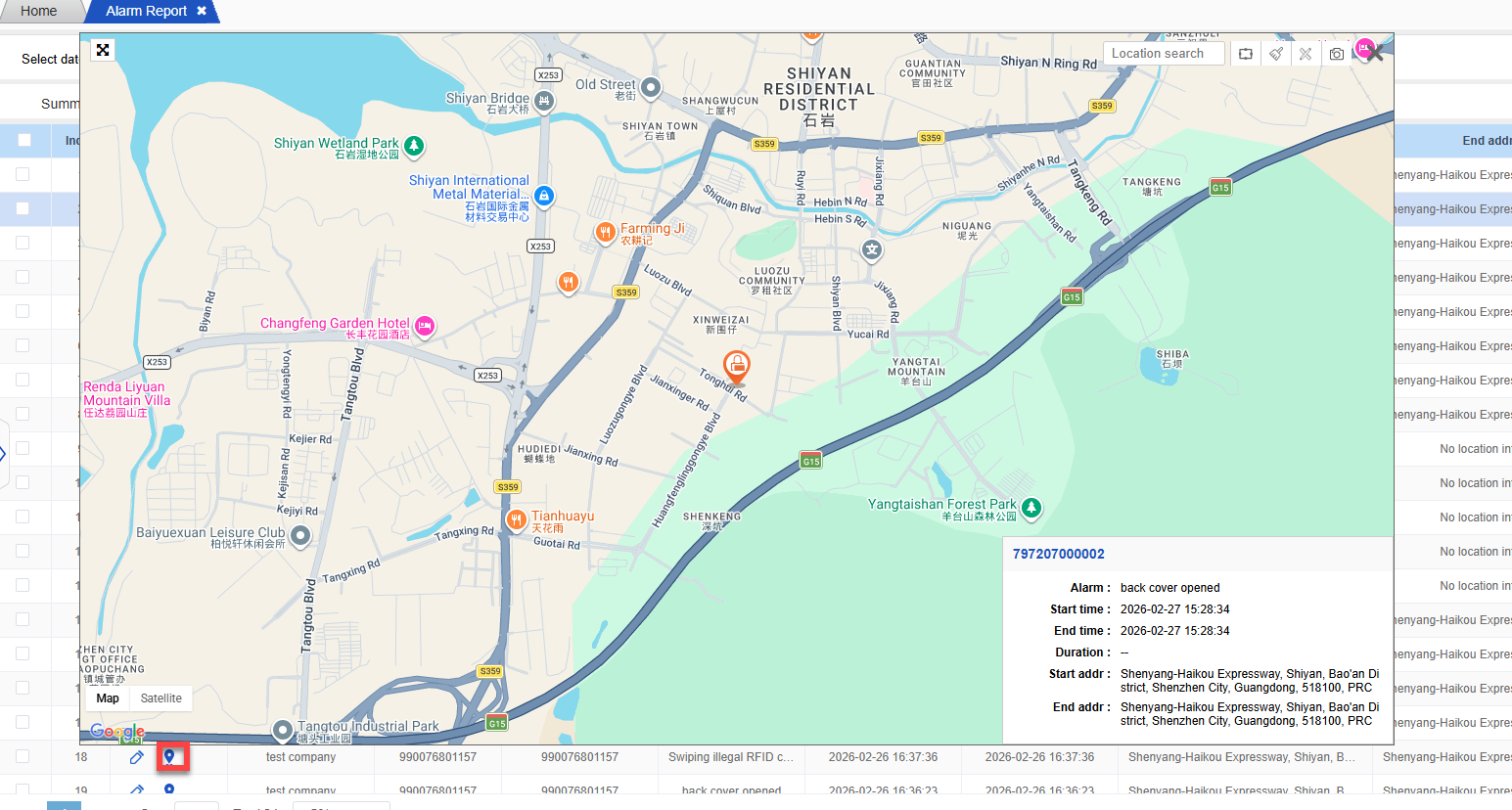
In the record list, some records may have a location icon. Clicking on this icon allows you to view the specific geographical location where the alarm occurred, providing a clear understanding of the location where the alarm happened.
Alarm configuration information:
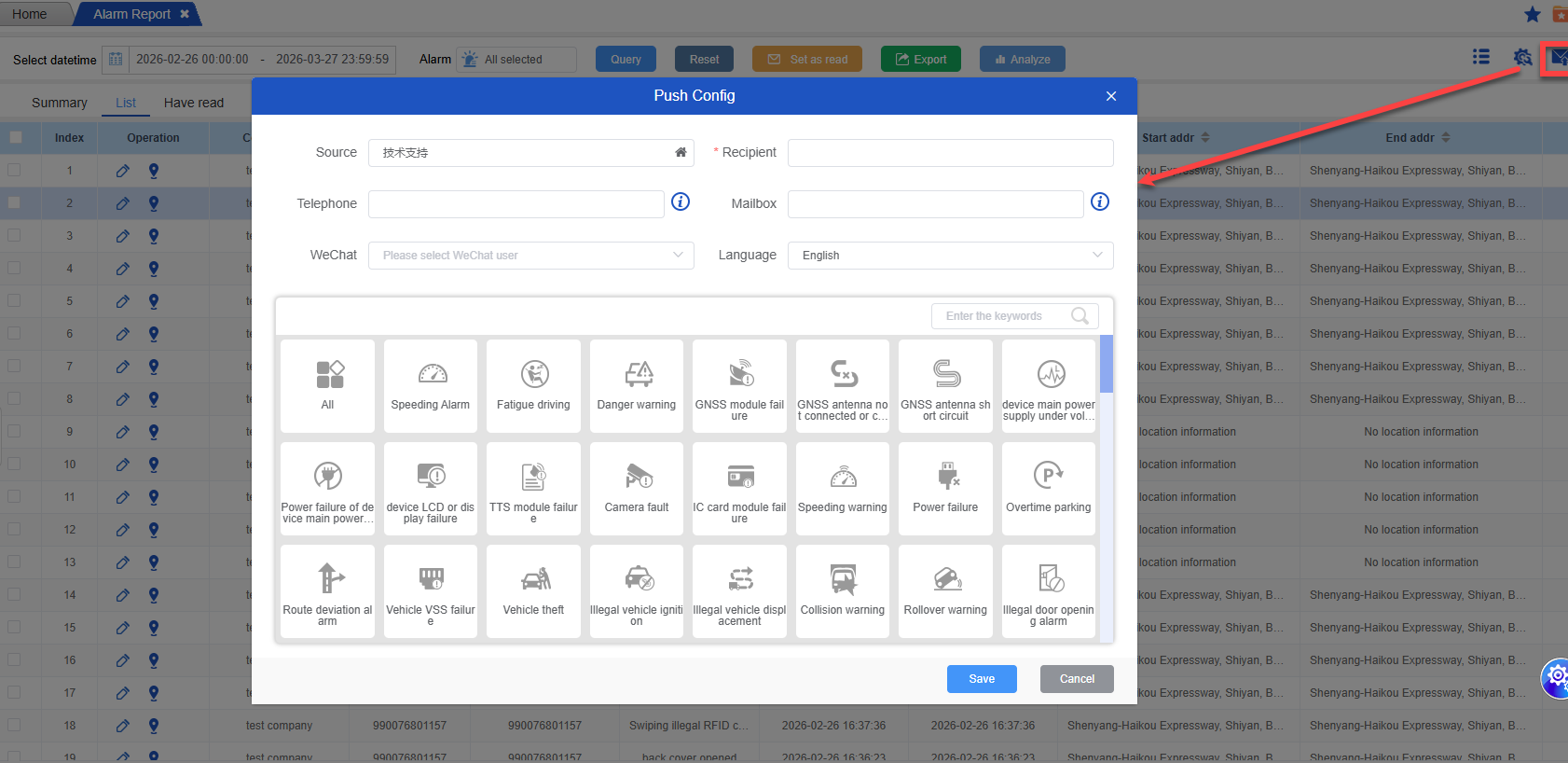
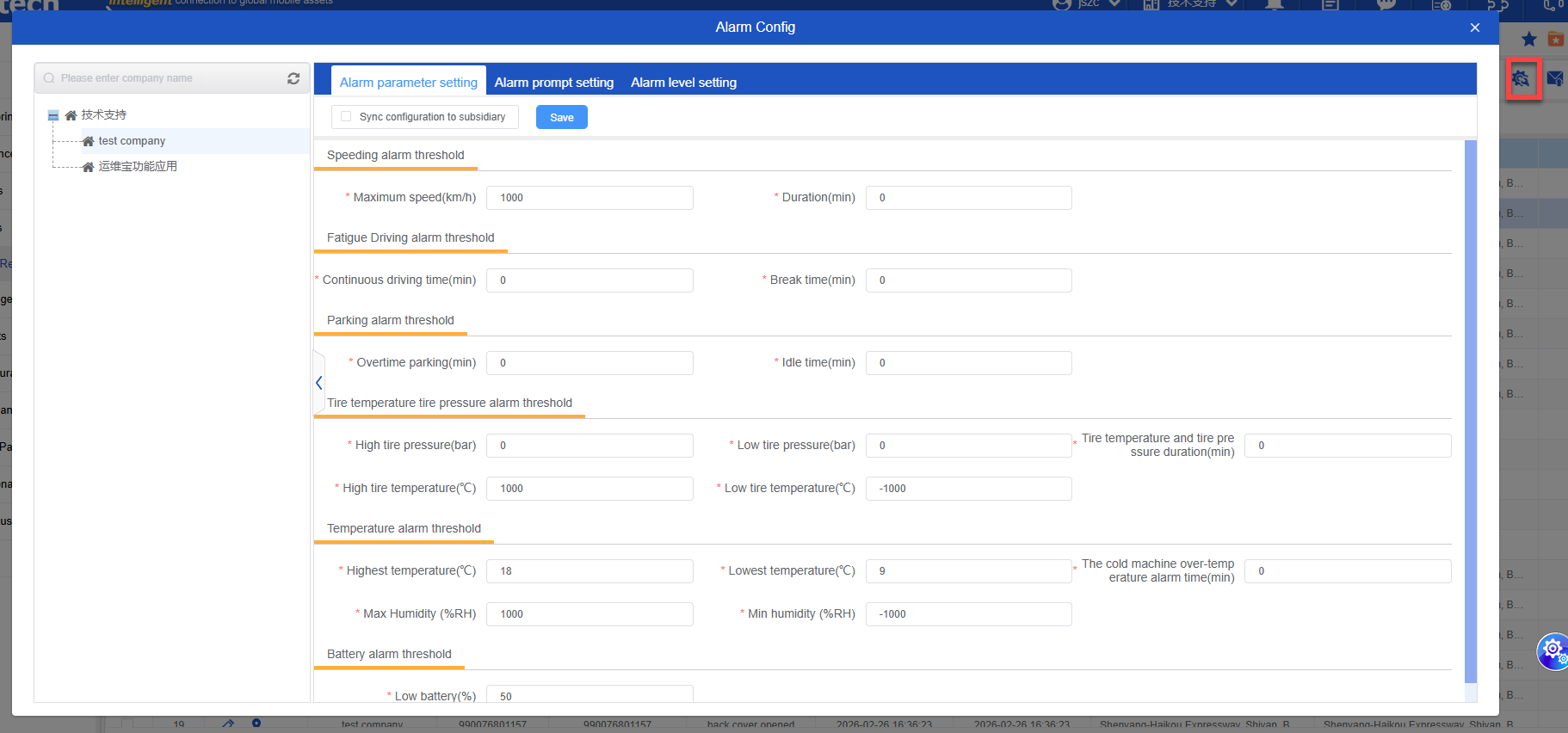
Click the settings icon at the top right corner of the page to quickly configure push notifications for the current selected company and its subordinate companies. You can set the push time, frequency, recipients, etc., to ensure that important events can be promptly notified to relevant personnel.
Alarm information push:
By clicking the envelope icon on the top right corner, you can choose to send the selected alarm information to relevant users via SMS, WeChat, etc., making it convenient to promptly convey important notifications.