Vehicle assignment is used to assign transportation tasks to vehicles. If the current vehicle is in the transportation task, it cannot be dispatched again.
Distributed vehicles:
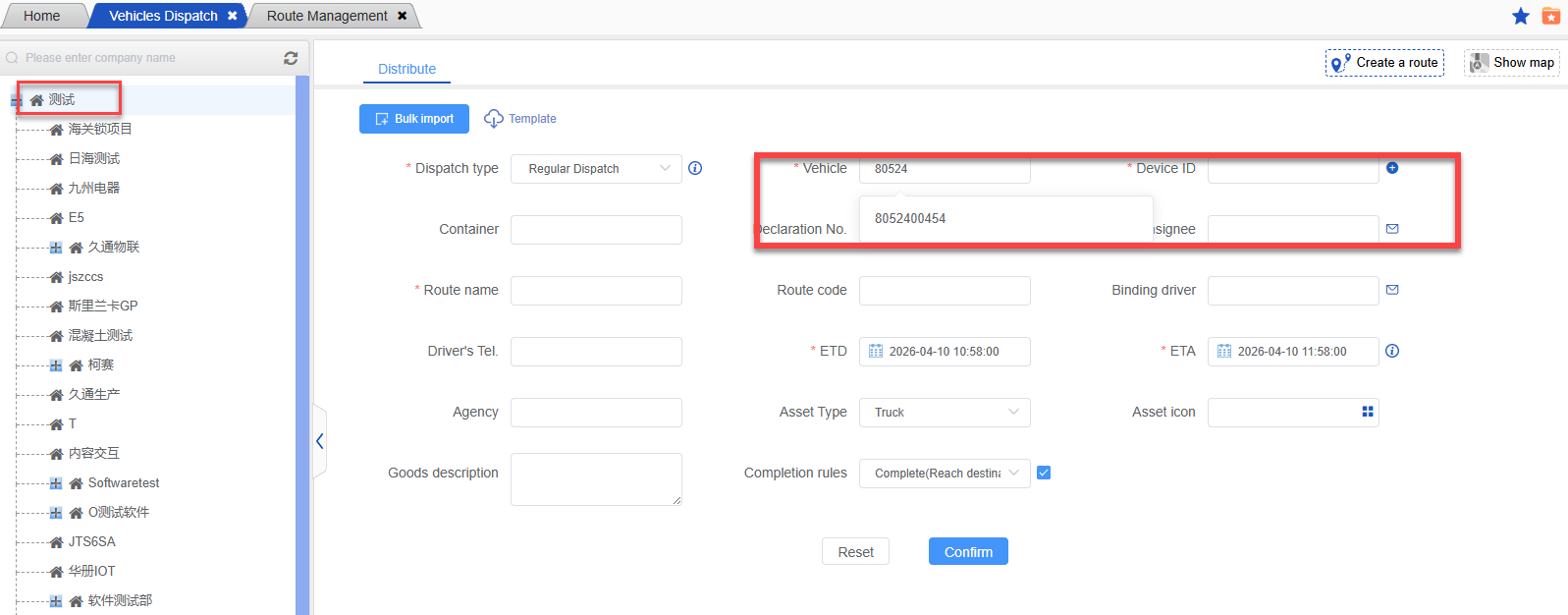
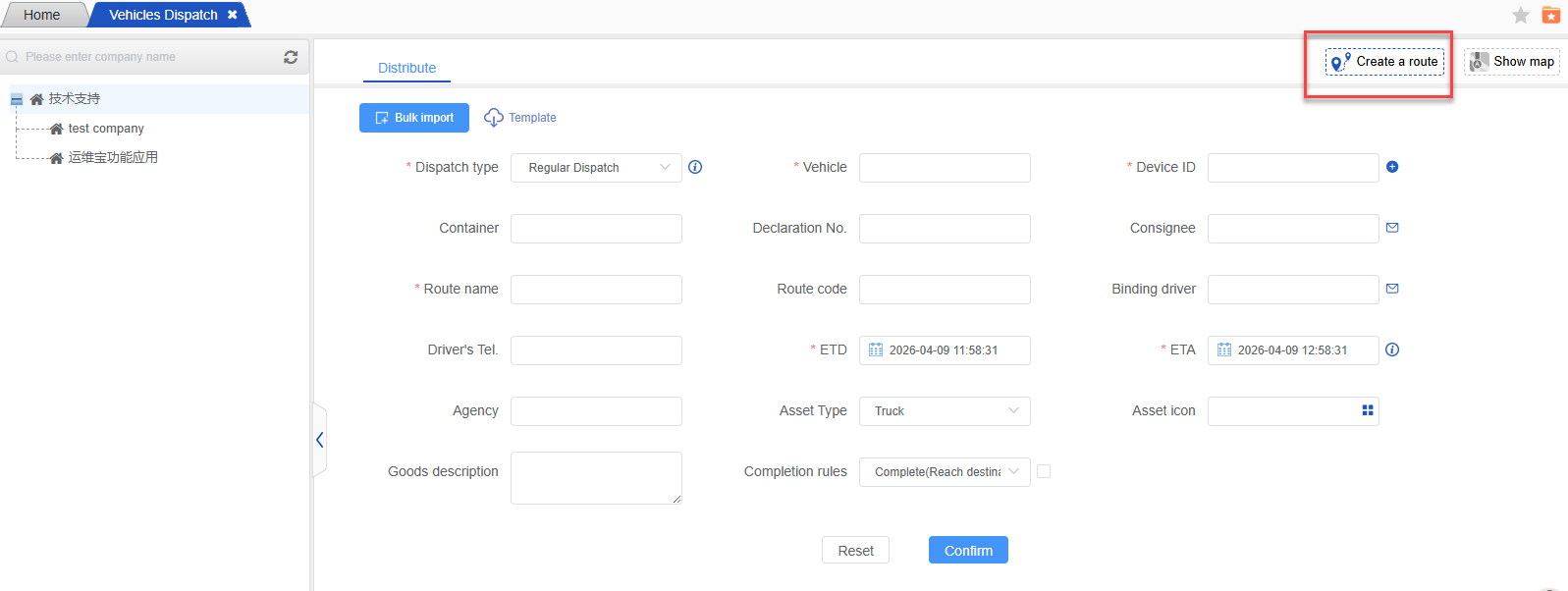
- Select the company –> select the dispatch type –> enter the vehicle or device ID, and automatically match the device information or vehicle information according to the entered content. Selecting the transport vehicle or device ID can automatically bring out the associated vehicle and device information;
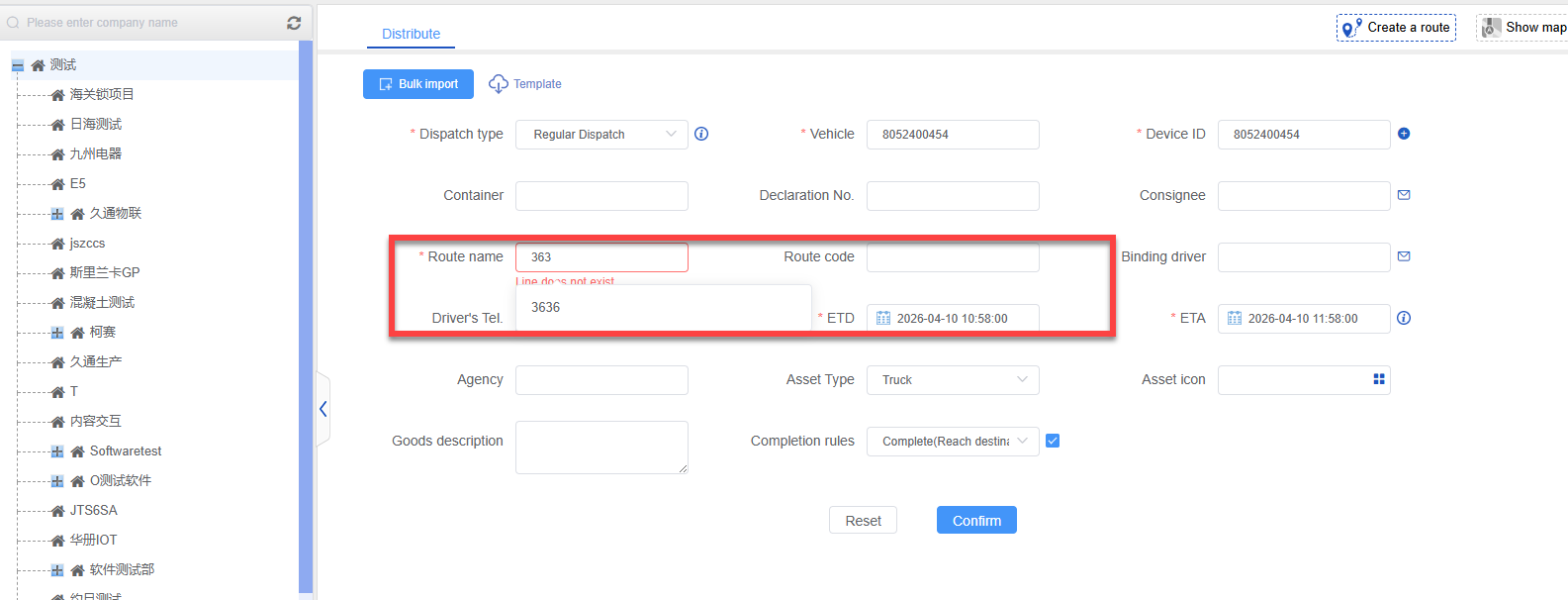
- Enter the route name, and the qualified route name will be automatically searched out, just select it and bring out the associated route code;
Enter the driver’s name and it will automatically search for drivers who meet the criteria. You can select one, or you can directly enter the driver information that is not already in the system.
Then select the estimated time of depature(ETD) and estimated time of arrival(ETA) , and then enter other relevant information to dispatch the vehicle;
The red * symbol indicates that it is a mandatory field. Other information can be optionally filled in according to your needs.
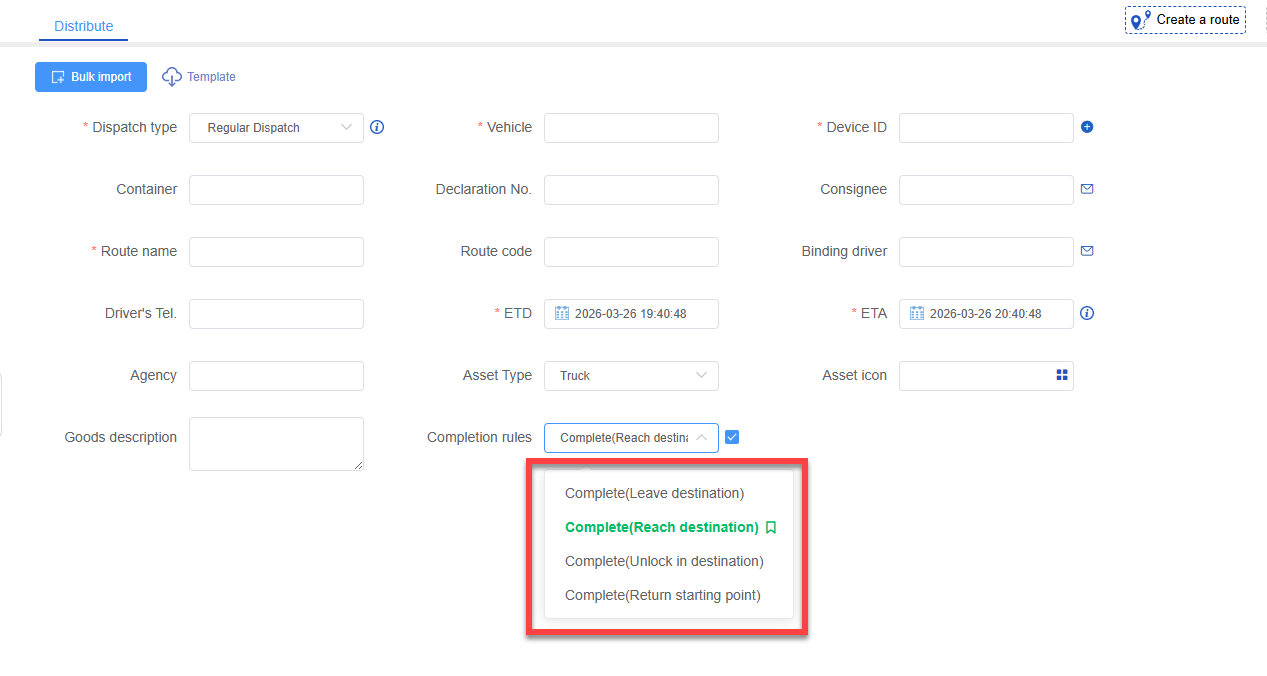
Select a completion rule, choose one of the three types and check the box, the next time the waybill is dispatched, the currently selected completion rule will be automatically used by default.
After the vehicle is distributed successfully, it can be viewed on the undispatched page in the dispatch list module.
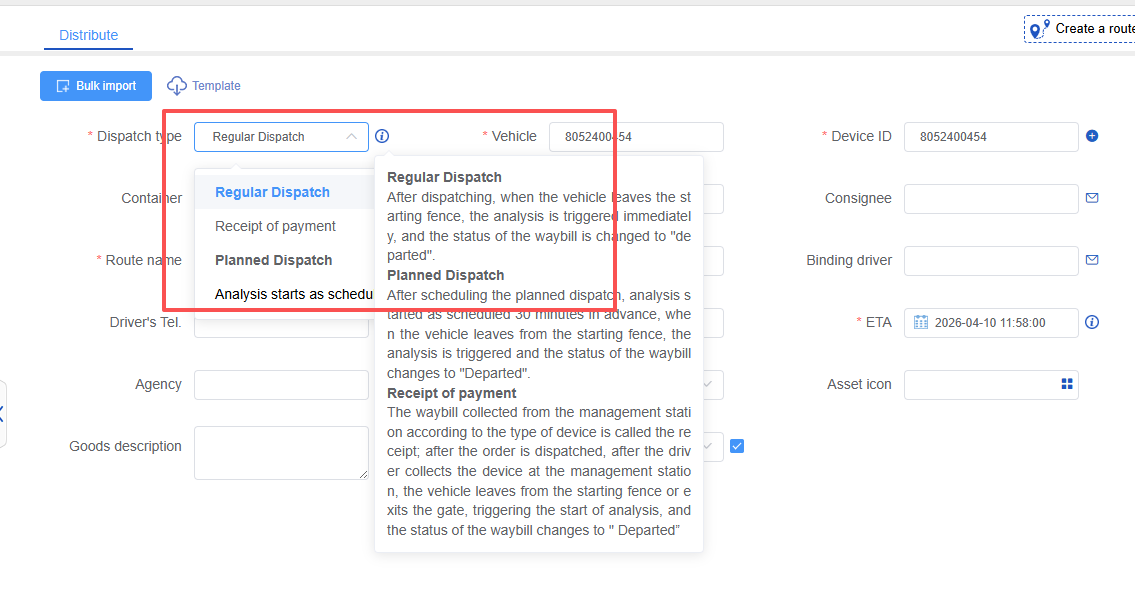
The type of waybill has added a planned order. The waybill will be triggered x time in advance of the set plan time, and the status will be changed from plan order to undeparture status. When the vehicle starts out of the fence, the status will change from undeparture to departure.
The waybill dispatch interface enables the quick creation of routes for selection.
Batch Import:
In addition to dispatching tasks to vehicles individually, the system can also dispatch tasks to multiple vehicles at the same time through batch import.
- First download the template and fill in the import information;

In the template, you must fill in the equipment ID, transport vehicle, line name, planned departure time, and planned arrival time. Other information can be filled in according to the actual situation;
Click Batch Import, click Save after the data import is successful, and the trains will be dispatched successfully, which can be viewed on the undeparture page of the dispatch list.

Email notification:
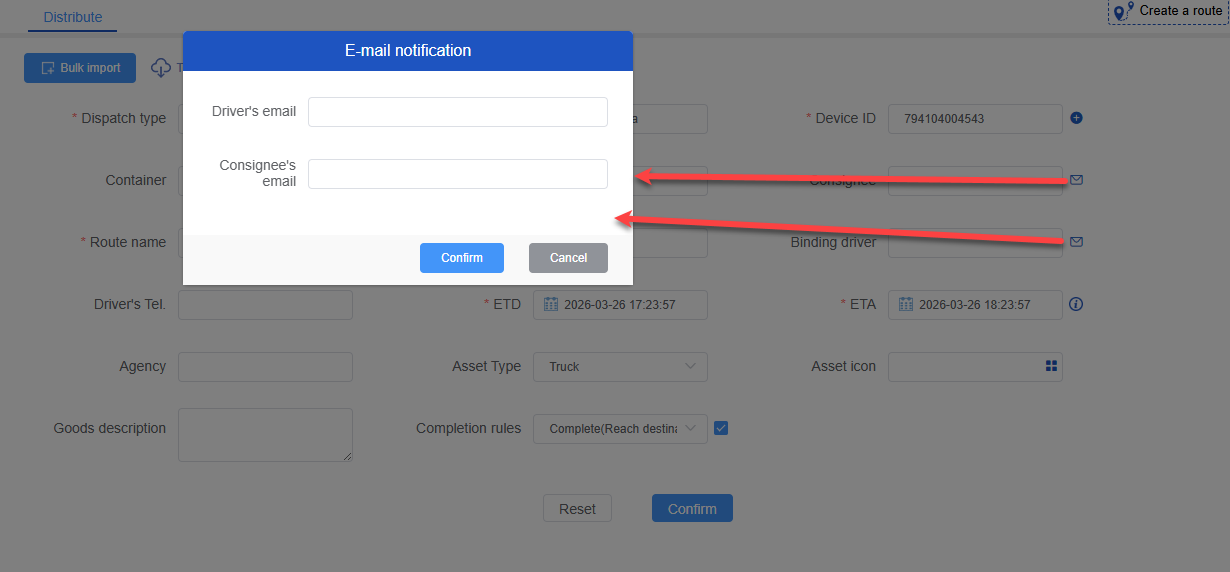
Click on the email icon to fill in your email address. When the delivery slip is issued, the slip details will be automatically sent to your email. Batch delivery is also supported.