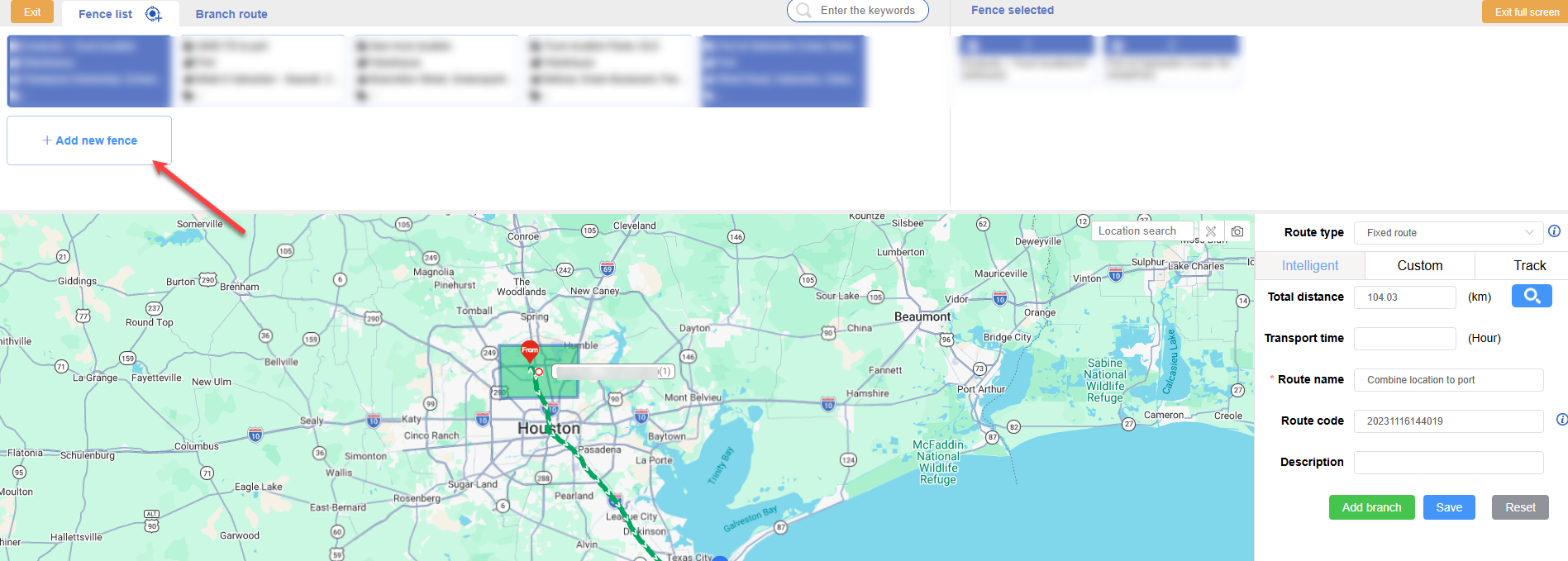
Route management is used to set routes. The starting place, route place, and destination of each route. After the route is established, transportation tasks can be assigned to vehicles, and transportation tasks can be carried out according to the set route.
Open the route management interface and you can see the overall effect. Here, you can perform operations such as creating a new route, editing it, viewing details, and configuring alarms.
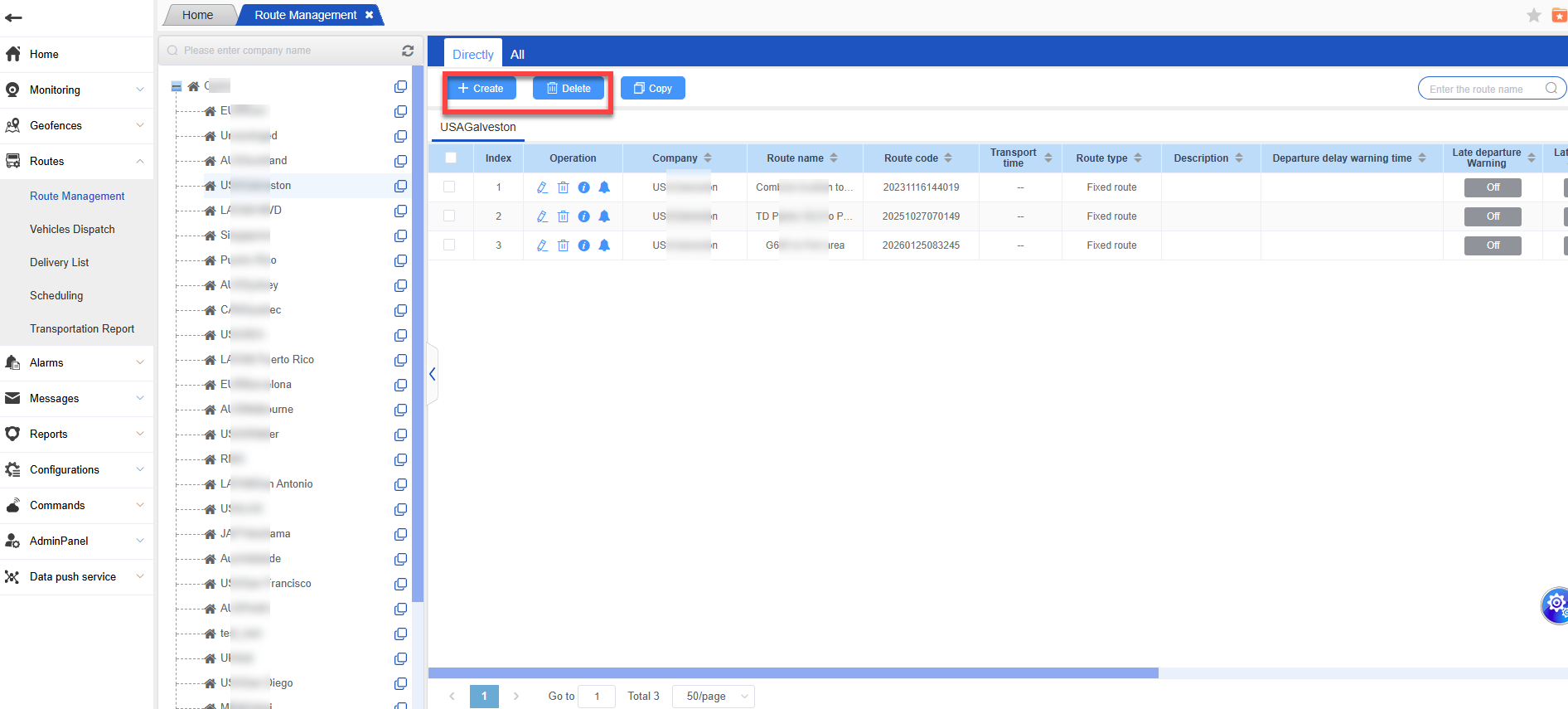
Create New route:
Before creating a new route, each fence information must be drawn in the geofences management;
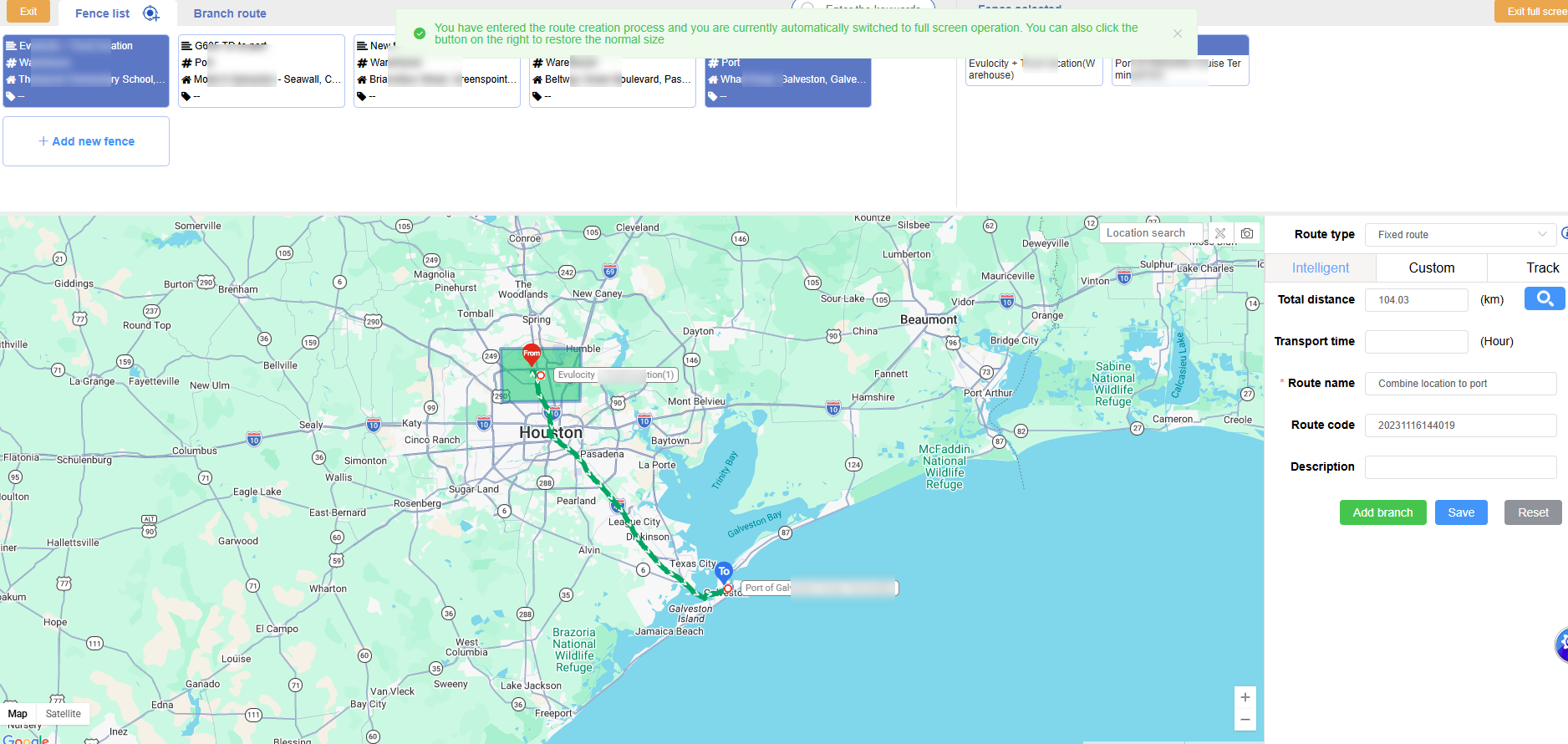
Enter the route creation page and select the starting fence, path fence, and end fence of the route. There can be multiple path fences. The route type can be selected according to business needs and is divided into fixed routes and streamlined routes.
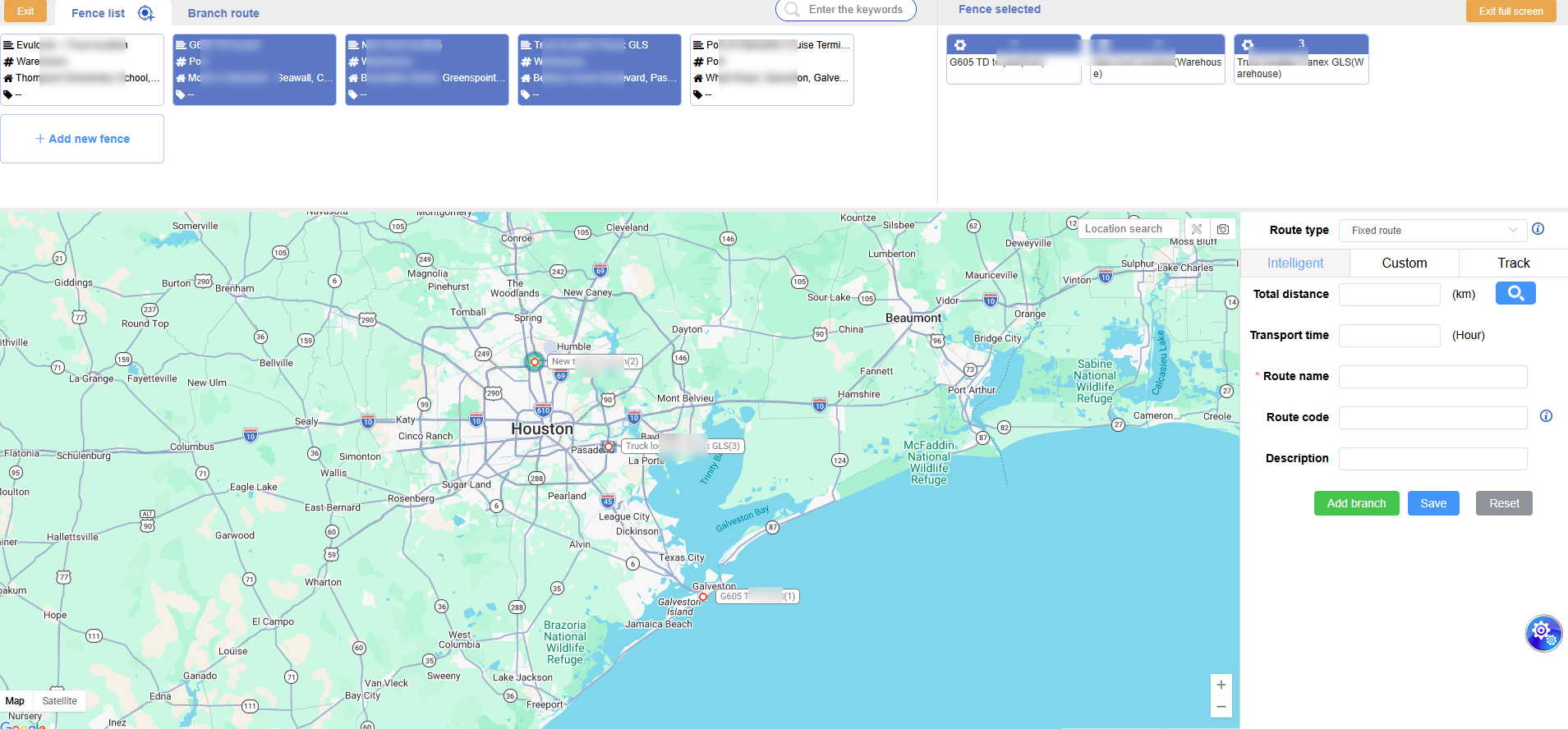
- In the selected fences page, the order of fences can be adjusted by dragging, and can also be added or deleted.
Route planning:
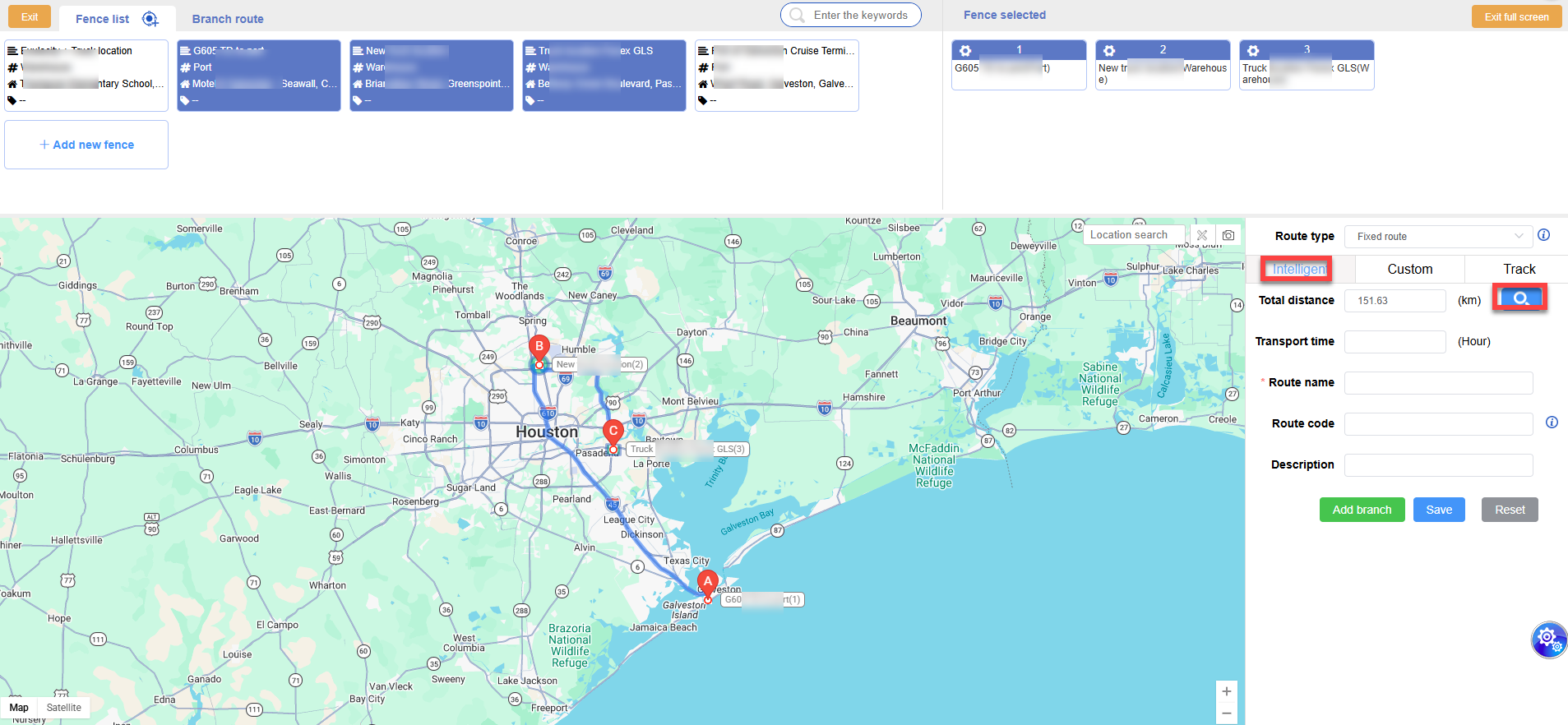
- Intelligent planning
Intelligent planning is the function of the Map API itself to plan the route, which will plan out the optimal route. After planning the optimal route, enter the line name and save it. The line code can be entered manually, otherwise it will be automatically generated based on the year, month, and day.
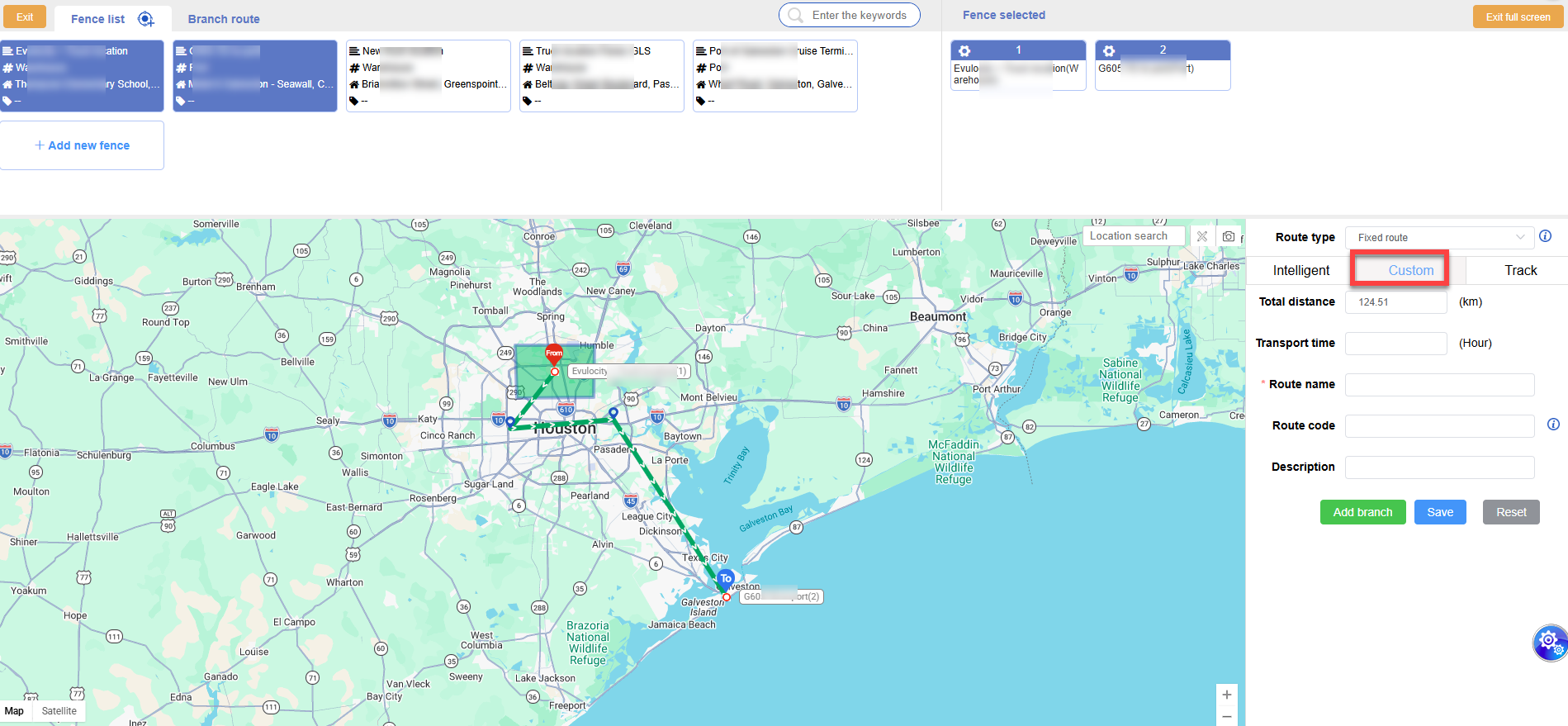
- customize
After selecting the fence, manually plan the route by using the mouse to draw points. When you finish drawing the points and need to end, double-click the left mouse button to end, and the route connection is completed.
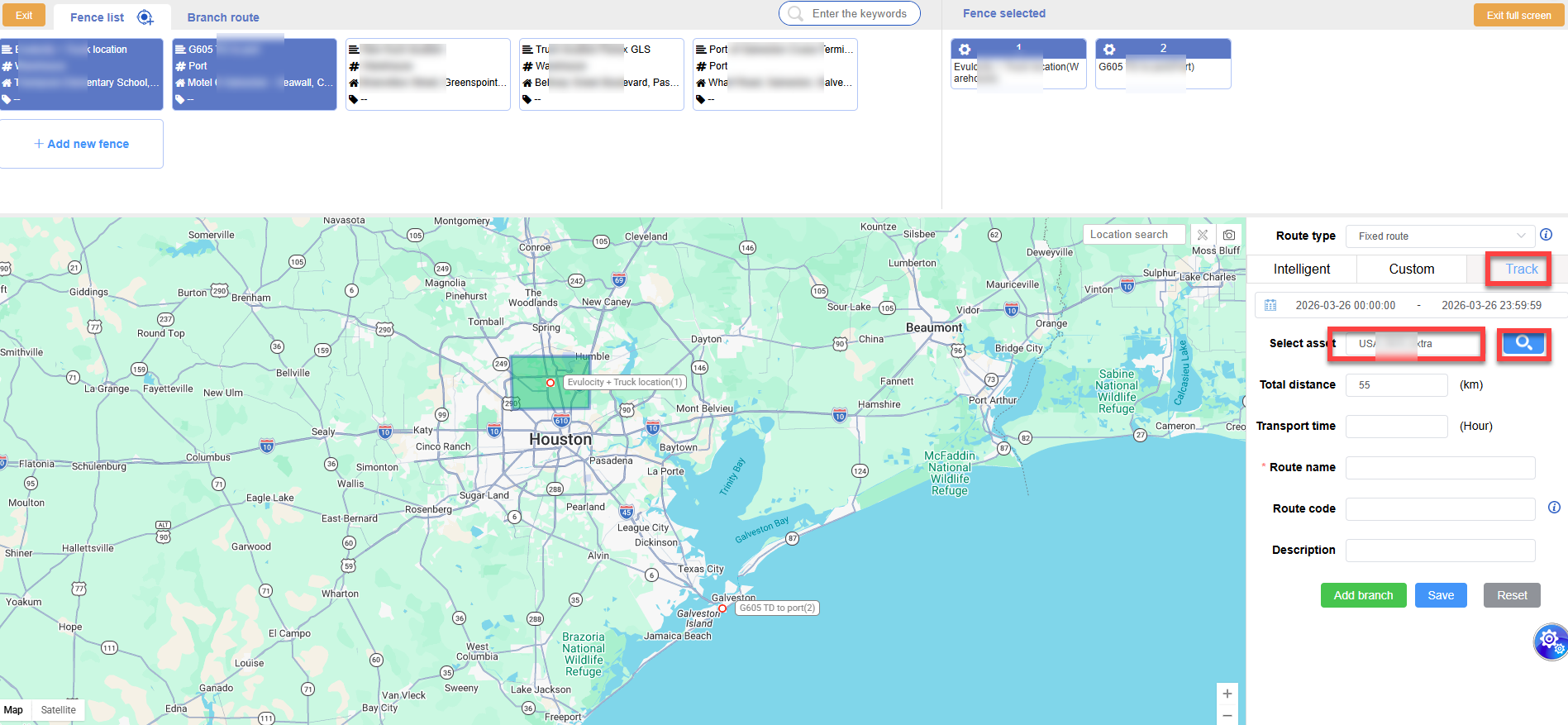
- Existing tracks
Setting the route according to the tracks that the vehicle has run is also a very common planning method;
After selecting the date and vehicle tracking, enter the line name and save it to plan successfully.
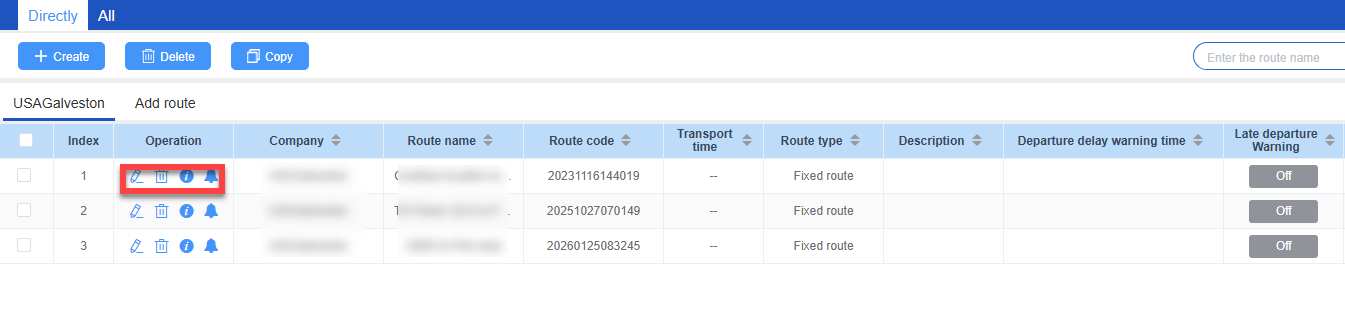
Edit route:
You can maintain the existing route, click the modify icon in the operation to enter the modification page, and the operation is the same as creating a new route;
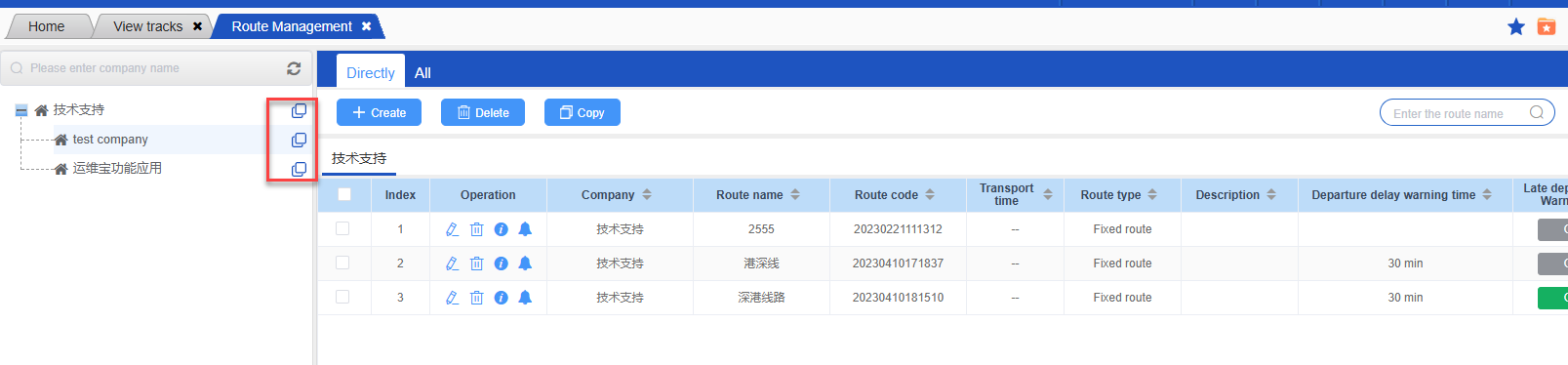
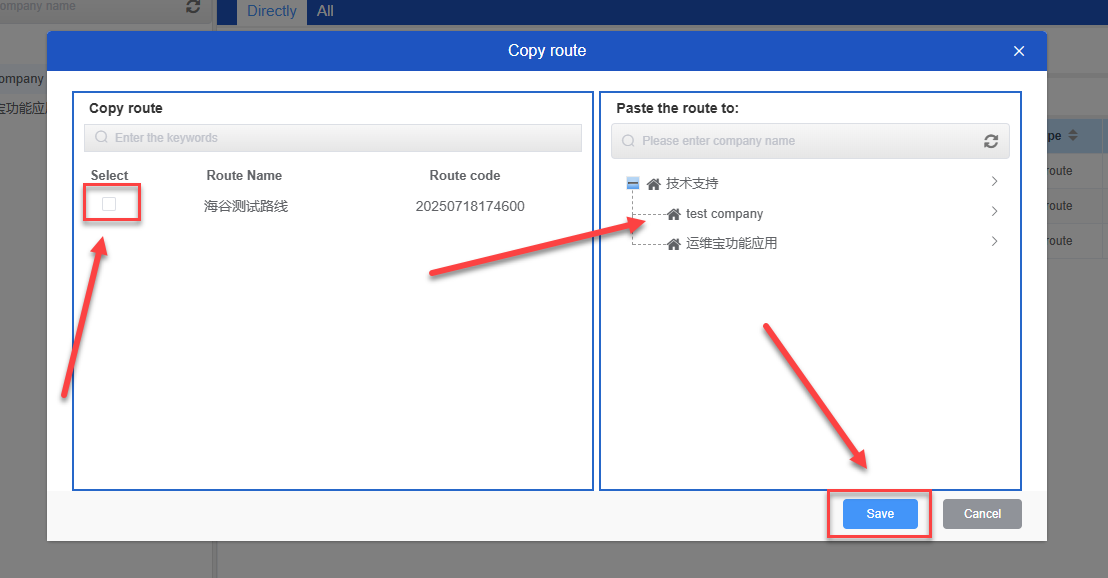
Copy route:
Copy the route by selecting the company tree and fence.
Route details:
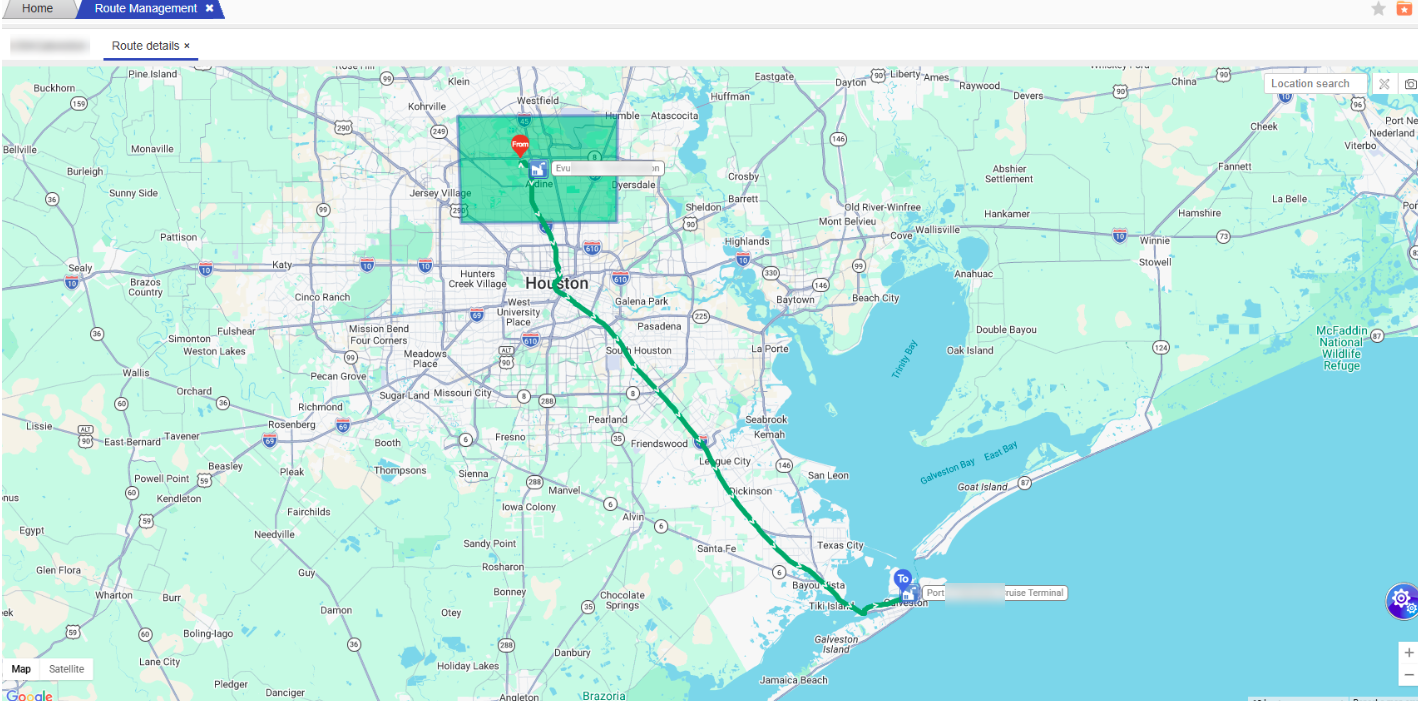
In the operation, click the route details icon to view the planning status of the route on the map, which is very intuitive.
Alarm configuration:
When the vehicle is driving on the route, some alarm information will be set. If the alarm condition is reached, the corresponding alarm information will be generated, which is convenient for managers to supervise the vehicle. Click the alarm configuration icon in operation to enter the configuration page;
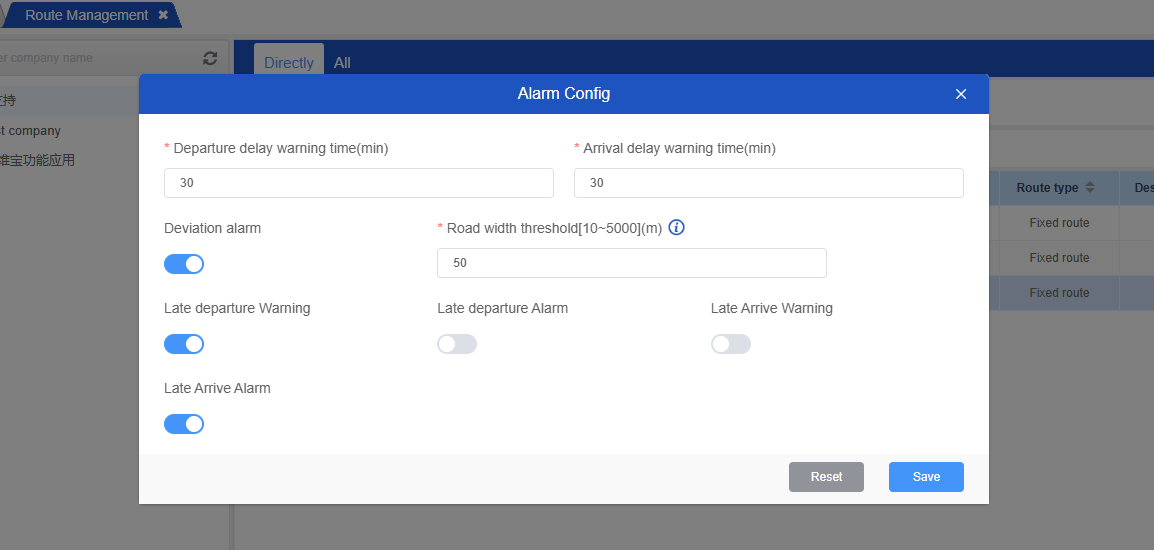
You can set the value of late set off pre-warning, late set off warning, late arrival pre-warning, late arrival warning, maximum parking time, road deviation warning, and maximum speed limit, and turn on these alarms. The maximum parking time here refers to the fence Parking time.
In addition, for the route alarm configuration, all related alarms will be enabled by default, and it is allowed to set the road offset alarm road width threshold (the road width threshold used for road offset alarm analysis). When the vehicle positioning deviates from the center of the route by more than this width, an alarm will be triggered.
All generated alarms can be viewed in regular alarms report.
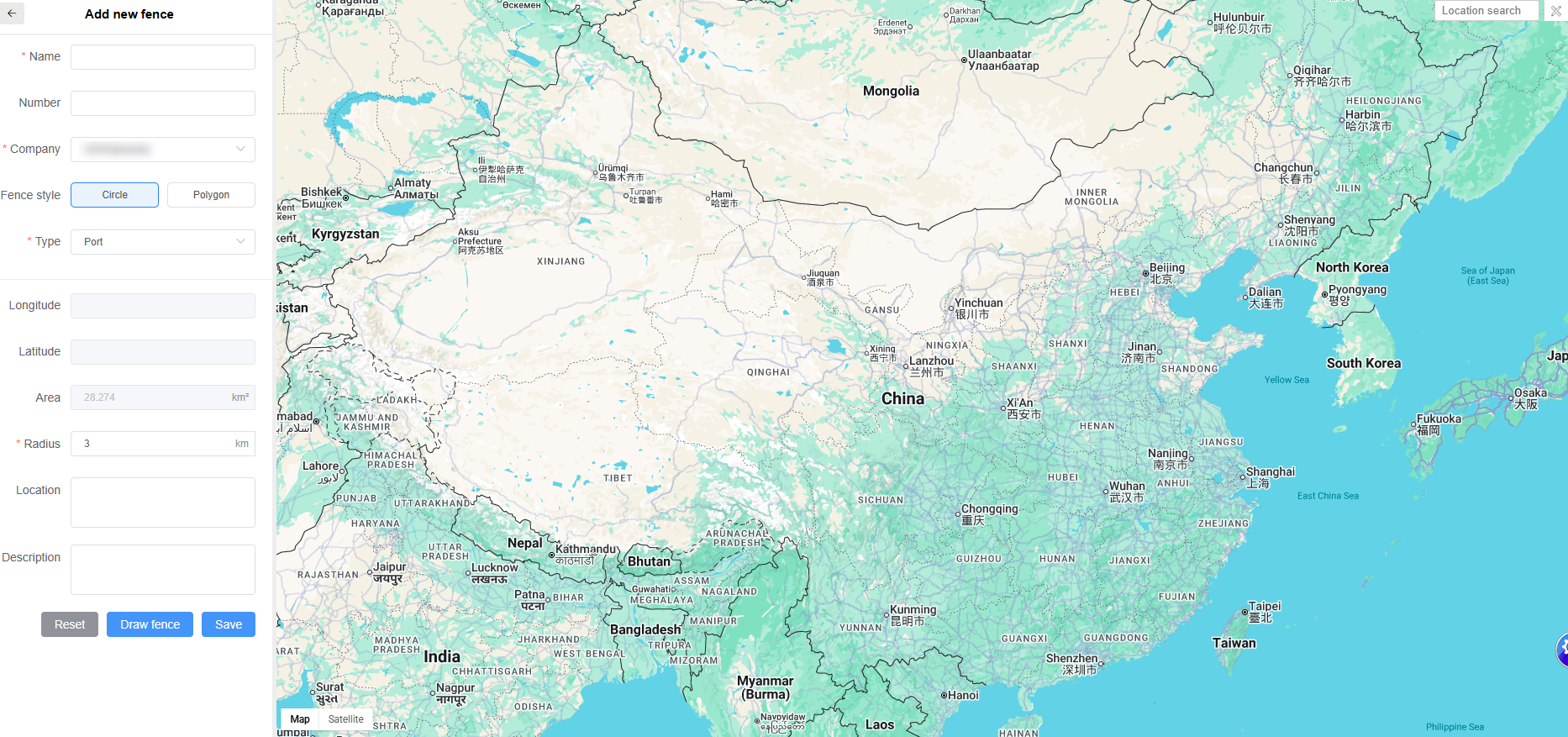
Create new fence:
Clicking on the “Add new fence” will redirect to the “Add” page. You can search for the address area in the upper right search box to view the map and it will display the searched area. The fence styles include circular and polygonal options. Enter the relevant information and save it.